Collaborations in Inbox, Calendar and Earnings
How brand emails get labelled with their deal in Inbox, the follow-ups rail, follow-ups and deal dates on the Calendar, and how deals land in the Earnings ledger.
Collaborations shares its data with three other parts of Pointerly. Brand emails in Inbox show which deal they belong to, follow-ups and deal dates appear on the Calendar, and agreed deals are tracked in Earnings.
Inbox
Labels on brand emails
An email thread is linked to a deal or a brand when:
- an agent wrote it,
- the deal's timeline already has it, or
- it comes from the email address of one of the brand's contacts.
A linked thread shows a chip in its header, Linked to deal (with the stage) or Linked to brand. It also shows an intent label based on the deal stage: Pitch, Follow-up, Negotiation, Deliverable or Payment. In the thread list, the row shows the deal, a Draft tag when an agent left one, and the next follow-up (red when overdue).
When an agent prepared a reply, the thread shows Agent draft in Drafts.
Follow-ups rail
The Follow-ups section in Inbox's left rail lists your Collaborations follow-ups next to your other follow-ups. Each row shows the deal or brand. From the rail you can mark a follow-up done or snooze it until tomorrow, for 3 days or for a week. An open thread with a linked deal also lists that deal's follow-ups.
Brands reaching out
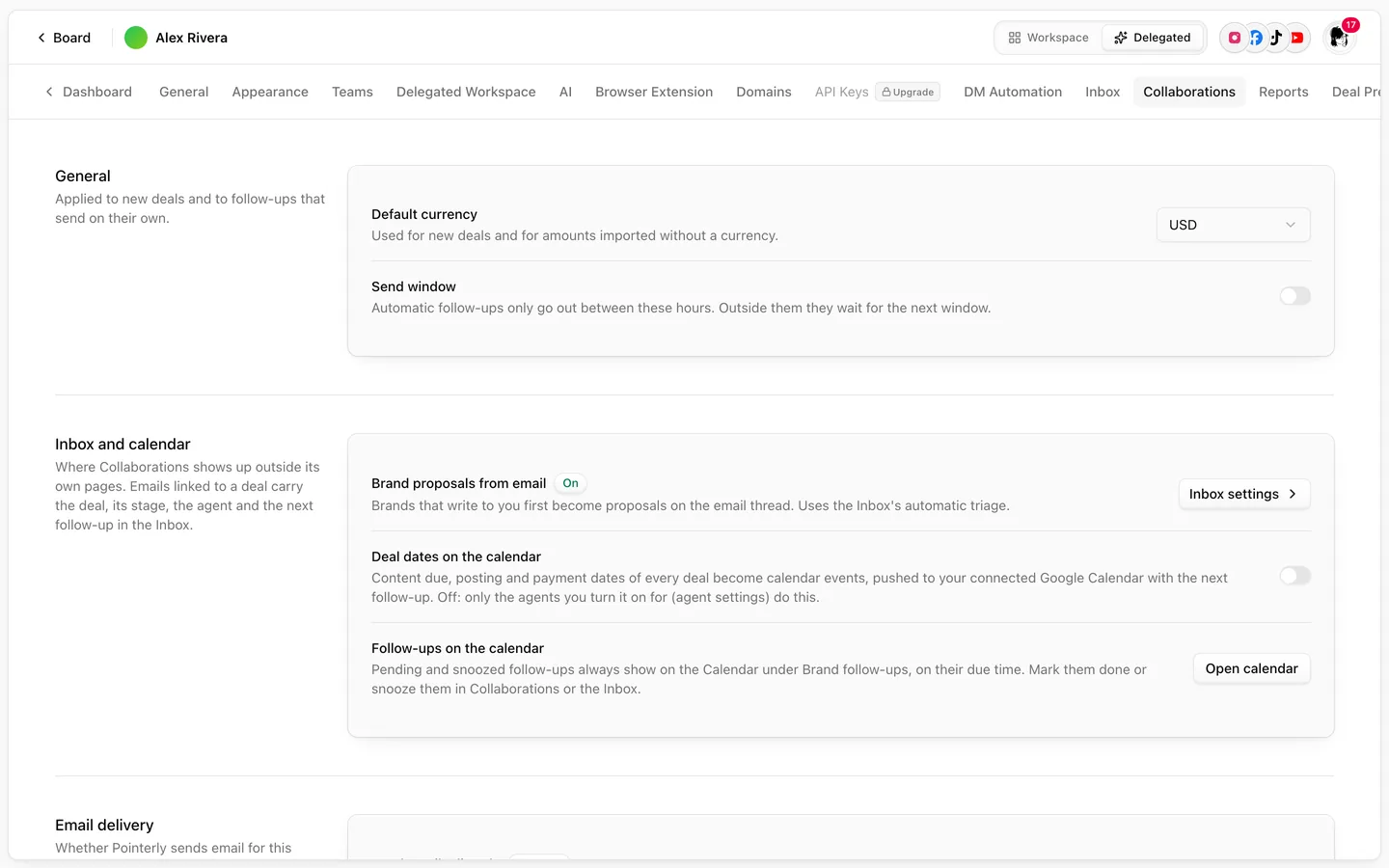
Brands that email you and aren't on a deal yet wait on Collaborations → Reaching out, where you accept them as deals or link them to one. Brand proposals from email in Settings → Collaborations → Inbox and calendar shows whether this is on; it uses the Inbox's automatic triage. See Brands reaching out.
Attachments and contracts
When an email is on a deal, its attachments are added to the deal's Files on their own, and a contract among them is ready for review. See Deal files, contracts and signing.
Calendar
- Follow-ups appear on the Calendar under the source Brand follow-ups. Open one and click Open in Collaborations to go to the deal.
- Deal dates (content due, posting date and payment due) can become calendar events too. Turn on Deal dates on the calendar in Settings → Collaborations → Inbox and calendar. They are also pushed to your connected Google Calendar.
- Events are removed when a deal is lost, archived or paid.
Both need Calendar on your plan. Without it, the settings show an upgrade badge.
Earnings
Each deal has one entry in the Earnings ledger. It follows the deal stage:
| Deal stage | Earnings status |
|---|---|
| Agreed, Contracted, In production, Delivered | Expected (forecast) |
| Invoiced | Invoiced |
| Paid | Paid, with the amount received |
| Closed lost, Nurture, or back before Agreed | Cancelled |
The deal's Money tab shows its value, pricing, win probability, deliverables total, invoice due date, what was paid, and its Earnings status. Click Open in Earnings to see the entry in the ledger.
Marking the entry as paid in Earnings also moves the deal to Paid.
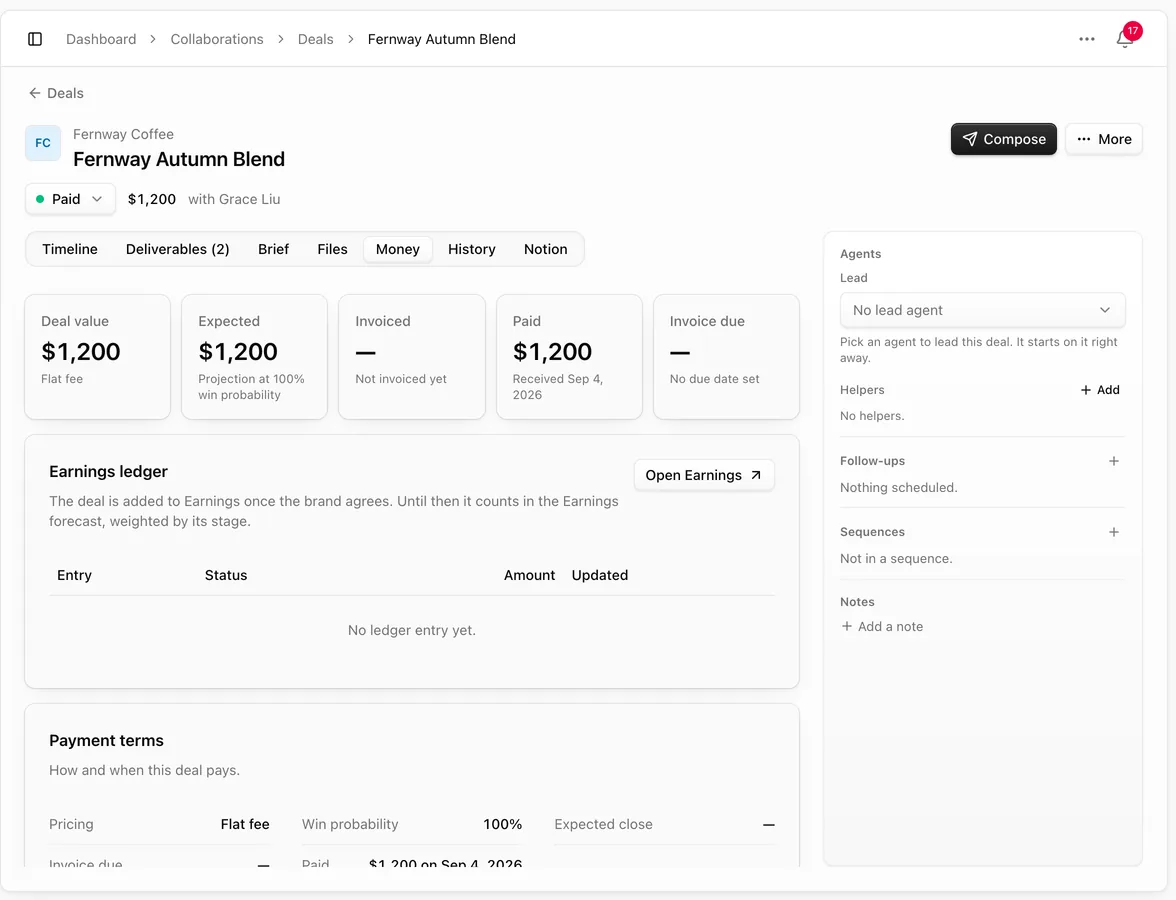
Viewing the ledger needs Earnings on your plan. Without it, the Money tab shows See plans. The entry is still kept, so it's there when you upgrade.
Common questions
A brand's email isn't linked to its deal. Add the sender's email address to the brand's contacts. Threads from that address are then linked.
Why isn't my deal in Earnings? A deal is added once it reaches Agreed. Before that it shows Not in earnings yet.
Do deal dates sync to Google Calendar? Yes, when Deal dates on the calendar is on and Google Calendar is connected in Integrations.