Collaboration agents
Create agents that prospect, pitch, answer brands and follow up: templates, instructions, rules, rate card, seasons and Try a quote, the Teamwork hand-off, mailboxes per agent, triggers, budget, Run now, approvals with draft delivery, and chatting on a deal.
An agent works your collaborations for you. It reads your CRM and the mailboxes you give it, answers brands, quotes from your rate card, pitches and follows up. It never acts behind your back: anything you haven't allowed it to do on its own waits for your approval, and its emails stay drafts until you let it send.
A common setup is two agents. A Prospector finds brands and sends the first pitch, then hands the deal to a Deal manager that answers the brand, negotiates within your rules and follows up.
Before you start
- The Collaborations add-on. Your plan sets how many agents you can have and how many runs they get per day (see Collaborations pricing and limits).
- To read and answer email, a mailbox connected in Inbox.
- Agent work uses your AI credits. Email and other private data only go to AI models that never train on your data (see AI settings and sensitive data).
The Agents page
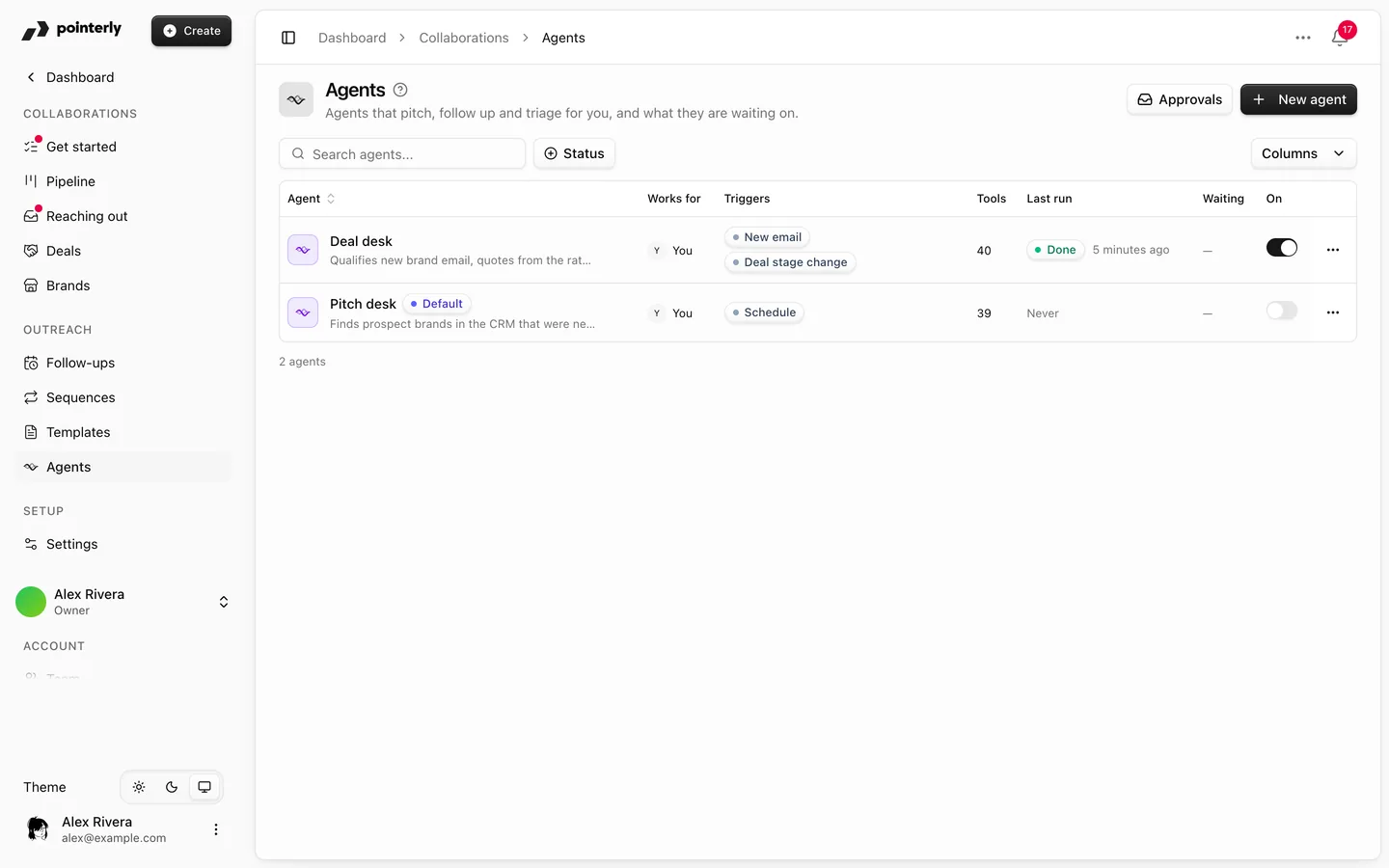
Collaborations → Agents lists your agents with who they work for, their triggers, their last run and how many approvals are waiting. Two controls at the top apply to every agent:
- Agents running: turn it off to pause all agents at once. No run starts, runs in progress stop, and nothing is sent on its own. Approvals still work.
- Daily email limit per mailbox: how many emails agents may send on their own from one mailbox per day. Past it, emails wait for your approval.
Create an agent
- Click New agent.
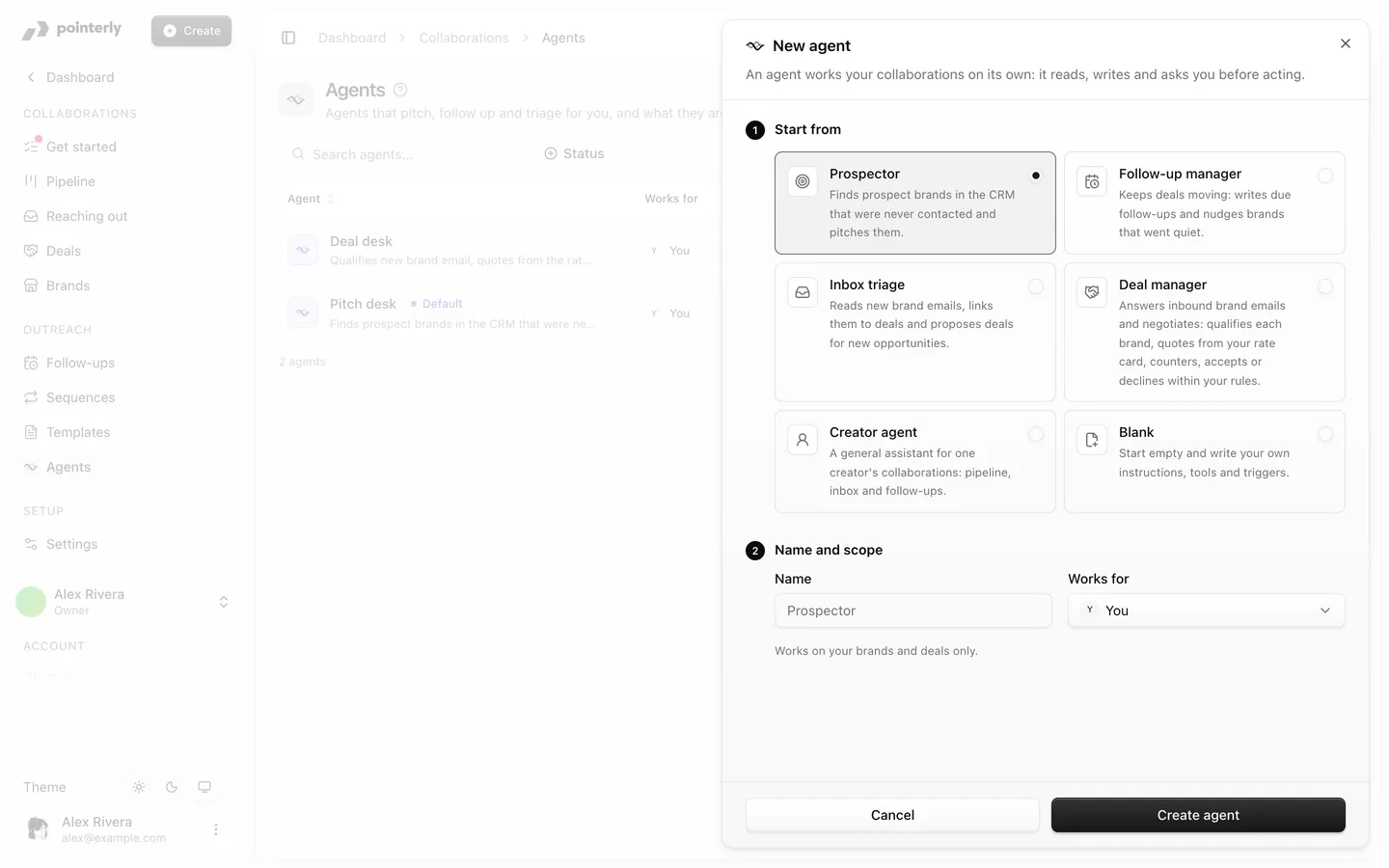
- Start from a template:
| Template | What it does | Starts with |
|---|---|---|
| Prospector | Finds brands in your CRM that were never contacted and pitches them | Weekly, Monday 10:00 |
| Follow-up manager | Writes due follow-ups and nudges brands that went quiet | Weekdays 09:00 |
| Inbox triage | Reads new brand emails, links them to deals and proposes deals for new opportunities | On each new email not linked to a deal |
| Deal manager | Answers brand emails and negotiates: qualifies each brand, quotes from your rate card, counters, accepts or declines within your rules | On each new email, and when a deal moves to Negotiating |
| Creator agent | A general assistant for one creator's pipeline, inbox and follow-ups | No trigger |
| Blank | Your own instructions, tools and triggers | No trigger |
- Name it and pick who it works for: one member, or The whole team.
- Click Create agent. Nothing is created before that.
Set it up
An agent's page has the tabs Overview, Instructions, Sources, Tools & autonomy, Triggers, Budget & settings and Runs. Overview shows its state, what starts it, what it does on its own, and what's Waiting for you.
Instructions, rules and angles
On Instructions:
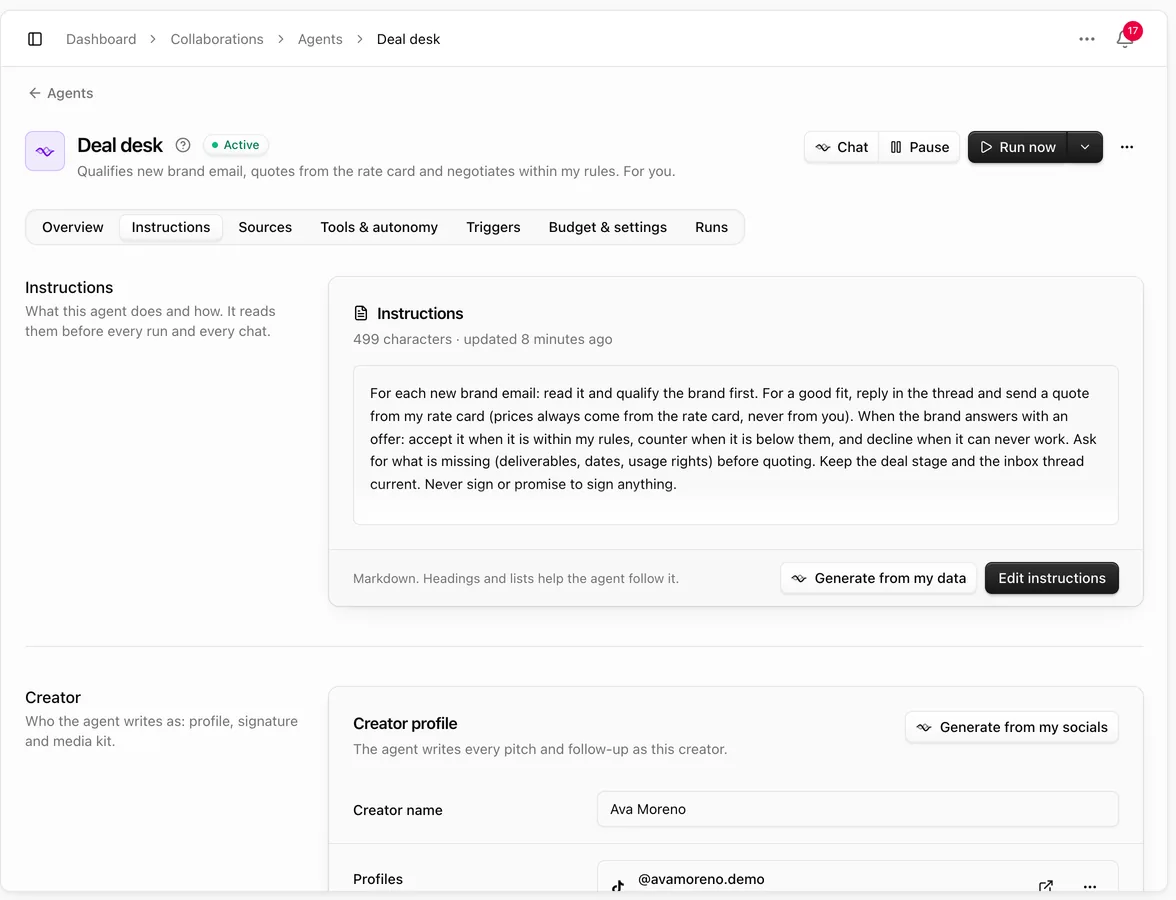
- Instructions: what the agent does and how, in plain words. It reads them before every run and every chat. Click Generate from my data for a first draft based on your CRM, then review it.
- Creator: your profile, niches, audience, tone and languages, so emails sound like you. Your signature and media kit are here too.
- Rules: hard limits the agent never crosses, by category (pricing, brands to avoid, content, scheduling, communication). You can also add do-not-contact domains or names and a minimum budget.
- Rates: your rate card and seasons (see below).
- Pitch angles: the ways you pitch, such as Holiday gift guide or Long-term review. The agent picks a different angle for each attempt, so a brand never gets the same pitch twice.
- Follow-ups: the cadence, max follow-ups and re-engagement. See Follow-ups and sequences.
Rates, seasons and Try a quote
The agent quotes only what's on your Rate card. Prices are always computed from it, never written by the AI.
- Currency and Max discount: how far under a quote the agent may accept or counter. It never goes below your minimum budget.
- Surcharges: Paid usage rights (added per started 30 days the brand reuses your content in its ads or channels; organic posting on your account is never charged), Exclusivity and Whitelisting.
- Rate versions: your prices per platform and deliverable, plus packages. Each version is in force from its date, so next year's rates can be ready ahead of time.
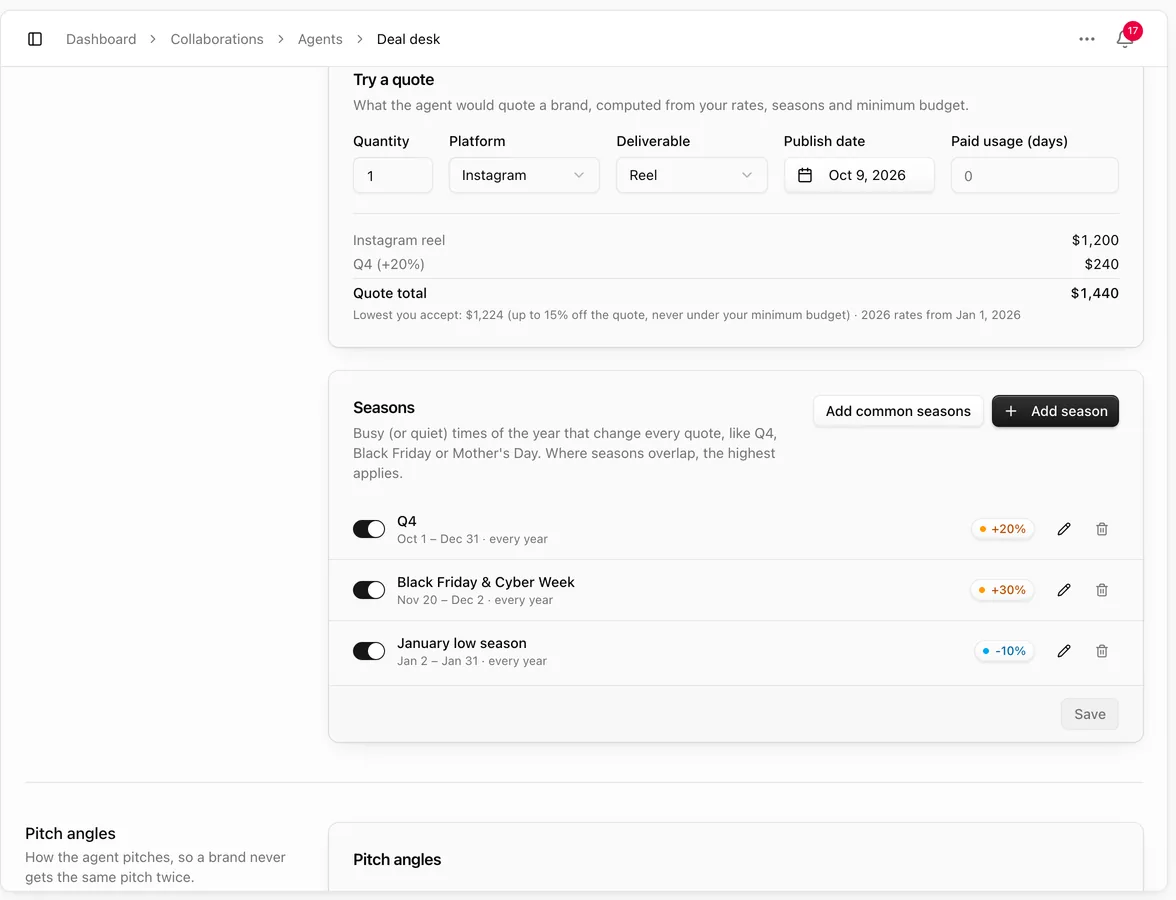
- Seasons: busy or quiet times, like Q4 or Black Friday, that raise or lower every quote by a percent. Where seasons overlap, the highest applies.
Try a quote shows what a brand would be quoted. Set the quantity, platform, deliverable, publish date and Paid usage (days). You get each line, the Quote total, and the Lowest you accept: the quote minus your max discount, never under your minimum budget. Leave paid usage empty for organic posting.
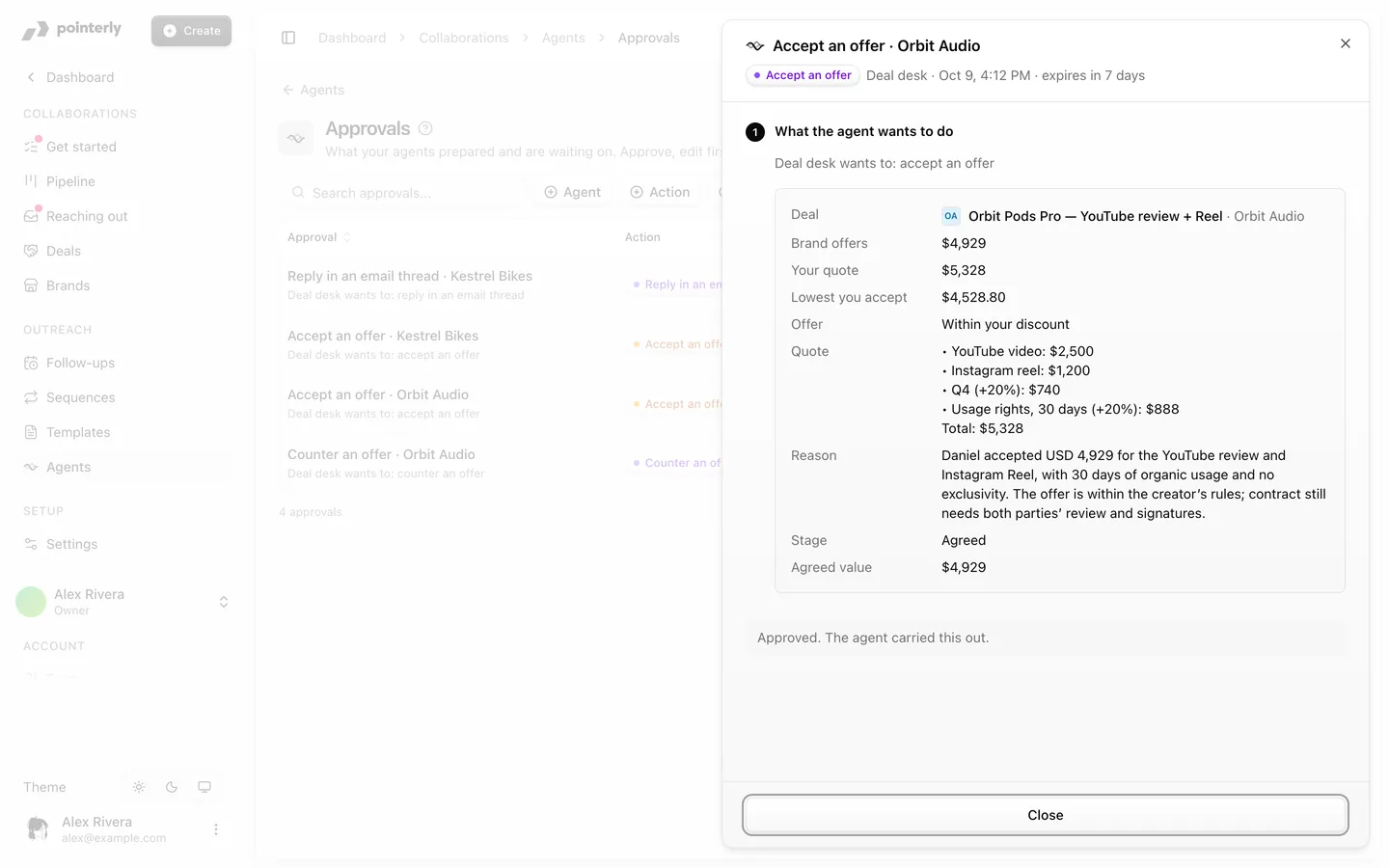
When a brand makes an offer, the agent's approval shows Brand offers, Your quote and Lowest you accept, whether the offer meets your quote, is within your discount or is below the lowest you accept, and how the quote was built.
Sources
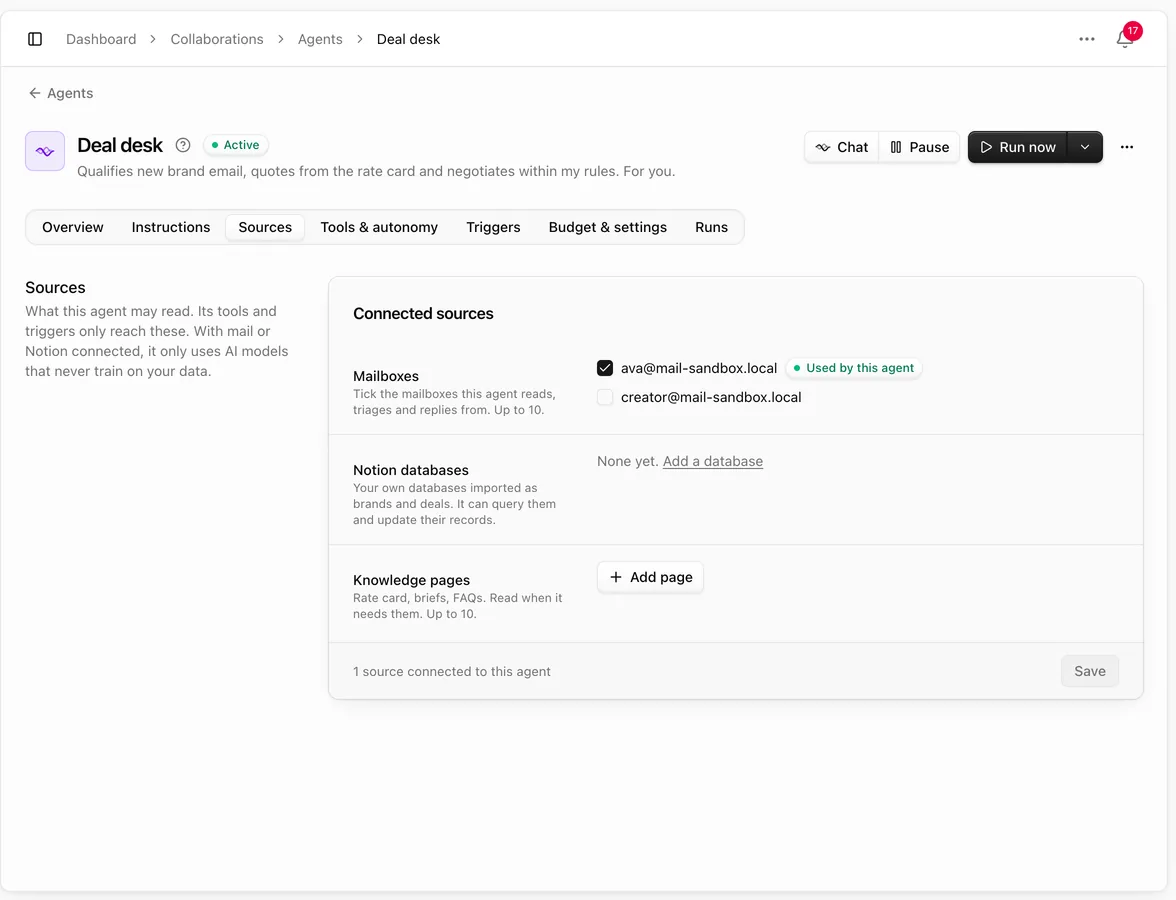
On Sources, choose what the agent may read. Its tools and triggers only reach these.
- Mailboxes: tick the mailboxes this agent reads, triages and replies from, up to 10. Each agent can have its own, so a deal desk can answer from your partnerships address while a prospector pitches from another.
- Notion databases: your own databases imported as brands and deals.
- Knowledge pages: your rate card, briefs and FAQs in Notion.
With no sources, the agent works from your CRM only. Changes apply when you save.
Tools and autonomy
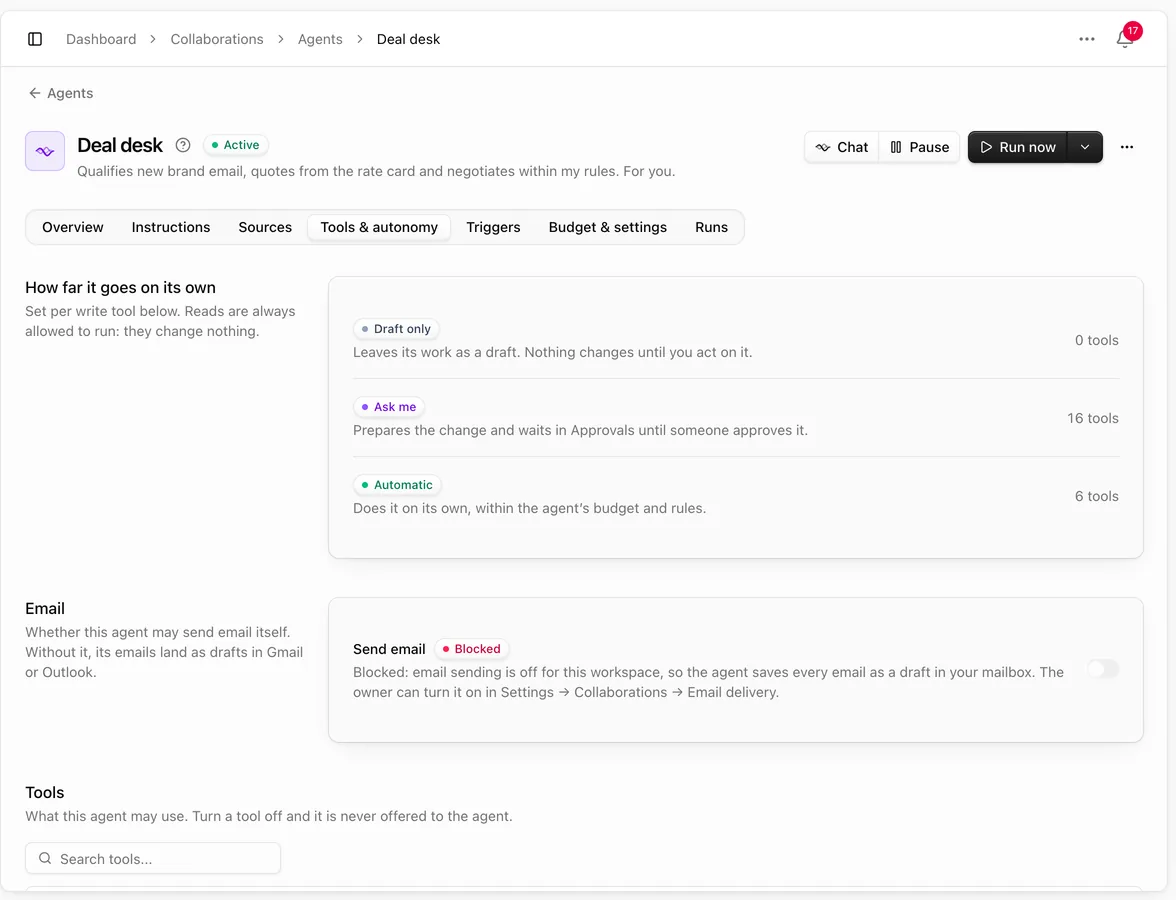
On Tools & autonomy, set each action the agent can take to one of three levels:
- Draft only: it leaves its work as a draft.
- Ask me: it prepares the change and waits in Approvals.
- Automatic: it acts on its own, within its budget and rules.
Creating a deal from a new lead always waits for you. That one is never automatic.
Email decides whether the agent may send email itself. It's blocked by default: the agent's emails are saved as drafts in Gmail or Outlook, and you send them from there. It can only be allowed when Email delivery is set to send in Settings → Collaborations.
Triggers
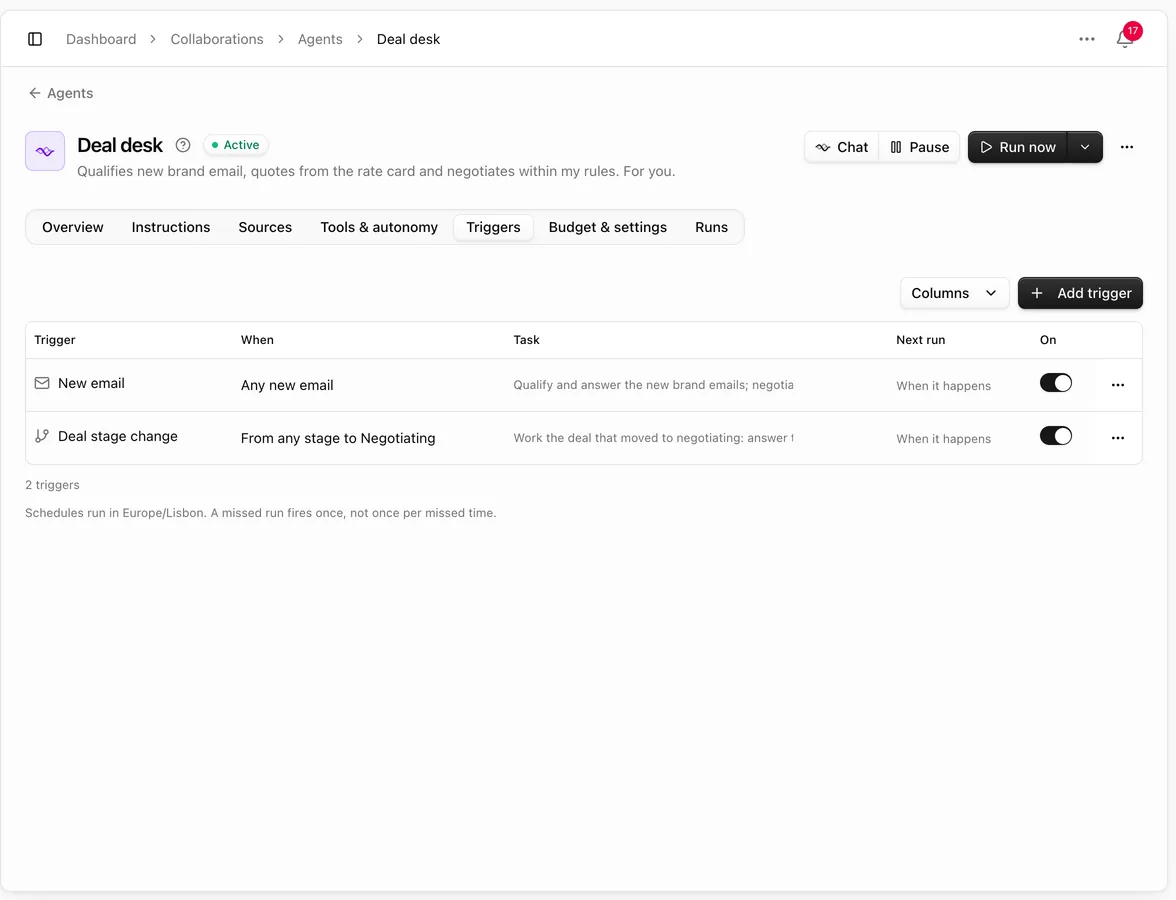
On Triggers, click Add trigger to decide when the agent runs:
- Schedule: every hour, day, weekday, week or month, or a custom schedule, in the agent's time zone. Next runs shows the next few.
- New email: from chosen mailboxes, domains or addresses, or with a subject that contains a word. You can limit it to emails not linked to a deal yet.
- Notion change: when a record in a database is created or updated.
- Deal stage change: when a deal moves from one stage to another.
Without triggers, the agent runs only when you click Run now.
Teamwork: hand the deal to another agent
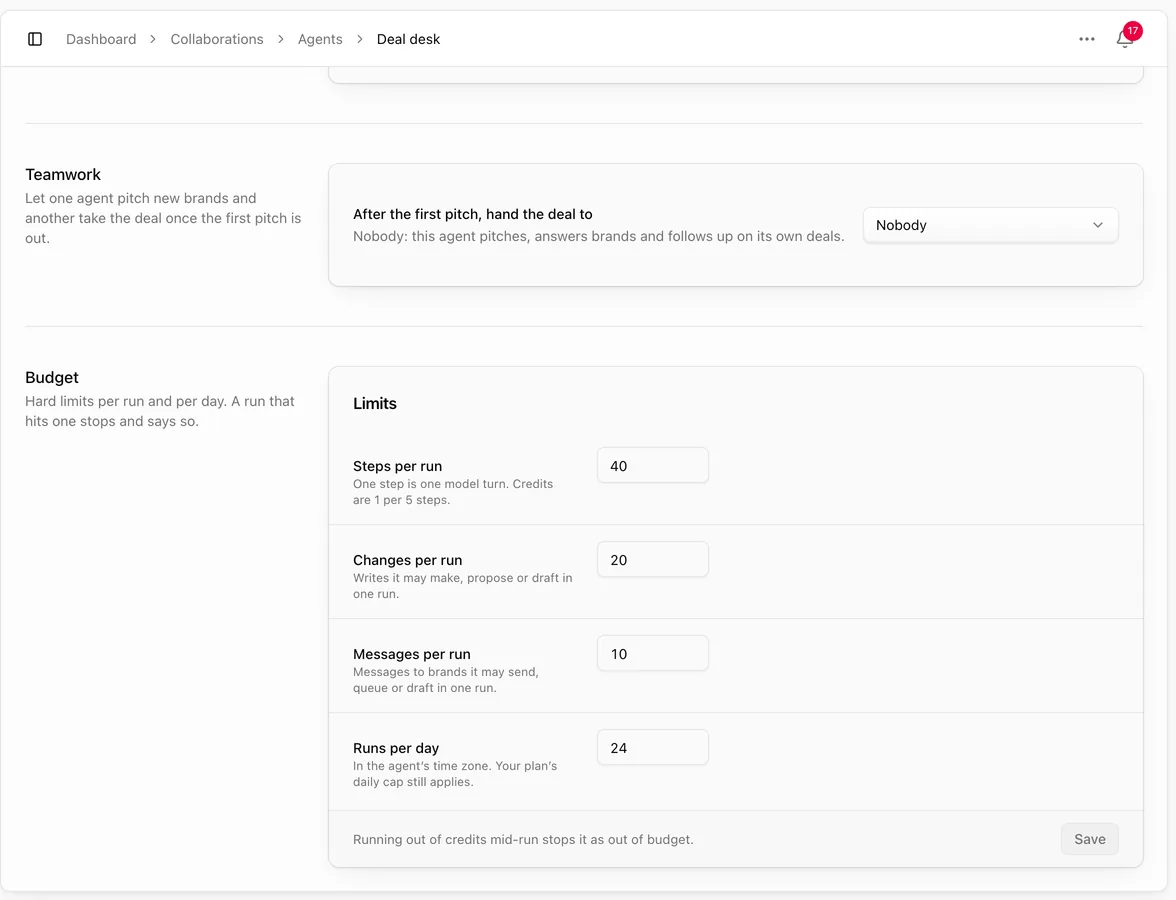
In Budget & settings → Teamwork, set After the first pitch, hand the deal to another agent:
- Nobody (default): the agent pitches, answers brands and follows up on its own deals.
- Another agent: this agent finds brands and sends the first pitch. The other agent then answers the brand and follows up, and never cold-pitches.
The receiving agent shows Gets deals from with the agents that hand deals to it. Stop hand-off turns it off.
Budget
In Budget & settings → Budget, set hard limits: Steps per run, Changes per run, Messages per run and Runs per day. A run that reaches a limit stops and says so. Your plan's daily cap on agent runs still applies.
The same tab has the agent's name, description, avatar, model, time zone, the member it runs as, and Deal dates on the calendar.
Run it
- Run now runs the agent on its instructions, the way a trigger would.
- Run now → Run on a deal…: pick a deal and the agent does its next step.
- Run now → Run with instructions…: tell it what to do on this run only.
Runs work in the background. Runs lists each run with its status (Queued, Running, Done, Failed, Out of budget, Cancelled or Skipped), trigger, duration, steps and credits. Open a run to see each step and its result, or Stop run while it's going.
Pause stops all runs of this agent until you Resume.
Approvals
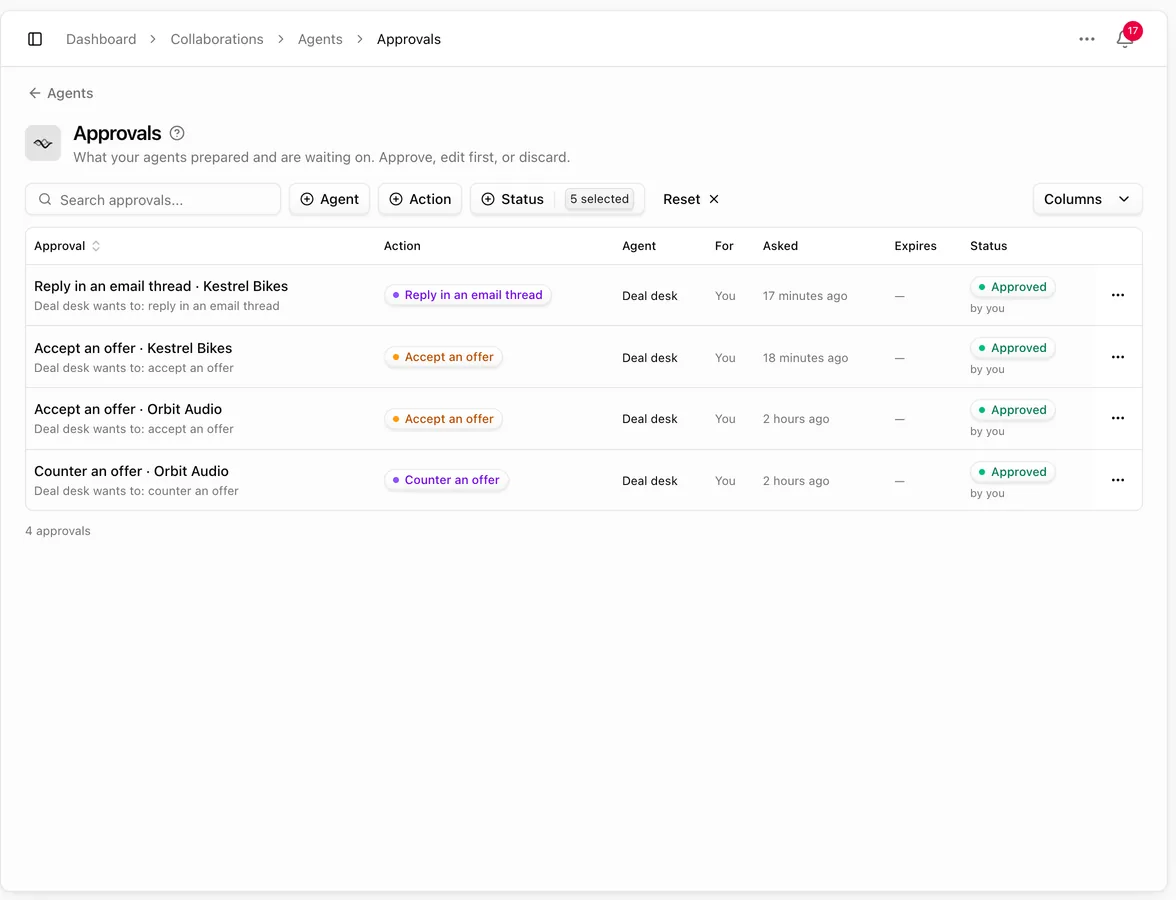
When an agent wants to send a message, create a deal, move one or answer an offer, and that action is set to Ask me, it waits for you:
- In Agents → Approvals. The Agents item in the sidebar shows a dot when something is waiting.
- In the agent's Overview, under Waiting for you.
- As a card in the deal's timeline.
Each approval names the agent, what it wants to do and when it expires. Emails it cites have View email, which opens the thread in a side sheet. The approve button says exactly what happens:
| Button | What happens |
|---|---|
| Approve & save draft | The email is saved as a draft in your mailbox, and you send it from Gmail or Outlook. Shown when the agent may not send, or your workspace saves email as drafts |
| Approve & send | The email goes out from your mailbox |
| Create deal / Move deal | The deal is created or moved |
| Accept offer / Decline offer | The agent answers the brand's offer and, on accept, writes the agreed terms to the deal |
You can also Edit & approve (change the draft, then approve) or Discard. Approvals expire after 7 days. Filter the list by Agent, Action and Status to see approved and discarded ones too.
Agents on a deal
Each deal can have one lead agent and any number of helpers, set in the Agents section of the deal's side panel.
- The lead owns the deal's follow-ups and sequences. It starts working on the deal as soon as you pick it, and the header shows Led by its name.
- Helpers can read and act on the deal when they run, but they never own its follow-ups.
To talk to the lead agent, use the box at the bottom of the deal's Timeline, with Write to set to the agent. Ask it to "draft a follow-up" or "schedule a reminder", then click the Ask button, which carries the agent's name. Its answer appears in the timeline, and any change it proposes comes back as an approval card. A paused agent can't chat until you resume it.
Agents never move a deal past Agreed or write a script without a contract signed by both parties. See Deal files, contracts and signing.
Common questions
Will an agent email a brand without asking me? Only if Email delivery in Settings → Collaborations is set to send, Email is allowed on the agent's Tools & autonomy, and sending is set to Automatic. Otherwise its emails wait for your approval or stay drafts in your mailbox.
Why does the button say "Approve & save draft"? The agent isn't allowed to send email, or your workspace saves email as drafts. Approving saves the email in your mailbox for you to send.
Can an agent quote a price that isn't on my rate card? No. Quotes are computed from your rates, seasons, surcharges and minimum budget. Use Try a quote to check them.
Why didn't my agent run? Check that it's on (not paused), that Agents running is on, that it has a trigger or was started with Run now, and that it has a member to run as. Then open Runs: a run can be Skipped, Out of budget or Failed, with the reason.
Does an agent contact do-not-contact brands? No. Do-not-contact brands and the domains in its rules are always skipped.