Notion and Collaborations
Initialize your Notion with workspace templates, connect your own Notion databases as sources, review the AI mapping, turn on two-way sync, push new records, and what happens when Notion disconnects.
Collaborations works with Notion in two ways, and you can use both:
- Pointerly sets up your Notion. Workspace templates create a Brand CRM, Deal Pipeline, Collaboration Calendar, Follow-ups and Deliverables in your Notion, already connected to Collaborations.
- You keep your own databases. Connect the brand lists and deal trackers you already have. Pointerly maps their columns with AI and imports the rows.
Notion is included in the Collaborations add-on. You don't need a separate Notion add-on.
Before you start
- Connect Notion in Integrations → Notion, and share with Pointerly the pages or databases you want to use.
- You need permission to edit Collaborations settings.
Option 1: Initialize my Notion
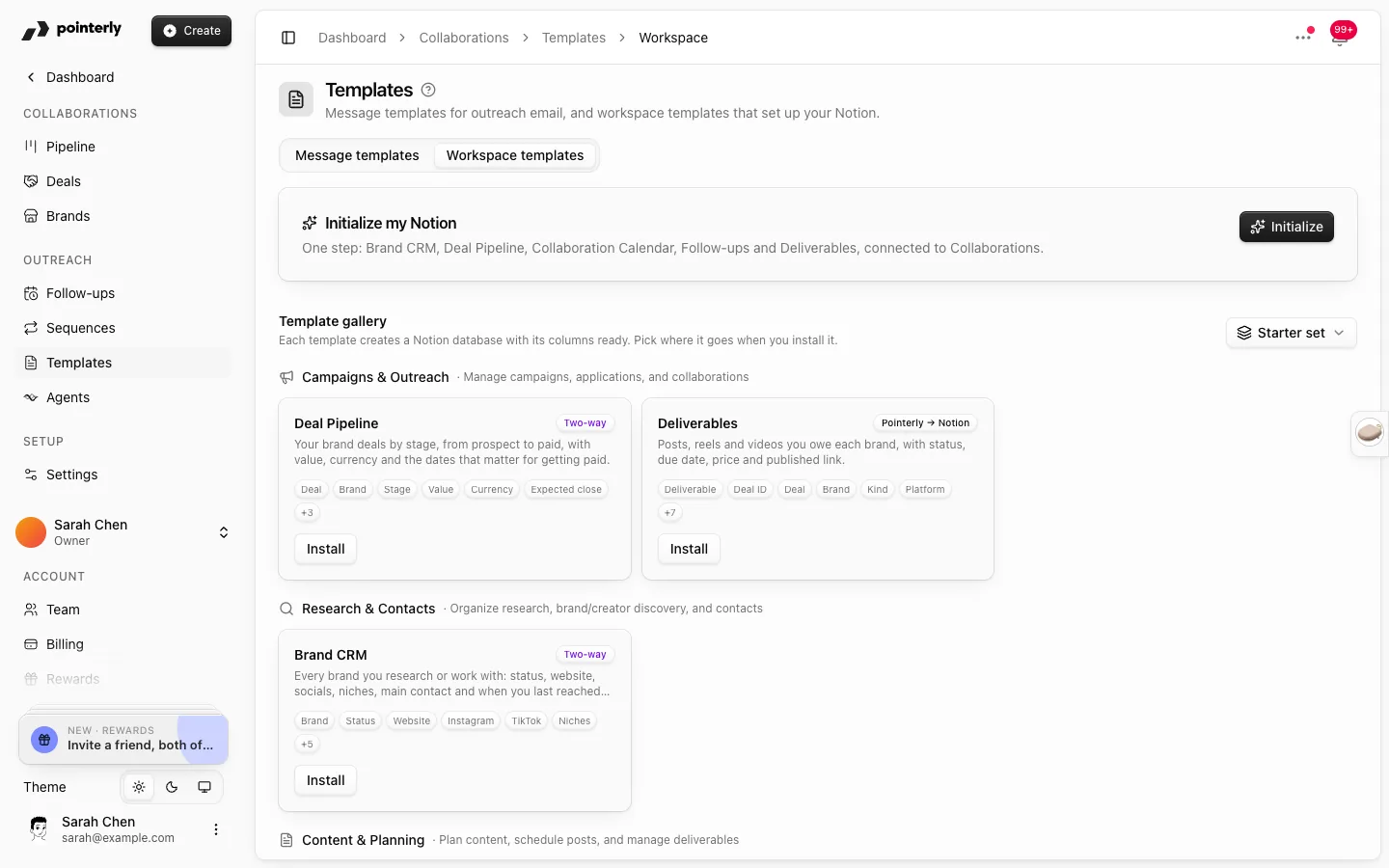
- Go to Collaborations → Templates → Workspace templates. If Notion was never set up, Settings → Collaborations links you there too.
- Click Initialize on Initialize my Notion. In one step, Pointerly creates the Brand CRM, Deal Pipeline, Collaboration Calendar, Follow-ups and Deliverables databases and connects them.
- Or install templates one at a time from the Template gallery. For each one, choose:
- Where it goes: a Notion page, or Create a "Pointerly" page for me
- Direction: Two-way (Notion and Pointerly stay in step) or Import only (Notion → Pointerly)
Installed lists what you've installed, with Re-install and Stop syncing. When you stop syncing, the database stays in your Notion, and the brands and deals already imported stay in Pointerly.
Option 2: Connect your own databases
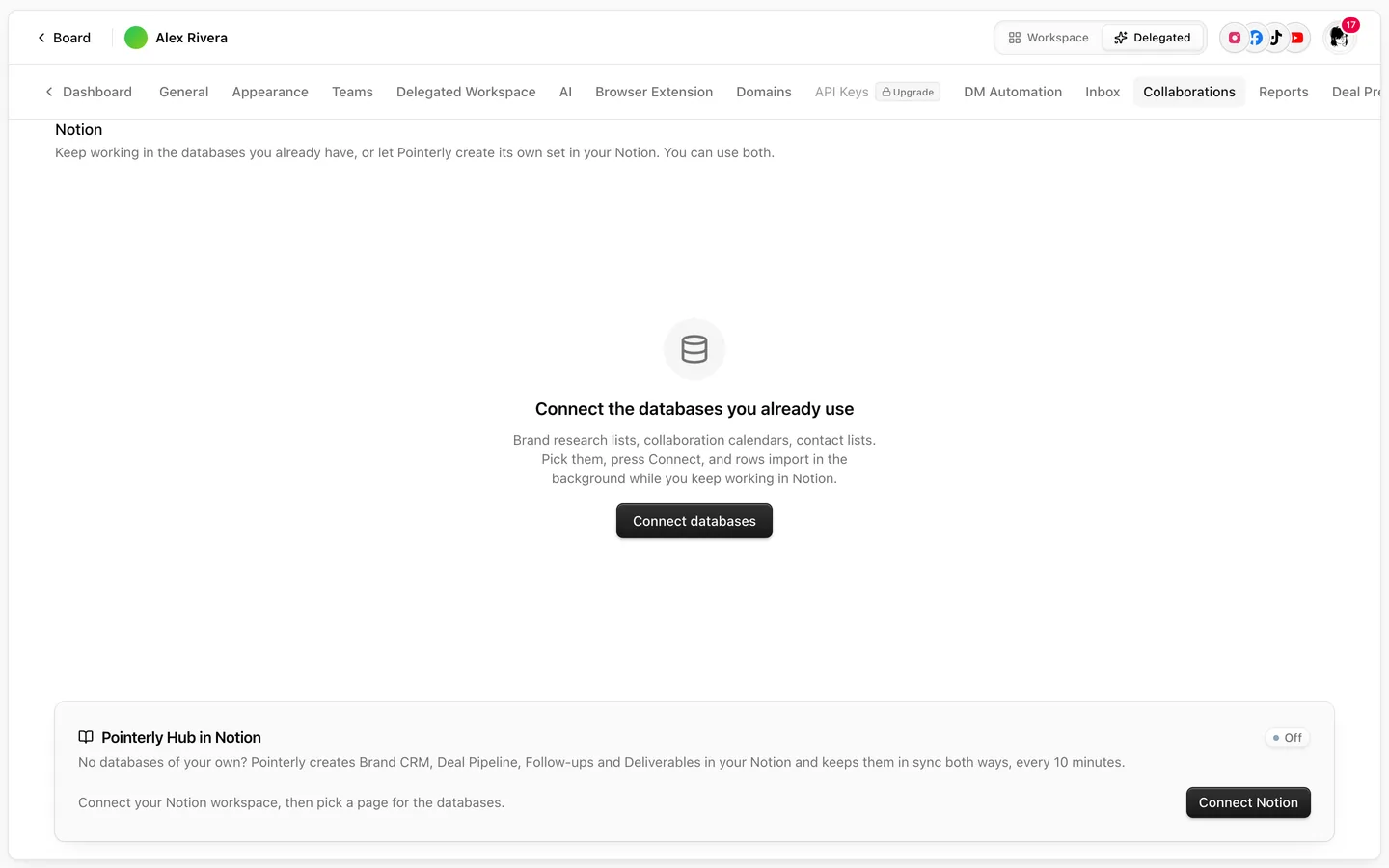
- Go to Settings → Collaborations → Notion → Your Notion databases.
- Click Connect databases, search for and select your databases, and choose who they belong to. Imported brands and deals are owned by that member.
- Click Connect. Pointerly reads the columns and maps them with AI.
- When it's confident, the import starts right away.
- When it isn't, the database shows Needs review.
Each database has a Row is a type: Brands, Deals, Contacts, Follow-ups or Knowledge. Knowledge pages, such as your rate card, briefs and FAQs, are read by agents and not imported as records.
Review the mapping
Open Review mapping from a database's menu:
- What the AI found sums up the database.
- A table pairs each Notion column with a Pointerly field, with a confidence level. Change any pair, and set what each option means (for example which Notion status is "Pitched").
- Database settings:
- One row is a…
- Open a deal for a row: never, when the brand is engaged, or always
- Currency of amounts
- Keep other columns: unmapped columns become custom fields
- Read brand and value from the title, for titles such as BRAND x $1700 USD
- Rows that did not import lists rows with a problem. Fix them in Notion, and the next check picks them up.
Click Confirm & import. Re-running the AI asks whether to keep your edits.
The import status column shows Importing, Up to date, Paused, Paused: plan limit or Error. Use the menu to Import now, Re-import everything, Pause, Refresh columns or Open in Notion.
Two-way sync
New connections are import only: your Notion edits flow into Pointerly, and Pointerly never writes to Notion.
Turn on Two-way for a database (it needs a confirmed mapping) to make Pointerly the source of truth. Stage, value, dates and notes are then written back into the mapped columns. Unmapped columns are never touched.
- Your own databases are checked about every 10 minutes. The Pointerly Hub syncs both ways every 10 minutes. Sync now runs it right away.
- If a field changed on both sides since the last sync, Pointerly's value wins.
Push new records
On a two-way Brands or Deals database, Also add new Pointerly records to this database is on. New brands and deals you add in Pointerly, or in another of your databases, get a new row in Notion. Turn it off to keep the database to the rows you add yourself. Pointerly never deletes rows from Notion.
Notion on a deal or brand page
The Notion tab of a deal or brand shows which of your databases hold it, the direction, and when it last synced.
- Each field shows the value in Notion and in Pointerly, and flags changes that are Pending push or Changed in Notion.
- Sync now · push N sends pending changes right away.
- Adds on next sync means the record will be added to that database on the next sync.
Disconnect and reconnect
- Notion disconnected or access revoked: syncing pauses and your databases show Reconnect Notion. Nothing is deleted in Pointerly or Notion. After you reconnect in Integrations → Notion, syncing picks up where it stopped (paused databases are re-checked every 30 minutes).
- Add-on ended: databases show Add-on required until you add Collaborations again.
- Disconnect one database: brands, contacts and deals already imported stay in Pointerly, and nothing is deleted in Notion. Connecting it again later picks up where it left off, without duplicates.
- Rows archived or unshared in Notion are reported on the database. Their records are not deleted in Pointerly.
Common questions
My import stopped at "Paused: plan limit". You reached your plan's limit on brands or deals. Add room as described in Collaborations pricing and limits, and the import resumes on its own.
Does mapping my columns cost AI credits? No. Mapping proposals are free.
Will Pointerly overwrite my Notion columns? Only with two-way on, and only the mapped columns. Import-only databases are never written to.