Follow-ups and sequences
Schedule follow-ups, work the follow-up queue, build reusable sequences on a timeline, set the send window, and control max follow-ups and re-engagement for agents.
Most brand deals are won on the second or third email. A follow-up is one reminder or email on a date. A sequence is a reusable cadence of follow-ups, such as a pitch, a nudge after 4 days and a last check-in after 10, that you start on any deal.
Before you start
- To send follow-ups by email, connect a mailbox in Inbox. Without one, follow-ups are reminders, and you send the message yourself.
- Check Email delivery in Settings → Collaborations. When it's set to drafts (the default), follow-ups and sequence emails that would go out on their own are saved as drafts in Gmail or Outlook instead, and you send them from there.
- Optional: set a send window in Settings → Collaborations → General. Automatic follow-ups then go out only between those hours, in your time zone. Outside the window they wait for the next one.
The follow-up queue
Open Collaborations → Follow-ups. Follow-ups are grouped into Overdue, Today and Upcoming. Completed appears when you filter by a closed status.
Each row shows the follow-up, the brand and deal, the channel, the due date and the status. Follow-ups from a sequence show the sequence name and step. Sends automatically marks the ones that go out on their own.
From a row's … menu:
- Mark as done
- Snooze until tomorrow or Snooze a week. Snoozed follow-ups move to 10:00 in your time zone
- Reschedule…
- Open deal
- Cancel follow-up…: it won't remind you or send anything
Select several rows to Mark done or Snooze until tomorrow at once.
Schedule a follow-up
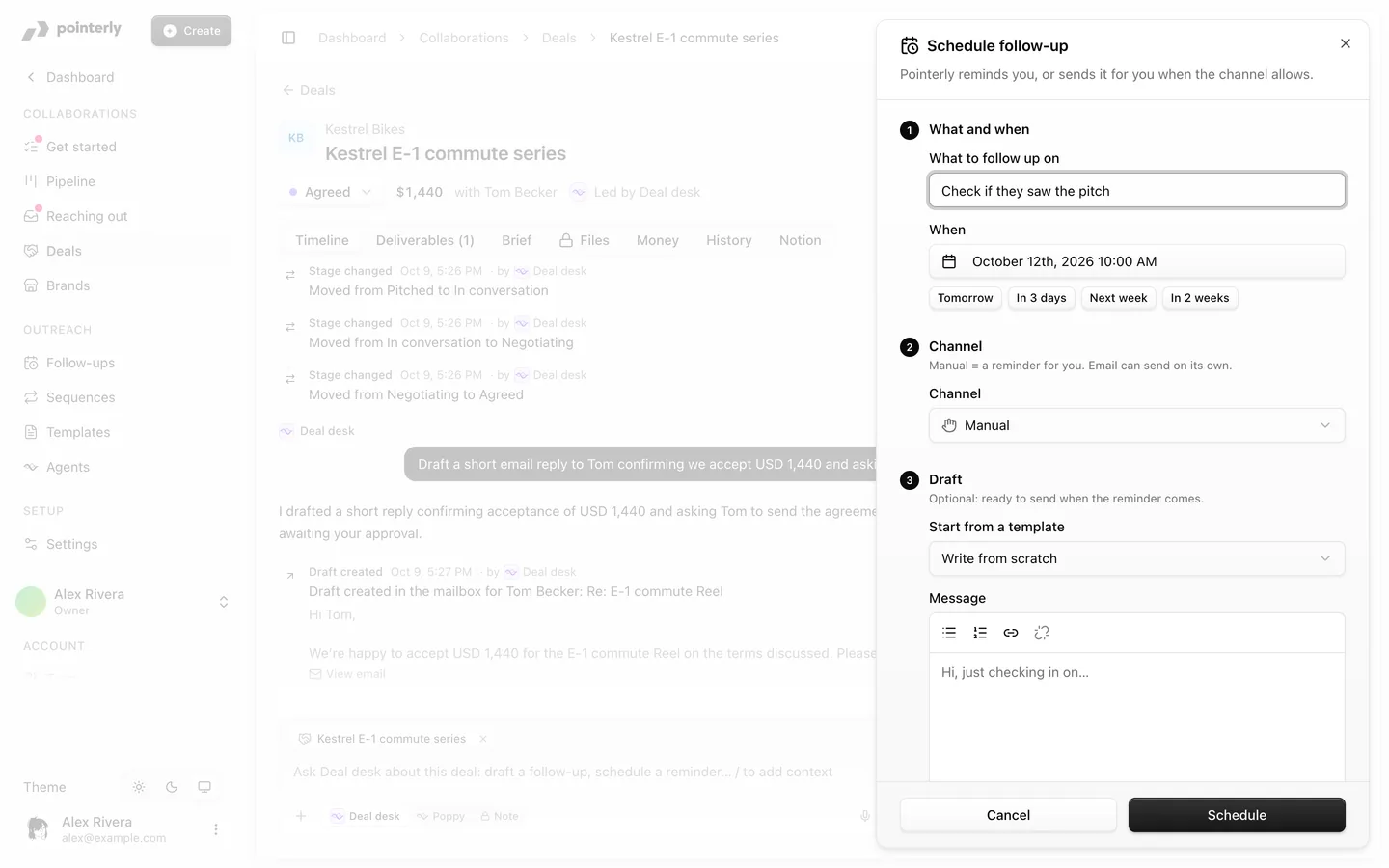
Click Schedule follow-up: on the Follow-ups page, in a brand's or a deal's menu, or with + in the Follow-ups section of a deal's side panel.
- What and when: pick the deal, say what to follow up on, and pick the date (Tomorrow, In 3 days, Next week, In 2 weeks or your own).
- Channel: Manual is a reminder for you. Email can send on its own when you allow it.
- Draft: start from a template or write the message. It's required when the follow-up sends on its own, optional for a reminder. A Private note is only for you.
Sequences
Build a sequence
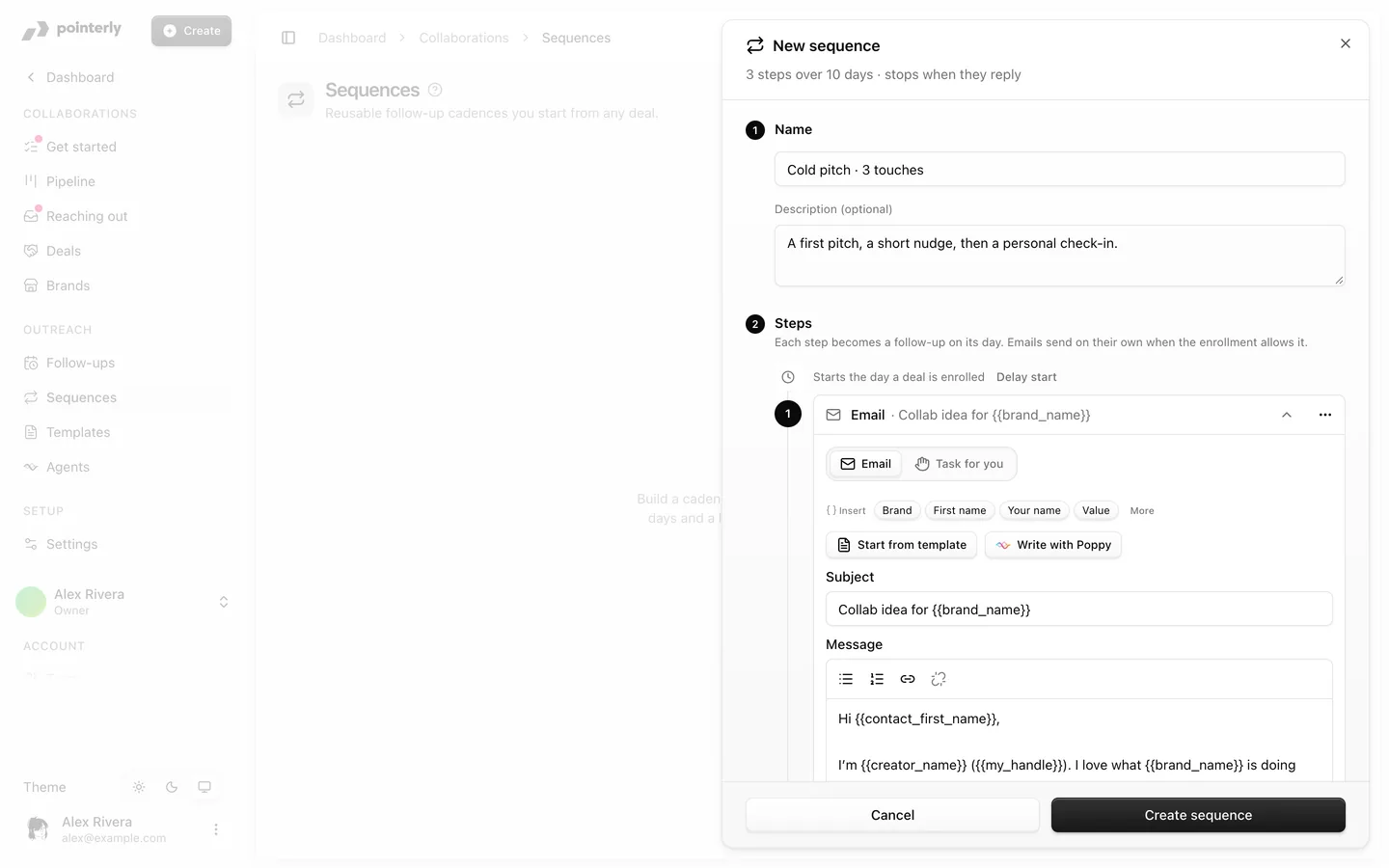
- Go to Collaborations → Sequences → New sequence.
- Name it, for example Cold pitch, 3 touches. You can add a description of when to use it.
- Steps: start from a common cadence (Cold pitch · 3 touches, Follow-up after no reply or Post-campaign check-in) or build your own with Add email and Add task.
- The timeline starts on the day a deal is enrolled. Each later step says how long it waits (Wait N days) and which day it lands on.
- An Email step has a subject and a message. Leave the subject empty to reply in the same thread. Use Start from template or Write with Poppy to fill it.
- A Task step is a reminder for you ("call them", "comment on their latest post"). Nothing is sent.
- Use each step's menu to duplicate, move or delete it.
- While it runs:
- Stop when they reply (on by default): a reply from the brand cancels the steps still to come. To let one step run anyway, change it in that step's menu.
- Active: deals can be enrolled and due steps run. When paused, enrolled deals wait until you turn it back on.
- Click Create sequence.
A sequence can have up to 20 steps and last up to 365 days. The preview fills variables with sample values. Each deal uses its own values when the step runs.
Start a sequence on a deal
- On the deal page, open More → Enroll in sequence, or click + next to Sequences in the side panel. On Brands you can enroll several brands at once.
- Pick the sequence. The preview shows each step, its day, its channel and whether a reply stops it.
- Choose when it starts.
- Choose Send steps automatically:
- Off (the default): each step becomes a reminder with a draft ready for you to send.
- On: email steps go out from your mailbox on their day, inside your send window.
- Click Start sequence.
The side panel then shows the sequence's status, the current step and the next date. To stop it, use Stop sequence… in its menu.
Pausing or archiving a sequence never deletes follow-ups that are already scheduled. An archived sequence can't be started again.
Follow-ups for agents
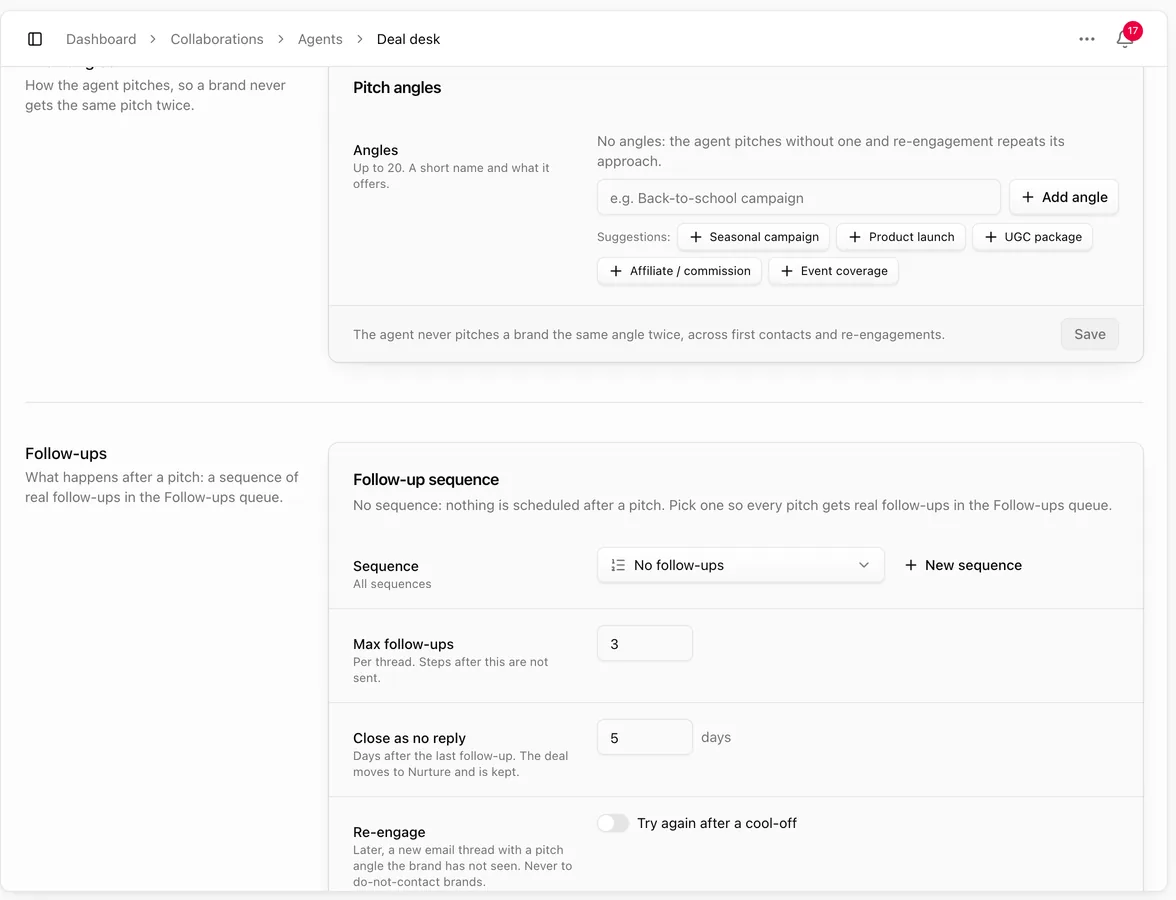
A collaboration agent follows up with its own sequence. You set it in the Follow-ups section of the agent's Instructions tab, on the Follow-up sequence card:
- Sequence: which cadence the agent uses.
- Max follow-ups (default 3, up to 10): the most follow-ups per thread. Later steps are not sent.
- Close as no reply (default 5 days): how many days after the last follow-up the deal moves to Nurture. The deal is kept.
- Re-engage (off by default): after a cool-off, for example 45 days, the agent tries again in a new email thread, with a pitch angle the brand hasn't seen yet. You set how many rounds per brand. Do-not-contact brands are never re-engaged.
Agent follow-ups appear in the same Follow-ups queue as yours. See Collaboration agents.
Tips
- Keep Stop when they reply on for pitches. Nothing looks worse than an automatic nudge sent after the brand has already answered.
- Use task steps for channels Pointerly can't send on, such as a DM or a comment.
- Follow-ups also appear in Inbox and on the Calendar. See Inbox, Calendar and Earnings.
Common questions
A follow-up didn't send. Why? Check its status in the queue. Common causes: no connected mailbox ("Email needs the mailbox add-on"), the send window hasn't opened yet, Send steps automatically is off (the step is a draft waiting for you), Email delivery is set to drafts (look in your mailbox's Drafts), or the brand replied and the sequence stopped. A failed send shows the reason under the row.
Do sequences send from my address? Yes, from the mailbox connected in Inbox, in the same thread as your pitch unless the step has its own subject.
If I edit a template, do running sequences change? Yes. A step that uses a template picks up your edits the next time it runs.