Brands and deals
Add brands and contacts, set logos and do-not-contact, open deals, move them through the pipeline stages, and work a deal from its page: timeline, emails in a side sheet, deliverables, brief, files, money and history.
A brand is a company you pitch or work with, along with its contacts. A deal is one collaboration with that brand, such as a review video or a season campaign. A brand can have many deals.
Before you start
- The Collaborations add-on (see Collaborations overview).
- To bring in a brand list you already keep, import a CSV or Excel file from Get started (see Get started with Collaborations) or connect Notion (see Notion and Collaborations).
- Brands that email you show up on Reaching out, ready to become deals. See Brands reaching out.
Brands
The Brands table
Open Collaborations → Brands. Each row shows the brand's logo and domain, Niche, Status, Process step, Outreach step, Last contacted, Next follow-up (red when overdue), Owner and the number of open Deals.
- Search by brand name or domain.
- Filter by Status, Niche, Owner, Research channel, Outreach step, Follow-up (Due now) and Contact (Can contact / Do not contact).
- Columns shows or hides columns.
- Import brings in brands from a CSV or Excel file.
- Select rows to Set status, Assign owner, Enroll in sequence or Archive several brands at once.
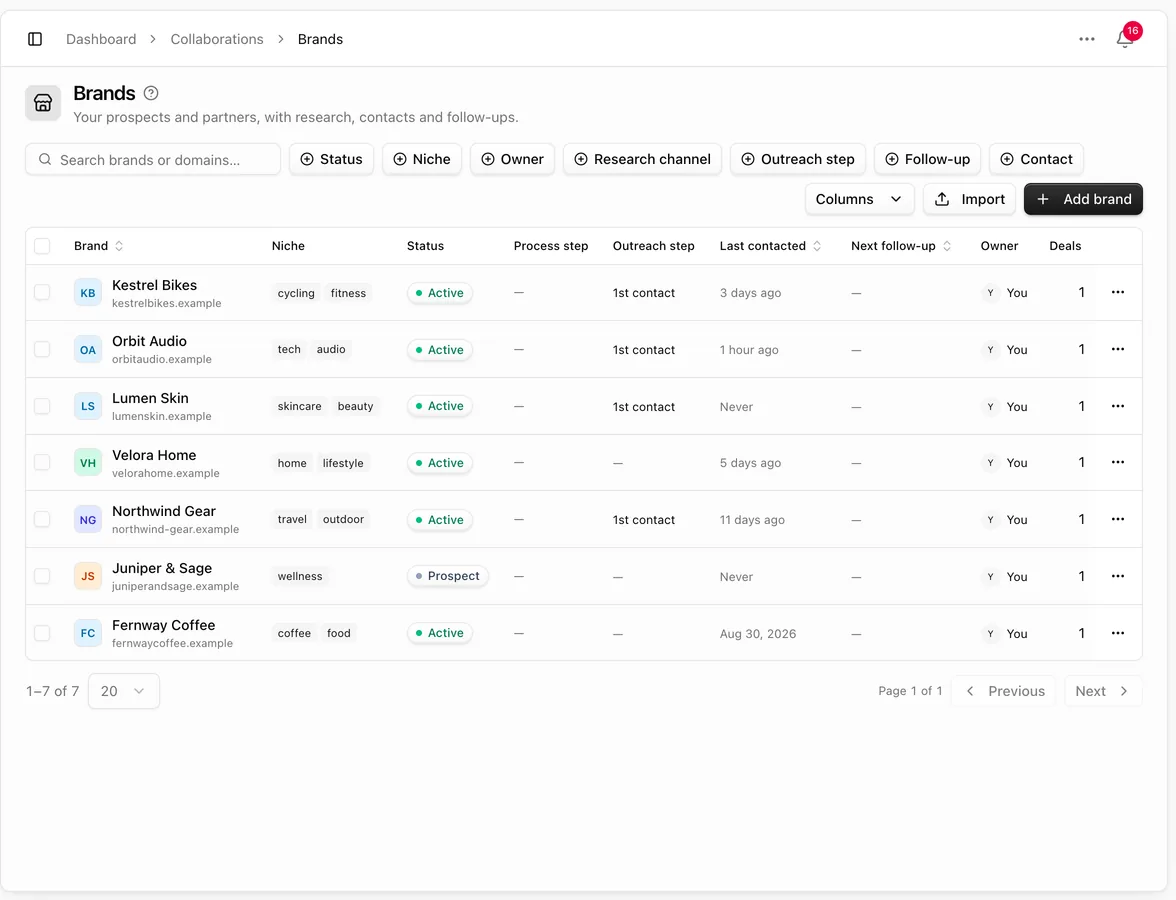
Statuses: Prospect, Active, Past and Do not contact. Outreach steps: Not contacted, 1st contact, 1st to 4th follow-up and Replied.
Add a brand
- Click Add brand.
- Fill in what you know. Only the name is required:
- Identity: name, website, logo and owner
- Socials: Instagram, TikTok, Facebook, YouTube and LinkedIn
- Niche
- Research: where you found the brand, the outreach type, and who researched it and when
- Prospect status: relationship, process step, how they work with creators (commission, paid, product exchange…), budget estimate and Do not contact
- Contacts: name, role, email and phone. Star the primary contact, who gets pitches by default
- Follow-up and Notes
- Click Add brand.
Logos
You don't need to upload a logo. After you save, Pointerly looks for one on the brand's website, or on the domain of a contact's work email.
On an existing brand you can also:
- Upload your own logo (PNG, JPEG, WebP or GIF, under 2 MB). An uploaded logo is never replaced automatically.
- Refresh logo to look for a newer one. Your current logo is replaced only if a new one is found.
Do not contact
Turn on Do not contact in the brand's Prospect status step and add the reason. Outreach, sequences and agents then skip the brand. On its page, Schedule follow-up and Enroll in sequence are turned off.
The brand page
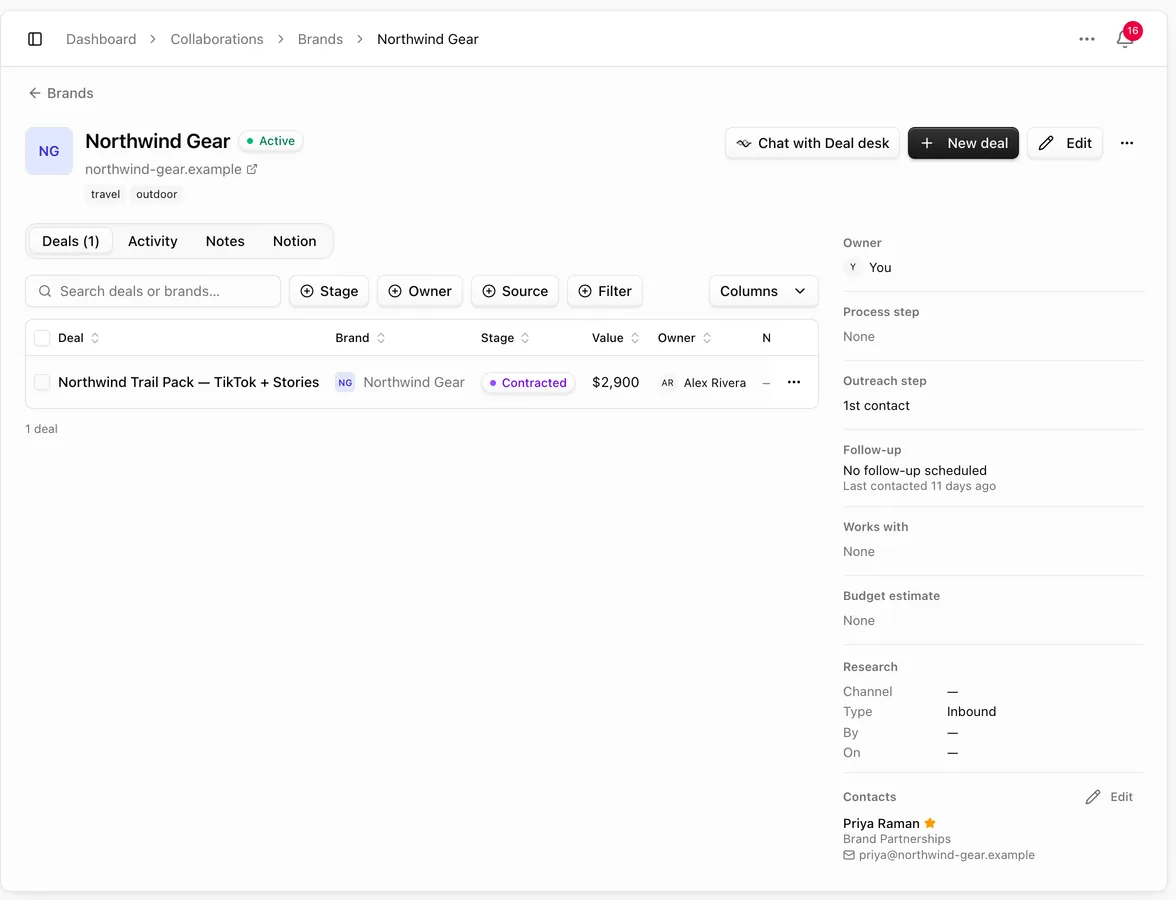
Click a brand to open its page. The header shows the status, website, lifetime value and niches, with New deal, Edit and a … menu (Log contact, Schedule follow-up, Enroll in sequence, Copy email, Archive). When an agent works for you, Chat with the agent opens a chat about the brand.
- Tabs: Deals, Activity, Notes, Notion and Custom fields (when the brand has columns imported from Notion).
- The side panel shows the owner, steps, the next follow-up, research details, contacts (bounced addresses are flagged) and socials.
Deals
Open a deal
- Click New deal, on the brand page or on Deals or Pipeline.
- Brand and title: pick the brand, name the deal, and choose the contact.
- Terms: pricing (flat fee, per deliverable, commission, flat + commission or gifted), priority, stage, value and currency.
- Dates: expected close, content due, publish on and invoice due.
- Rights and notes: usage rights, exclusivity and notes.
The pipeline board
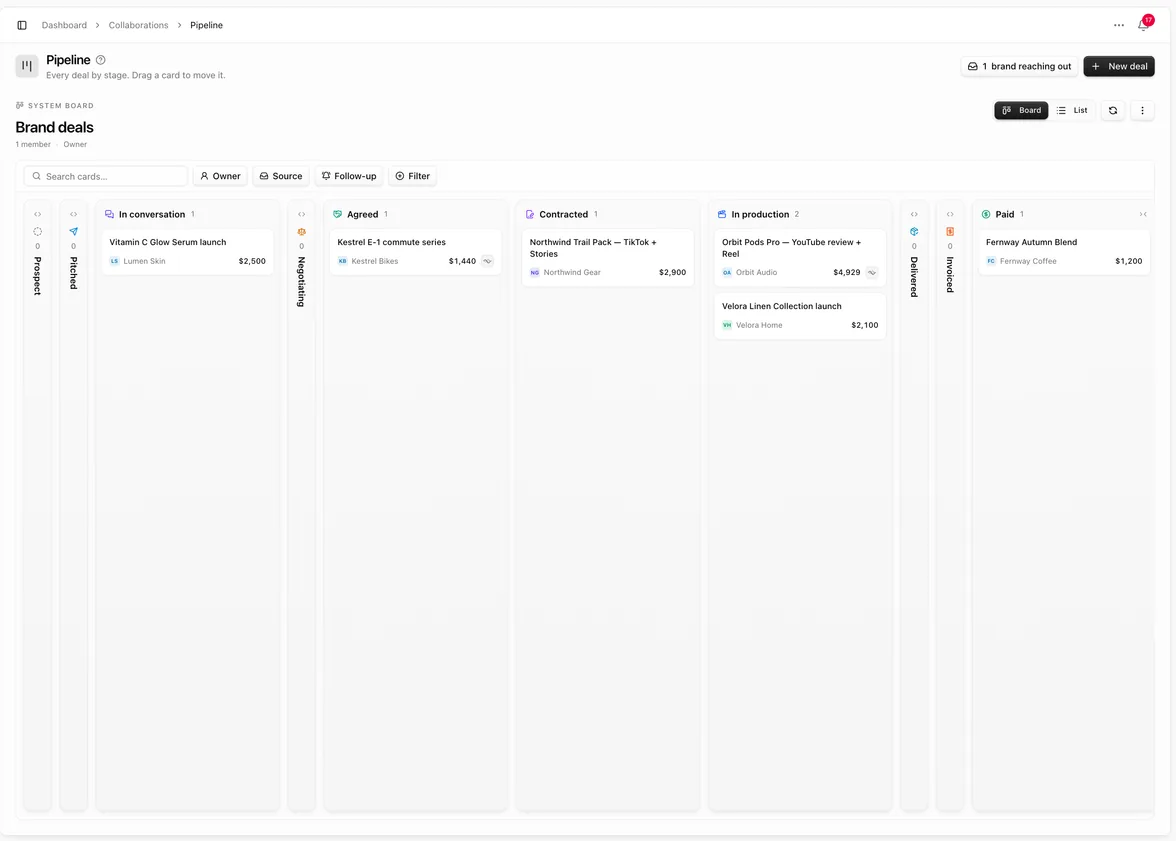
Pipeline shows every deal as a card in its stage column. A card shows the title, the brand, the value and the next follow-up (red when overdue).
The stages are Prospect, Pitched, In conversation, Negotiating, Agreed, Contracted, In production, Delivered, Invoiced and Paid, plus Closed lost and Nurture. The last two are hidden by default.
- Drag a card to move the deal. A deal moves forward one stage at a time. It can also skip ahead from Agreed to In production, or from Delivered to Paid, and any open deal can go to Closed lost or Nurture. Nurture can go back to Prospect or Pitched.
- Dropping on Closed lost asks why: budget, timing, no response, went elsewhere, not a fit or other.
- Collapse a column you don't need right now with the arrows in its header; Expand brings it back. In the board settings you can rename, recolor, reorder and hide columns. You can't add or delete them, because they follow the deal stages.
- N brands reaching out appears when brands emailed you and aren't on a deal yet. It opens Reaching out.
- New leads appears when an agent proposed deals from brand emails and they're waiting for your approval.
The Deals page shows the same deals as a table. You can filter it by stage, owner, source, value and expected close, and turn on Include closed lost and nurture.
The deal page
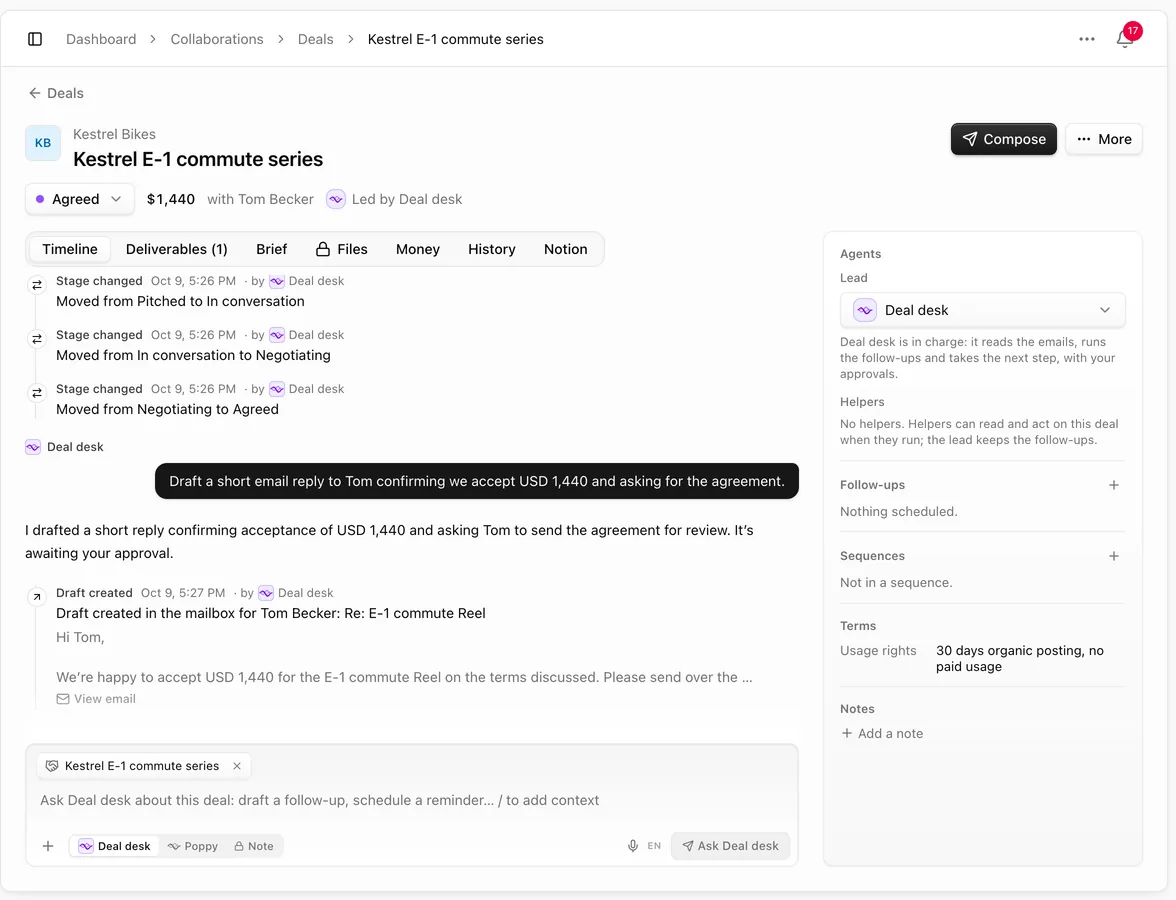
Open a deal to work on it. The header shows the brand, the title, a stage menu (Move to lists only the moves allowed), the value, the brand contact and the agent that leads it. Use Compose to write to the brand, and More to schedule a follow-up, enroll in a sequence, edit or archive.
The tabs are:
- Timeline: the conversation (see below)
- Deliverables: the posts and videos you owe, each with its status and script
- Brief: what the brand asked for, the products to link and the deal's scripts (see Deal brief and scripts)
- Files: the contract and every file from the brand (see Deal files, contracts and signing)
- Money: value, pricing, win probability, invoice and payment, and the deal's status in Earnings
- History: the record of everything done on the deal, with who and when
- Notion: where the deal lives in your Notion (see Notion and Collaborations)
The side panel has the deal's Agents, Follow-ups, Sequences, Terms (usage rights, exclusivity) and Notes.
The conversation
The Timeline is one feed with everything about the deal, oldest first: emails sent and received, DMs, stage changes, notes, follow-ups, files from emails, contract and invoice events, and your chats with the deal's agent or Poppy. Long entries fold behind Show more.
Read an email without leaving the deal
Click View email under any email on the timeline to open the whole thread in a side sheet, the same way it reads in Inbox. The same View email appears wherever an email is cited: on Reaching out, on a file that came from an email, in an agent's approval and in the inbox study review. Close the sheet to get back where you were.
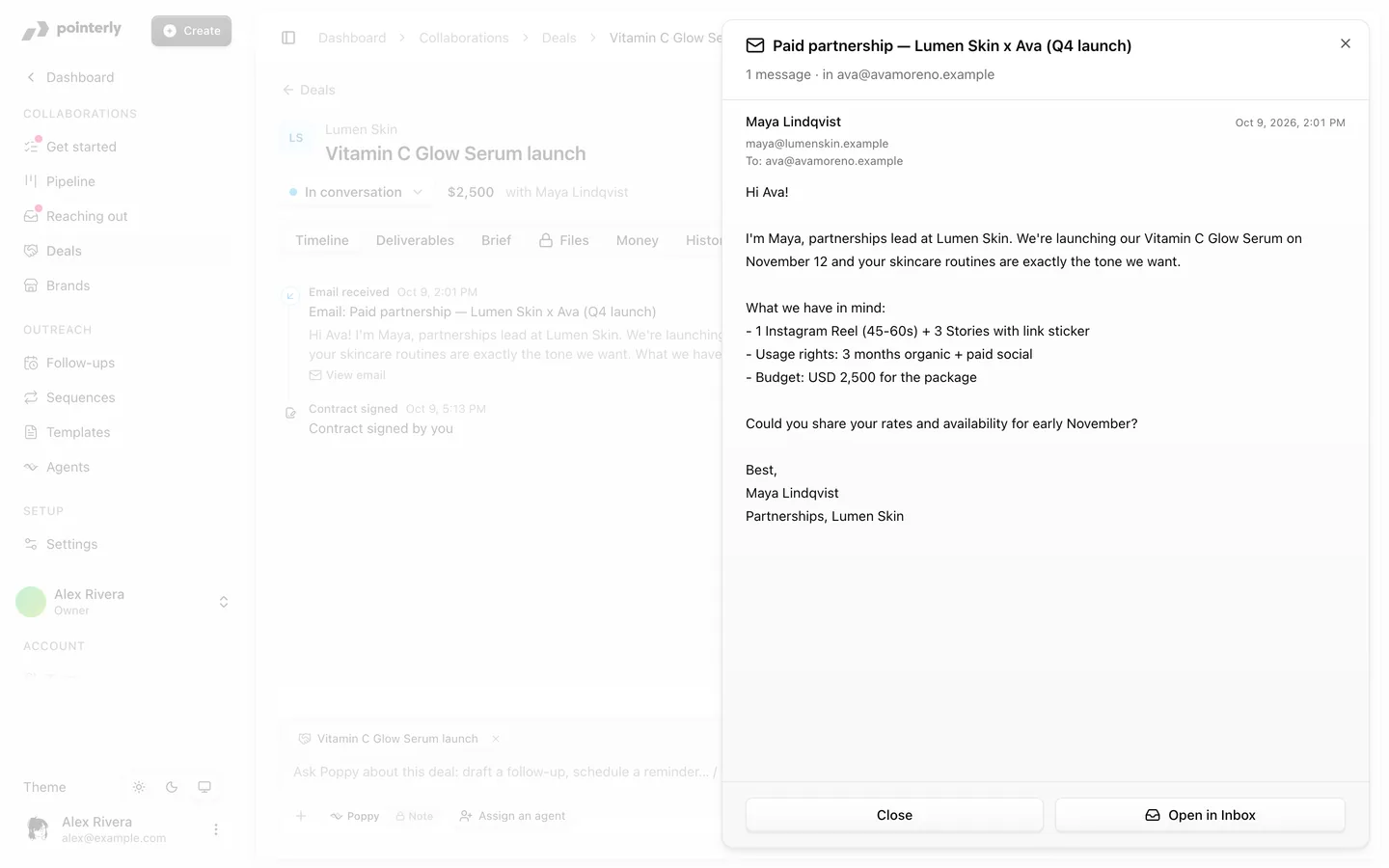
The box at the bottom has a Write to switch:
- The deal's agent or Poppy: ask for something ("draft a follow-up", "schedule a reminder for Friday"). Type / to add context. Anything it wants to change shows up as an approval card in the feed. See Collaboration agents.
- Note: an internal note that only your team sees. Pick a type (general, call, meeting, or an email, DM or WhatsApp you sent elsewhere) and click Add note.
To email the brand, click Compose. Pick the contact and channel, start from a template or write from scratch, and click Send. If a template variable has no value yet, you're asked to fill it in or remove it first. With the Manual channel, Save as task keeps it as a to-do.
Tips
- Keep one deal per collaboration, not per brand. A brand you work with every quarter gets a new deal each time, and its lifetime value adds up on the brand page.
- Use Nurture for brands that said "not now" so they don't clutter the board.
- Moving a deal to Agreed or later adds it to Earnings automatically. See Inbox, Calendar and Earnings.
Common questions
Why can't I drag a card to a stage? Only some moves are allowed, such as one stage forward. Move the deal step by step, or use the stage menu on the deal page, which lists the moves you can make.
Can I add my own pipeline stages? No. You can rename, recolor, reorder and hide the columns, but the stages are fixed so that Earnings, Calendar and agents understand them.
Where do I reply to a brand's email? Click Compose on the deal page. The reply goes out from your connected mailbox (or is saved as a draft there, depending on Email delivery in Settings → Collaborations) and appears on the timeline.
Why does moving a deal ask about a contract? From Contracted on, a deal needs a contract signed by both parties. You can add it, or continue without one. See Deal files, contracts and signing.