Deal files, contracts and signing
The deal's Files tab: attachments from the brand's emails, uploads and cloud files, how files get their type, the AI contract review, signing with Adobe Sign or by recording a signed copy, the signed-contract gate, continuing without a signed contract, and the deal's History.
Every deal has a Files tab for the contract, the brief, invoices and anything else the brand sends. Before you start production, the contract should be signed by you and the brand. Pointerly reviews the contract with you, records both signatures and keeps a record of everything in the deal's History.
Files on a deal
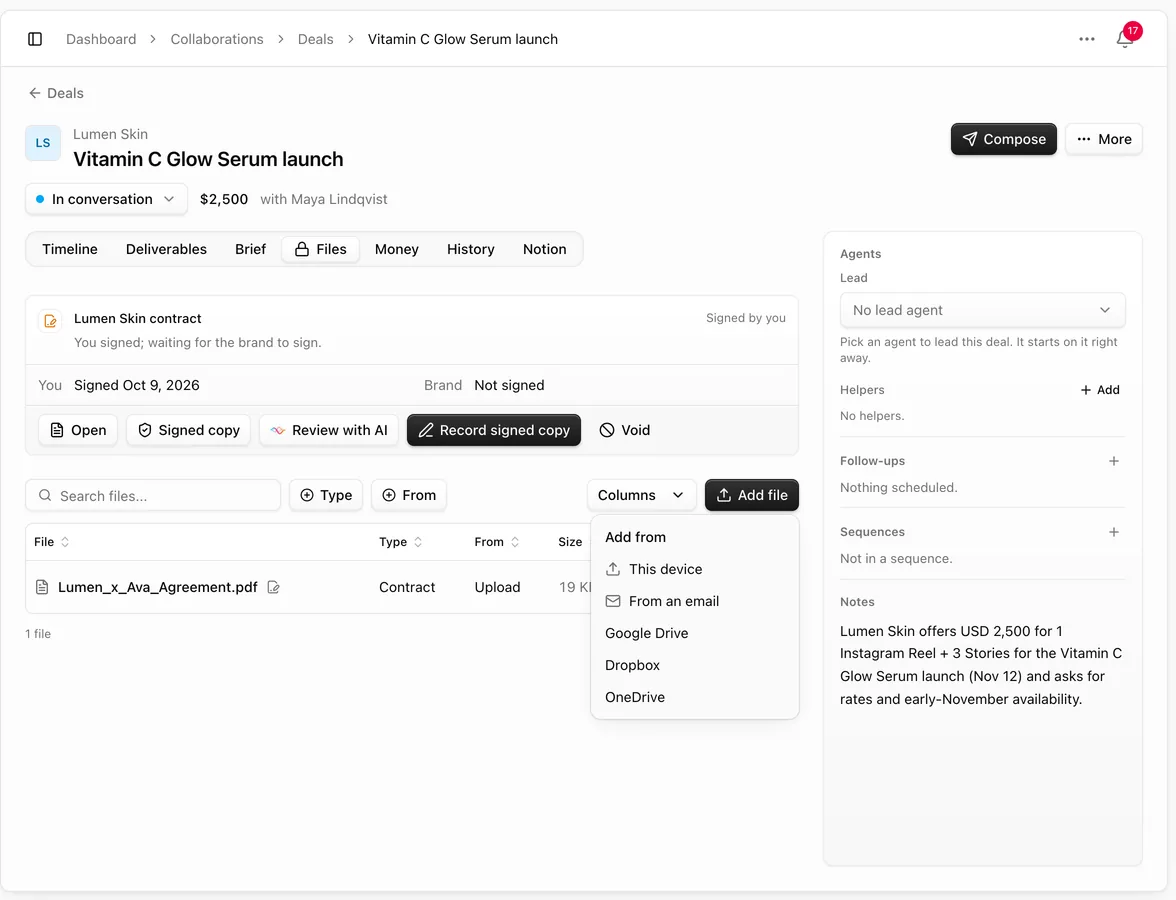
Open the deal and choose Files. The contract sits on top; below it, a table lists every file with its Type, where it came From, its size and when it was added.
- Attachments from the brand's emails come in on their own. When an email on the deal has attachments, they're added to Files and the timeline says so. If one of them is a contract, the timeline asks you to review it before signing.
- Add file adds more, from This device, From an email (pick an attachment from the emails on this deal), Google Drive, Dropbox or OneDrive. Files can be up to 25 MB.
- Filter by Type (Contract, Brief, Invoice, Deliverable, Other) or From (Email, Upload, Google Drive, Dropbox, OneDrive, E-signature).
How files get their type
Poppy reads each new file and gives it a type, such as Contract or Brief. Hover the type to see why. When it's wrong, use the row's menu → Change type. If you're out of AI credits, files are still added, as Other, for you to sort.
When a new file is a contract and the deal has none yet, it becomes the deal's contract. You can also pick a file yourself with Use as the contract, or add a revised one with New contract version.
From a row's menu you can also Open the file, View email to read the email it came with in a side sheet, and Remove it. Files that are part of the contract can't be removed.
Review the contract with AI
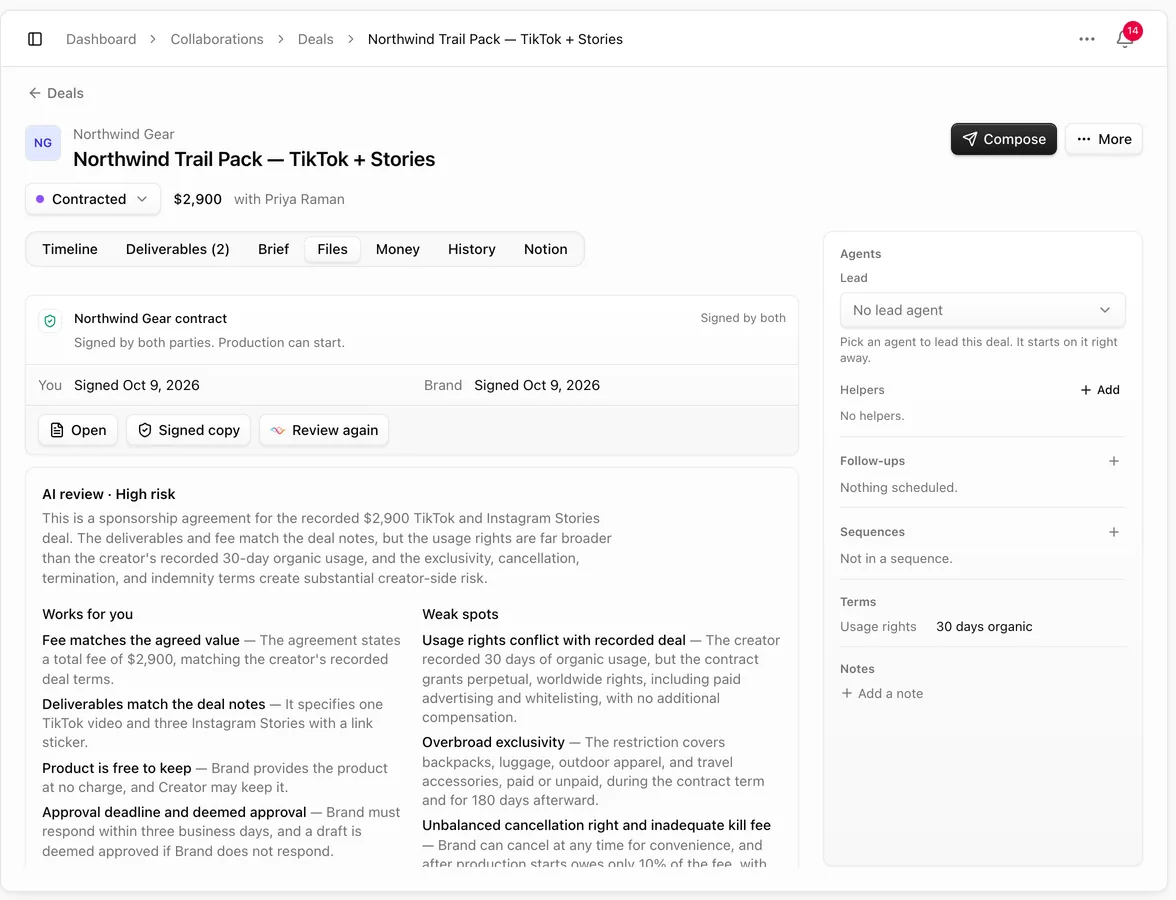
On the contract, choose Review with AI. Poppy reads it and tells you, in plain words:
- a verdict: Looks fair, Negotiate first or High risk, with a short summary,
- Works for you and Weak spots,
- Clauses to watch, such as usage rights, exclusivity, payment or cancellation, each with its risk and the words from the contract,
- Ask the brand for: what to negotiate and why.
Then choose Accept contract or Request changes. A review uses 1 AI credit. The contract is private data, so it only goes to AI models that never train on it (see AI settings and sensitive data). Use Review again after the brand sends a new version.
Sign it
The contract shows who has signed: You and Brand, each Not signed or Signed with the date. Its status moves from Draft or In review to Out for signature, Signed by you, Signed by the brand and Signed by both.
With Adobe Sign
When e-signature is on your plan, choose Send for e-signature, check the Brand signer email and name, add a message if you like, and choose Send for signature. Adobe Sign emails the PDF to you and to the brand. Each of you signs there, and the signed copy comes back to the deal on its own.
Record a signed copy
Signed outside Pointerly, for example by email or with another tool? Upload the signed PDF in Files, then choose Record signed copy. Pick the file, tick who signed it (Me, The brand, or both) and choose Record signature. If one of you already signed, the sheet only asks for the other.
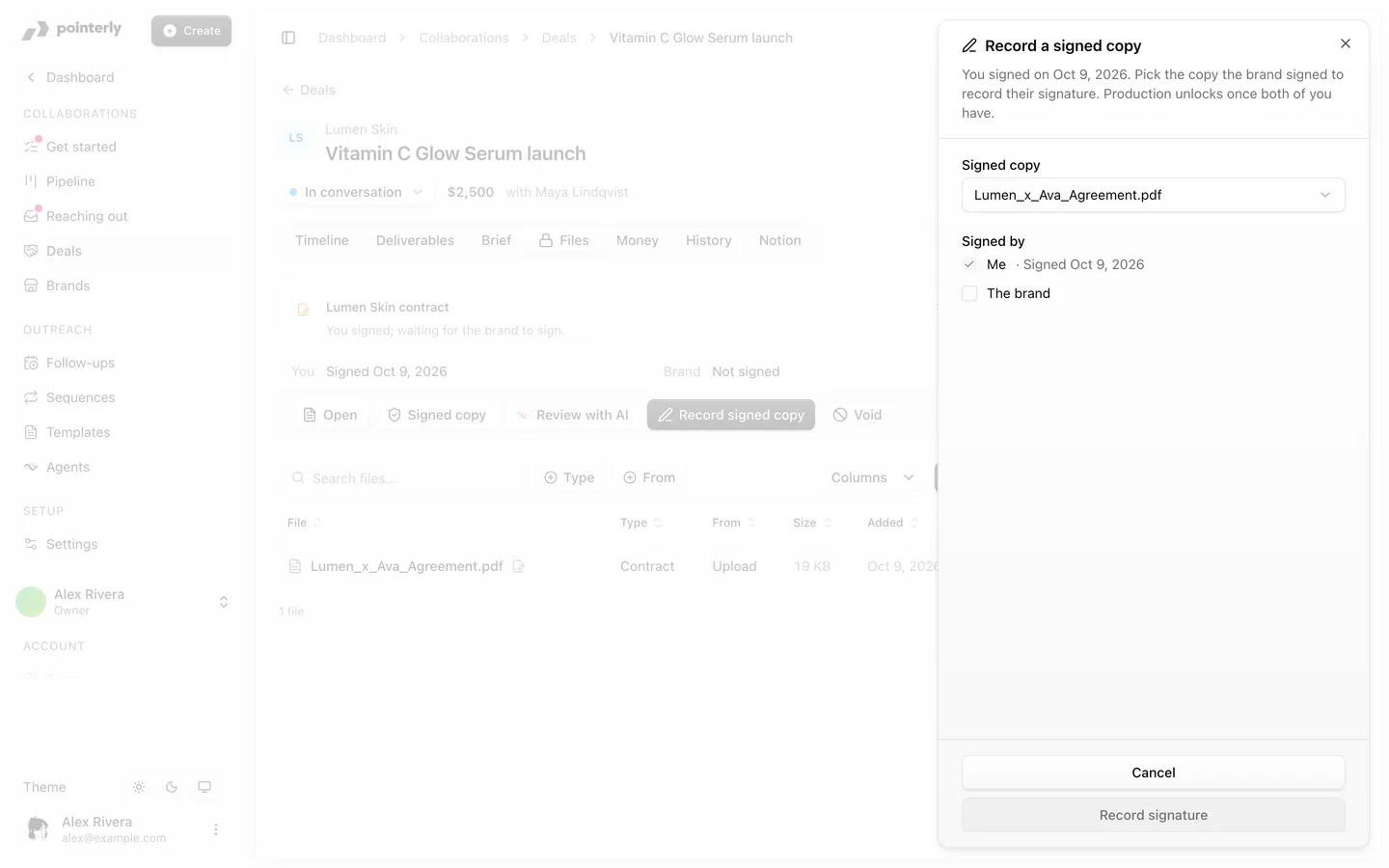
Void cancels a contract (and its e-signature request) so you can add a new one.
The signed-contract gate
A deal can't move into Contracted, In production, Delivered, Invoiced or Paid, and its deliverables can't start, until the contract is signed by both parties. Scripts are deliverable work too.
You can still go ahead. When you move the deal or start that work, Pointerly asks No signed contract yet and explains the risk. Add a reason if you like (for example, Brand works on email agreement only) and choose Continue without a signed contract, or Add contract instead. Your name, the date and your reason go into the deal's History as Continued without a signed contract.
From then on the deal page shows Continuing without a signed contract, with who waived it, when and why, and Add contract for when the brand sends one.
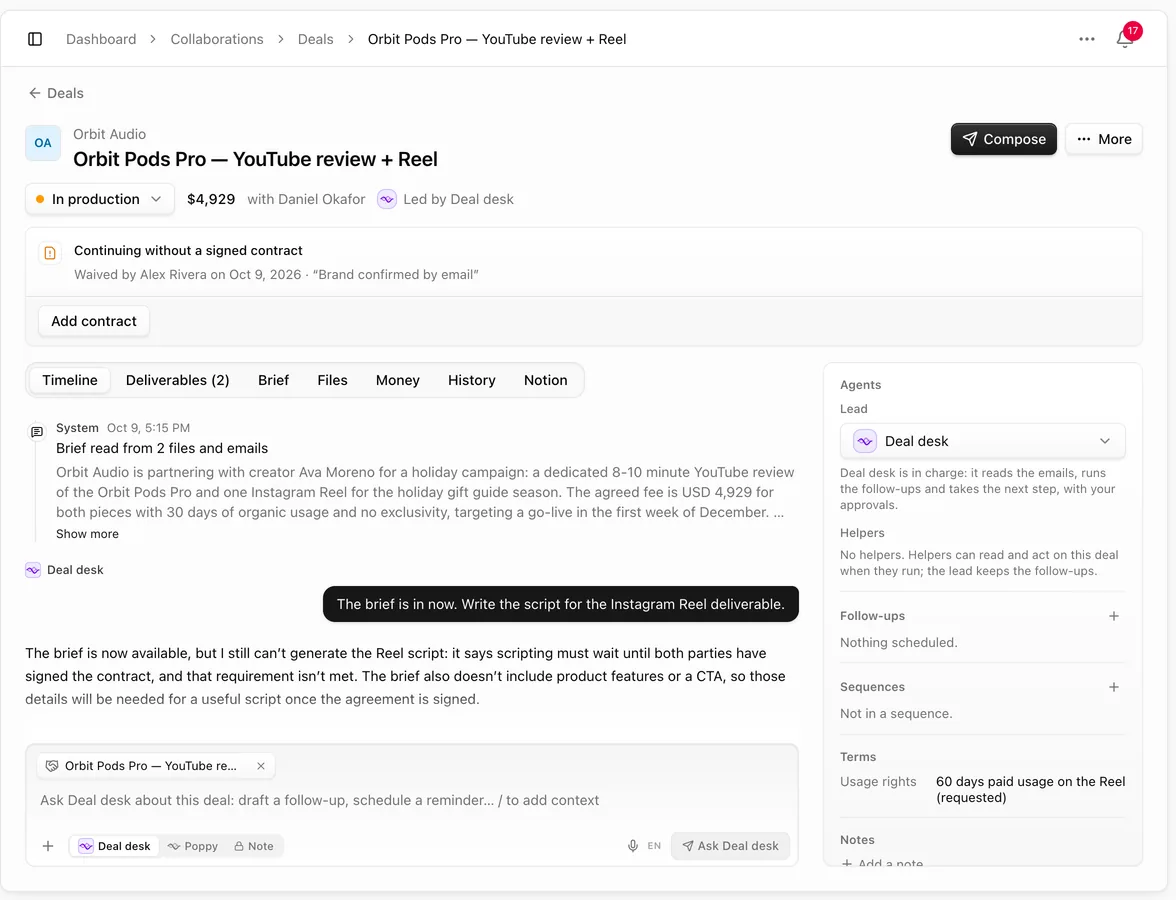
Agents never continue without a signed contract: they stop at Agreed and wait for you.
Deals that were already in production before contracts were required, or that you imported past that stage, keep moving. Their Files tab says so.
History
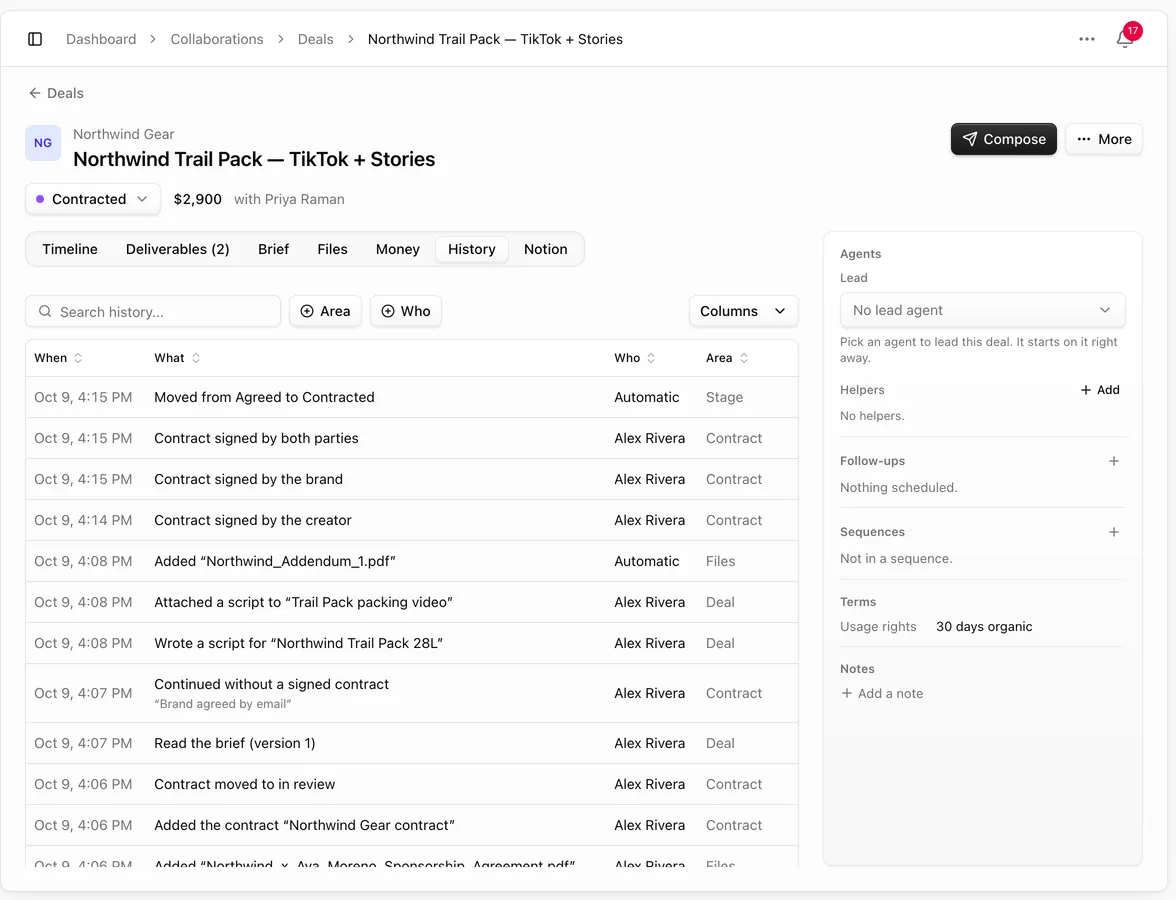
The History tab is the deal's record: stage moves, value changes, contracts and signatures, files, briefs, scripts, deliverables and every Continued without a signed contract, each with when, who (you, a teammate, an agent or Automatic) and the area. Search it, or filter by Area and Who. Nothing in it can be edited or deleted.
The Timeline is the conversation; History is the record.
Common questions
The brand emailed the contract but it's not in Files. Only emails on the deal bring their attachments. Link the email to the deal (see Brands reaching out), or use Add file → From an email.
Does the AI review replace a lawyer? No. It points out what to look at and what to ask for. For large or unusual deals, have a lawyer read the contract.
Can I undo a "Continue without a signed contract"? No, it stays in History. Add and sign the contract whenever the brand sends it; the deal carries on as normal.