Reward celebrations and notifications
The confetti card for a new reward, every Rewards notification you can get, who receives them, and how to turn email, push or in-app off.
When your workspace earns something, the dashboard celebrates with confetti and a card, and the workspace owner gets a Rewards notification. Other Rewards notifications keep you posted along the way: invite progress, challenge milestones, and credits about to expire.
What you'll achieve
- Know when the confetti card appears, and why it only appears once
- Know every Rewards notification and what it means
- Turn Rewards email, push or in-app notifications on or off
Before you start
- The celebration shows once, to whichever member who can view Rewards opens the dashboard first after the reward. The person who claimed a promotion sees it right away.
- Notifications go to the workspace owner only. Other members don't get Rewards notifications.
- Delivery settings are per user under Settings → Notifications.
The celebration
| Behaviour | Details |
|---|---|
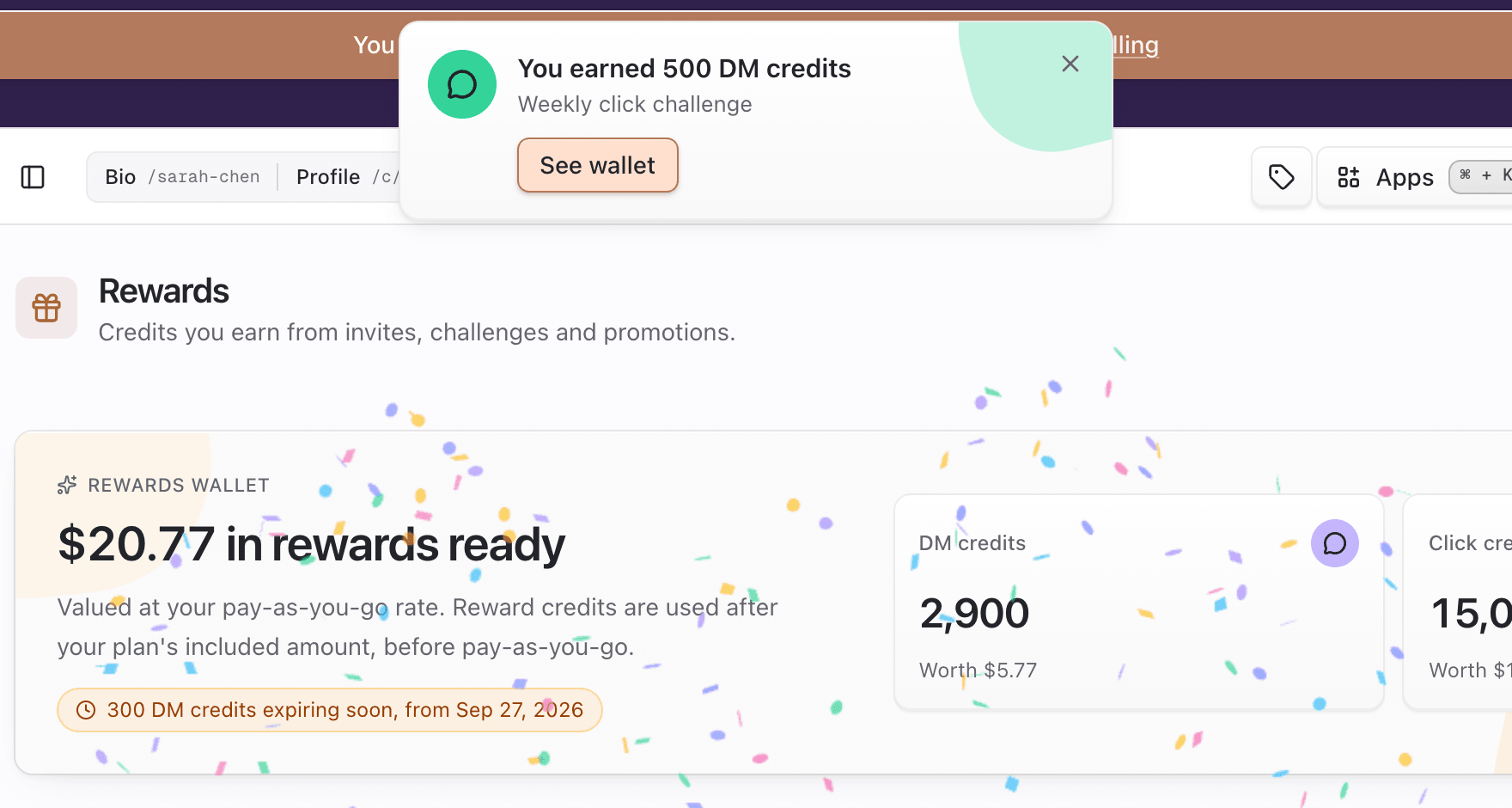
| What you see | Confetti from the top of the screen and a card: You earned 500 DM credits with where it came from (for example Welcome reward, Referral reward, the promotion name). Several rewards at once: You earned 3 rewards with up to three listed |
| Buttons | See wallet opens Rewards. The × (Dismiss reward) or Esc closes it |
| How long | Closes on its own after about 6 seconds, unless your pointer or keyboard focus is on it |
| Once, everywhere | Each reward is celebrated once for the workspace, across every device and browser. After it's shown to anyone, it won't appear again on another device, for another member, or after a reload |
| Recent only | Only rewards from the last 14 days are celebrated. Coming back after a long break won't replay old ones. They're all in History |
| While you're online | Rewards paid by the background job (a finished challenge, a referral payout) are celebrated as soon as they arrive for the owner, in place of the usual notification toast. Other members see them the next time the dashboard checks |
| Reduced motion | With reduced motion on in your system settings, the card appears without confetti or movement |
Rewards notifications
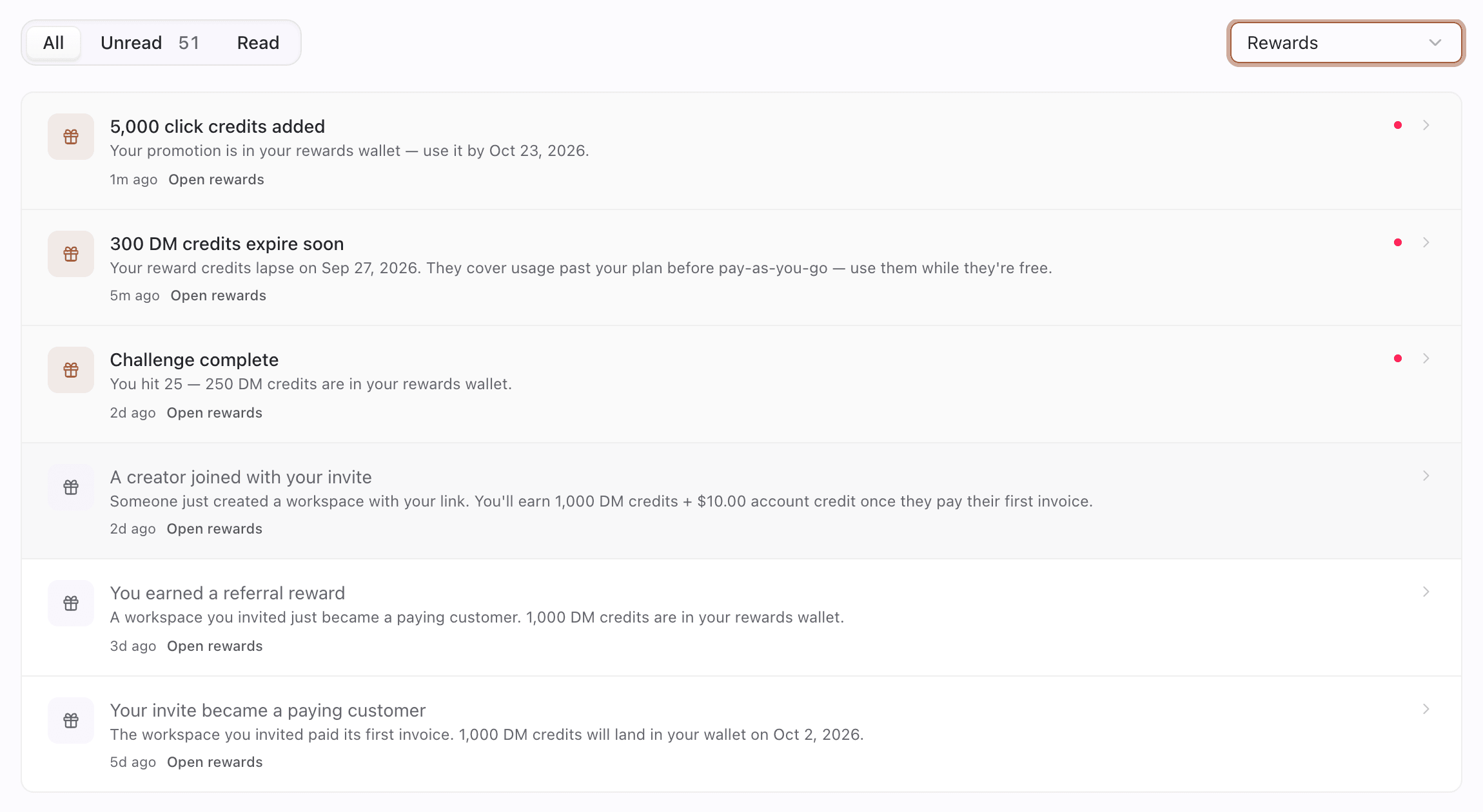
All of these have the type Rewards, open Dashboard → Rewards (Open rewards), and appear in the inbox under the Rewards type filter.
| Notification | When |
|---|---|
| Welcome gift: 200 DM credits | Your new workspace joined through an invite and got a welcome gift |
| A creator joined with your invite | Someone created a workspace with your link. Reminds you what you'll earn once they start a paid plan |
| Your invite became a paying customer | The invited workspace paid its first invoice. Includes the Reward date |
| You earned a referral reward | Your referral reward was paid after the hold |
| <reward> added (for example 5,000 click credits added) | You claimed a promotion or redeemed a code. Includes the use it by date when it expires |
| 50% of the way — <challenge> / 80% of the way — <challenge> | Challenge milestones, with how many are left and days remaining |
| Challenge complete | You hit the goal. The reward is in your wallet |
| Challenge ended — <challenge> | The window closed before the goal. Shows how far you got |
| <credits> expire soon | About 3 days before reward credits lapse, grouped into one message per workspace, with each expiry date |
| You received a reward | Pointerly staff added a courtesy credit |
A notification for a new reward (welcome gift, referral payout, promotion, challenge complete, courtesy credit) doesn't also pop up as a toast while you're in the dashboard. The celebration card replaces it.
Steps
1. Find Rewards notifications
- Open Dashboard → Notifications (or the bell).
- Set the type filter to Rewards.
- Click a row to open Dashboard → Rewards.
2. Choose how Rewards notifications reach you
- Go to Dashboard → Settings → Notifications.
- Find Rewards (Referral sign-ups and payouts, challenge progress, and reward credits about to expire.).
- Turn Email, Push and In-app on or off. All three are on by default.
- Click Save Preferences.

Tips
- Keep Email on for Rewards if you want the expire soon reminder to reach you. It's the one that saves credits from lapsing.
- Turning Rewards notifications off doesn't affect the celebration card, or your rewards themselves.
- Not the owner? Check Dashboard → Rewards for the same information. The owner receives the notifications.
Common questions
I got the confetti on my laptop. Will I see it again on my phone? No. Each reward is celebrated once, on whichever device shows it first.
I dismissed the card too fast. Where do I see what I got? In the wallet and History on Dashboard → Rewards, and in the notification.
Why didn't a teammate get the notification? Rewards notifications go to the workspace owner only.
Can I stop the confetti? Turn on reduced motion in your system settings. The card still appears, without confetti or animation.
Troubleshooting
| Symptom | Likely cause | What to try |
|---|---|---|
| No celebration for a reward | It was already shown on another device, or it's older than 14 days | Check History |
| No Rewards notifications at all | You're not the workspace owner, or the channels are off | Owner: check Settings → Notifications → Rewards |
| No email for expire soon | Email off for Rewards, or in spam | Turn Email on and save. Check spam |
| No toast when a reward lands | Expected: the celebration card replaces the toast | Look for the card at the top of the screen |