Rewards overview
What Rewards is, where it lives in the dashboard, and how the rewards wallet, invites, challenges and promotions fit together.
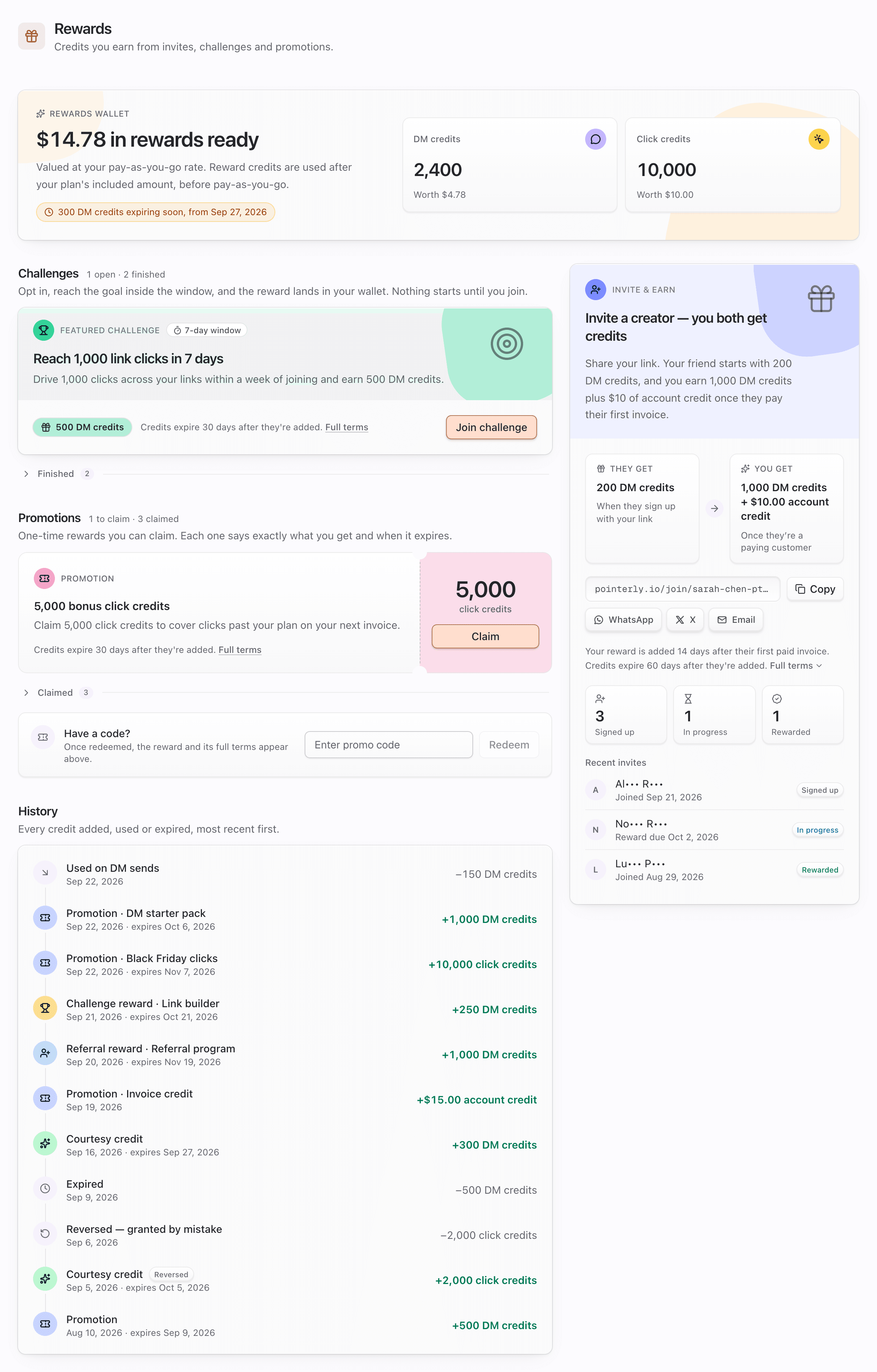
Rewards is where your workspace earns free usage from Pointerly: credits for inviting other creators, for finishing challenges, and from promotions and promo codes. Everything you earn lands in one rewards wallet, and it's spent for you automatically once you go past what your plan includes, before anything is billed as pay-as-you-go.
Open it from Dashboard → Rewards (in the Account group of the navigation), or go straight to /dashboard/rewards. The page header reads Rewards, with the line Credits you earn from invites, challenges and promotions.
What you'll achieve
- Know the three ways to earn: invites (referrals), challenges and promotions
- Find Rewards in the dashboard, the sidebar card deck, the top bar and announcements
- Understand the wallet: what a reward credit is, when it's spent, and when it expires
- Know who in your team can see Rewards and who can act on it
Before you start
- Pick the right workspace in the team switcher. Rewards, credits and invite links all belong to one workspace.
- You need Rewards access. Owners and admins can view and act (join challenges, claim promotions). Managers and viewers can view. Editors, collaborators and partnership members don't see Rewards unless someone grants it. See Rewards FAQ and troubleshooting.
- Staff choose which programs run, what they give and for how long. Every number in these articles (for example "1,000 DM credits" or "14 days") is an example from the starter programs. The terms shown next to each reward in your dashboard always win.
Ways to earn
| Program | What you do | What you get | When |
|---|---|---|---|
| Invite & earn (referral) | Share your personal invite link. Someone creates a new workspace with it | The new workspace may get a welcome gift. You get the referral reward, sometimes plus account credit | Your reward arrives after the invited workspace's first paid invoice and a hold period (for example 14 days) |
| Challenge | Opt in and hit a goal (link clicks, DMs sent or links created) inside a time window | The challenge reward | Within about 30 minutes of reaching the goal |
| Promotion | Click Claim, or redeem a promo code | The promotion reward | Right away |
Staff can also give a workspace a one-off courtesy credit. It shows in your History as Courtesy credit.
What a reward can be
| Reward | How it works |
|---|---|
| DM credits, click credits, automation runs, routine runs | Held in your wallet. Used after your plan's included amount and before pay-as-you-go. They may expire (for example 30 or 60 days after they're added) |
| Extra links, publish credits, WhatsApp sends, Telegram sends, AI credits | Added straight to that balance or limit when you receive them. Extra links and publish credits are permanent. AI credits last the number of days in the terms |
| Add-on access | A catalog add-on unlocked for a set number of days. It's never charged and never renews |
| Account credit | Dollars on your Stripe balance, taken off your next invoice before your card is charged. It never expires |
The full rules are in The rewards wallet.
Where Rewards shows up
| Place | What you'll see |
|---|---|
| Dashboard → Rewards | The whole picture: wallet, Invite & earn card, Challenges, Promotions (with the Have a code? box) and History |
| Sidebar footer deck (sidebar layout) | An Invite & earn card in the small deck of cards at the bottom of the sidebar, next to What's new and Support. Hover, focus or tap the deck to open it. Clicking the card opens Rewards, and the copy button copies your invite link. It only appears while a referral program is running |
| What's new & more (top bar layout, or when the sidebar is collapsed to icons) | The sparkle button in the header opens a panel with the same cards as the sidebar deck, Invite & earn included |
| Top bar challenge pill (top bar layout, wide screens) | While you're in a challenge, a pill in the middle of the top bar shows its name, progress (for example 640/1,000) and time left (3d left, Goal reached). Click it to open Rewards |
| Announcements | Staff can promote a program in the sidebar card, the top-bar ticker, the dashboard banner or the tab under the marketing site's navbar. The button usually goes to /dashboard/rewards. See Announcements overview |
| Billing | Reward credits, account credit and reward add-ons are labelled From Rewards on the Billing page. See Rewards on your Billing page |
| Notifications | Reward messages (type Rewards) in the inbox and by email. See Reward celebrations and notifications |
Steps
1. Open Rewards
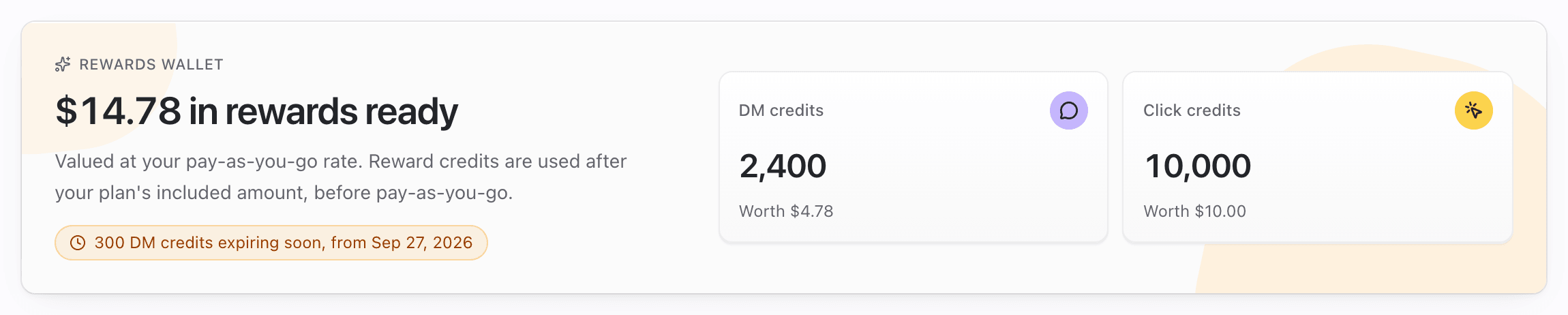
- Go to Dashboard → Rewards.
- At the top, the Rewards wallet shows the total value ready to use (for example $12.45 in rewards ready) and a tile per balance. With nothing earned yet it reads Your rewards start here.
- Under the wallet sits the Invite & earn card. On wide screens it's in a column on the right.
2. Pick how you want to earn
- Invite & earn: copy your link, or share it with the WhatsApp, X or Email buttons. See Invite creators and earn.
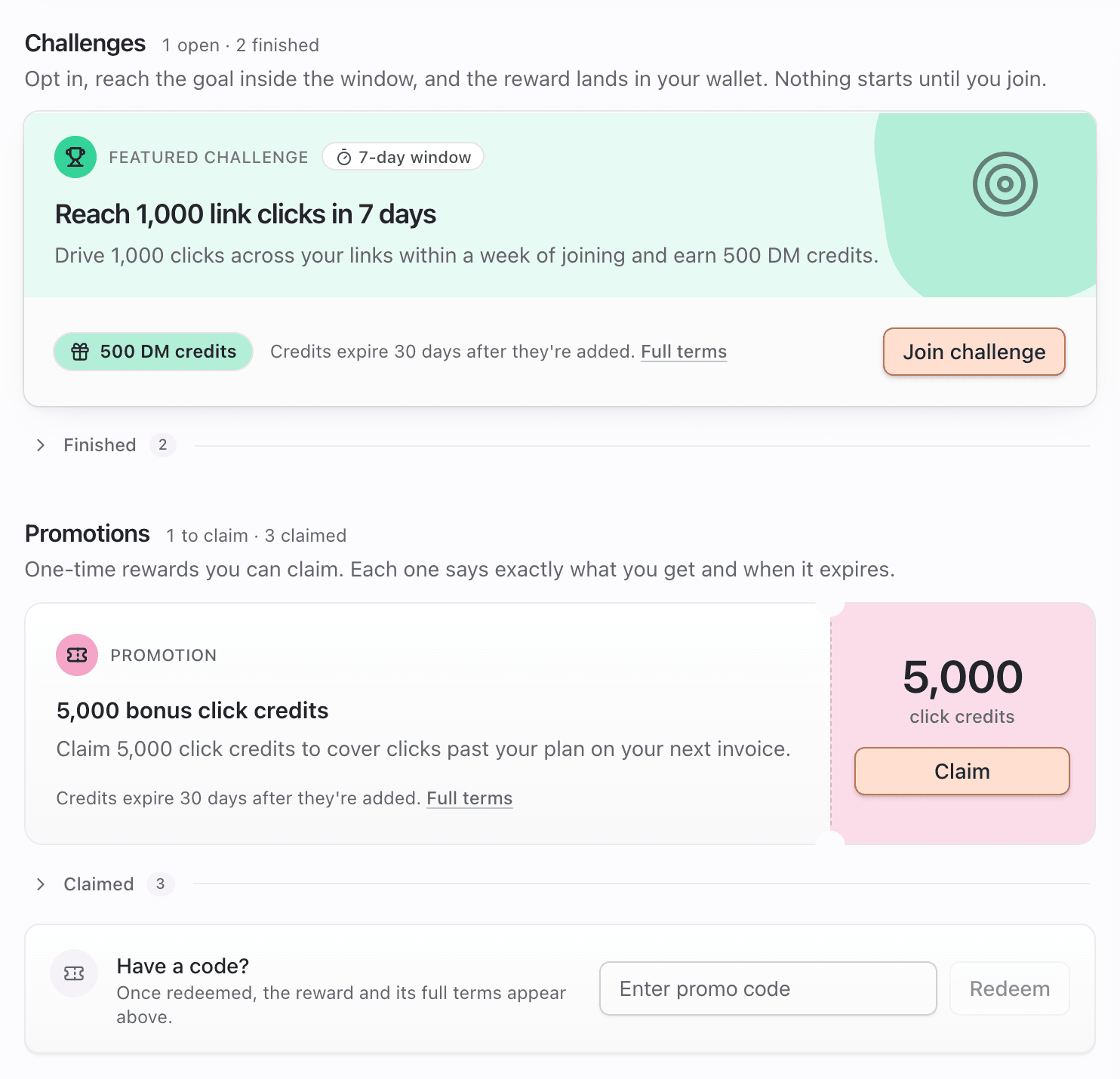
- Challenges: click Join challenge on one you want. Nothing starts until you join. See Challenges.
- Promotions: click Claim, or type a code in Have a code? and click Redeem. See Promotions and promo codes.
3. Watch rewards arrive
- A new reward sets off confetti and a card (You earned 500 DM credits). The workspace owner also gets a Rewards notification.
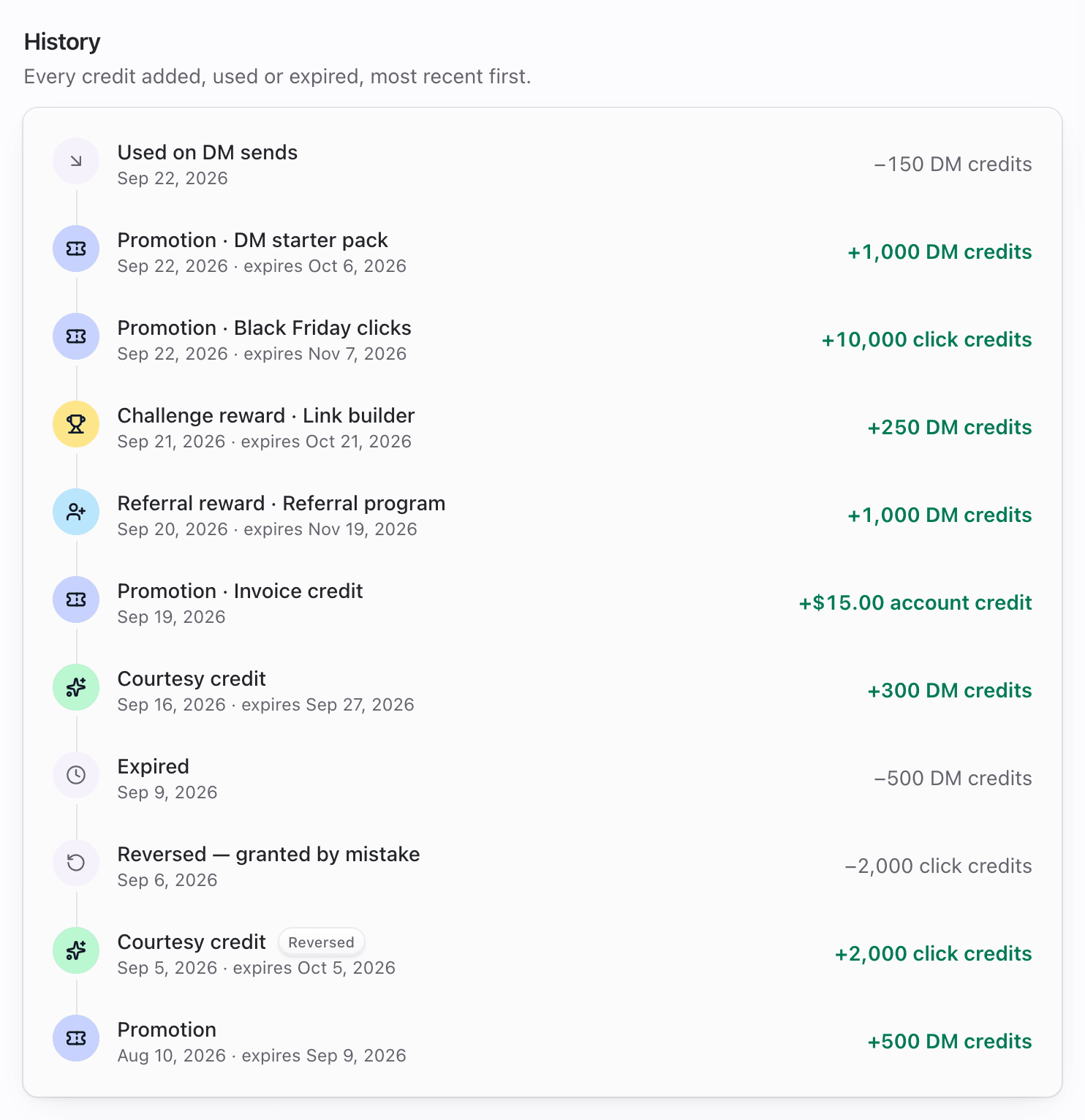
- History lists every credit added, used, expired or reversed, newest first.
- You don't need to "apply" anything. Credits are spent automatically in the right order.
Tips
- Reward credits only matter once you go past your plan. A workspace that stays inside its plan won't spend them before they expire.
- Reward credits are spent before pay-as-you-go, so they lower your bill before you're charged per unit.
- Read each reward's one-line terms (Credits expire 30 days after they're added.) and open Full terms for the details.
- Invite links belong to the workspace, not to you. Switch workspace and you'll see that workspace's link and wallet.
Common questions
Is Rewards a separate plan or subscription? No. It adds credits and access on top of your current plan. Nothing in Rewards changes your tier or adds a charge.
Do rewards ever turn into a charge? No. Reward add-ons expire instead of renewing, and reward credits cover usage that would otherwise be billed.
Why don't I see Rewards in the navigation? You probably don't have Rewards access in this workspace. Ask an owner or admin. See Rewards FAQ and troubleshooting.
Can I move credits to another workspace? No. Rewards are recorded per workspace and stay with the workspace that earned them.