Challenges
Opt in to a challenge, hit the goal inside your window, and get the reward: metrics, progress updates, milestones, pay-as-you-go requirements and outcomes.
A challenge is a goal with a deadline: Reach 1,000 link clicks in 7 days, Send 500 DMs in 14 days, Create 20 new links in 30 days. You opt in, your window starts that moment, and if you reach the goal before the window closes, the reward lands in your wallet.
You'll find challenges in the Challenges section of Dashboard → Rewards. You're never enrolled automatically: Nothing starts until you join.
What you'll achieve
- Join a challenge and know exactly when your window ends
- Understand which activity counts toward the goal
- Follow progress on the Rewards page and in the top bar
- Know what happens when you finish, and when you don't
Before you start
- Right workspace selected. Progress counts that workspace's activity only.
- Rewards → manage to join. Owners and admins have it. Managers and viewers can see challenges but can't join them.
- Some challenges need pay-as-you-go turned on for DMs or clicks first. The card tells you.
- Staff set the goal, window, reward and eligibility per challenge. The starter example is Reach 1,000 link clicks in 7 days, which pays 500 DM credits (expire after 30 days) and needs pay-as-you-go for DMs. Example only.
How challenges work
| Rule | Details |
|---|---|
| Goal metrics | Link clicks, DMs sent or new links created in this workspace |
| Window | Starts the moment you click Join. Lasts the challenge's window (up to 90 days), but never runs past the challenge's end date. Your card shows the exact end |
| What counts | Only activity after you join. Clicks before joining don't count |
| Once per workspace | Each challenge can be joined once per workspace. You can't rejoin after it ends |
| Your terms are locked in | The reward and what counts toward the goal are fixed when you join. If the challenge is changed later, you still get what your card promised |
| Limited rewards | When a challenge has a limited number of rewards, joining holds one for you. Once every reward is held, it closes to new joins, but everyone who joined can still earn theirs |
| Several at once | You can be in several different challenges at the same time |
| Join deadline | Challenges with an end date show Join by <date> |
Who can join
A challenge you can't join still shows up, with a note explaining why:
| Note on the card | Why | What to do |
|---|---|---|
| Available once pay-as-you-go for DMs is on. (or for clicks) | The challenge needs that pay-as-you-go meter on | Click Turn on pay-as-you-go. It opens Billing → Add-ons, where the pay-as-you-go controls live |
| This one isn't available on your current plan. | Limited to certain plans | Upgrade, or wait for another challenge |
| This one is for newly created workspaces. | Only for workspaces created after the challenge started | Nothing to do in this workspace |
| All rewards for this one have been handed out. | Its reward budget ran out | Wait for the next one |
| This one isn't open right now. | Not started yet, paused or ended | Check back later |
If you try to join anyway, the reply uses the same reasons, for example Turn on pay-as-you-go in Billing to join this. or You already joined this challenge.
Steps
1. Join a challenge
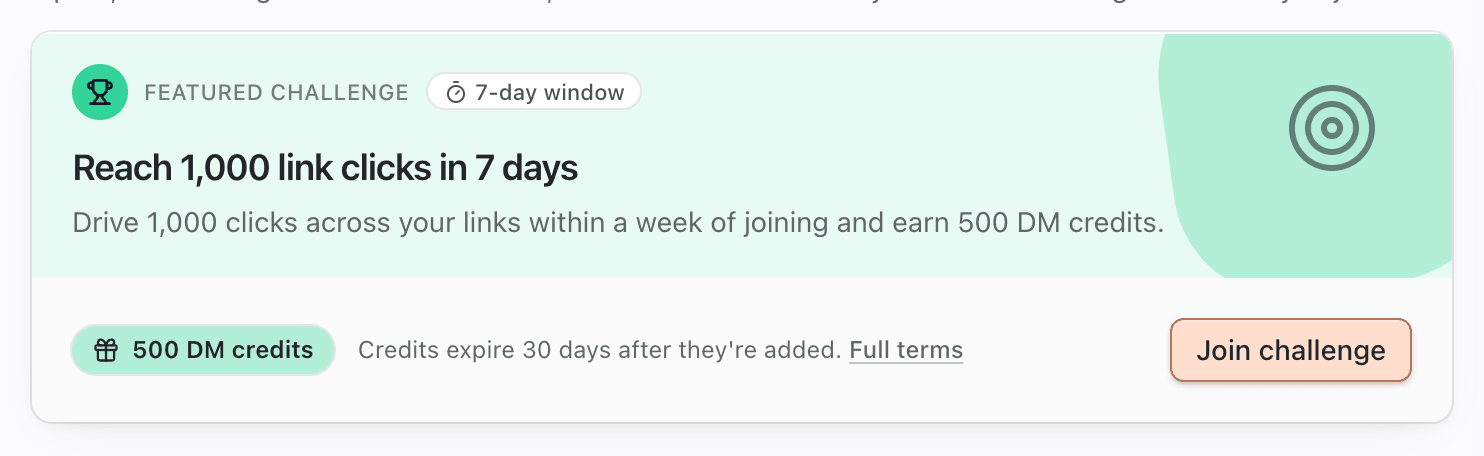
- Open Dashboard → Rewards → Challenges. The one worth your attention first is shown full size, and the rest are listed below it.
- Read the goal, the reward chip (for example 500 DM credits), the window chip (7-day window) and the one-line terms (The 7-day window starts when you join. Credits expire 30 days after they're added.). Full terms opens the complete terms.
- Click Join challenge (or Join in the list).
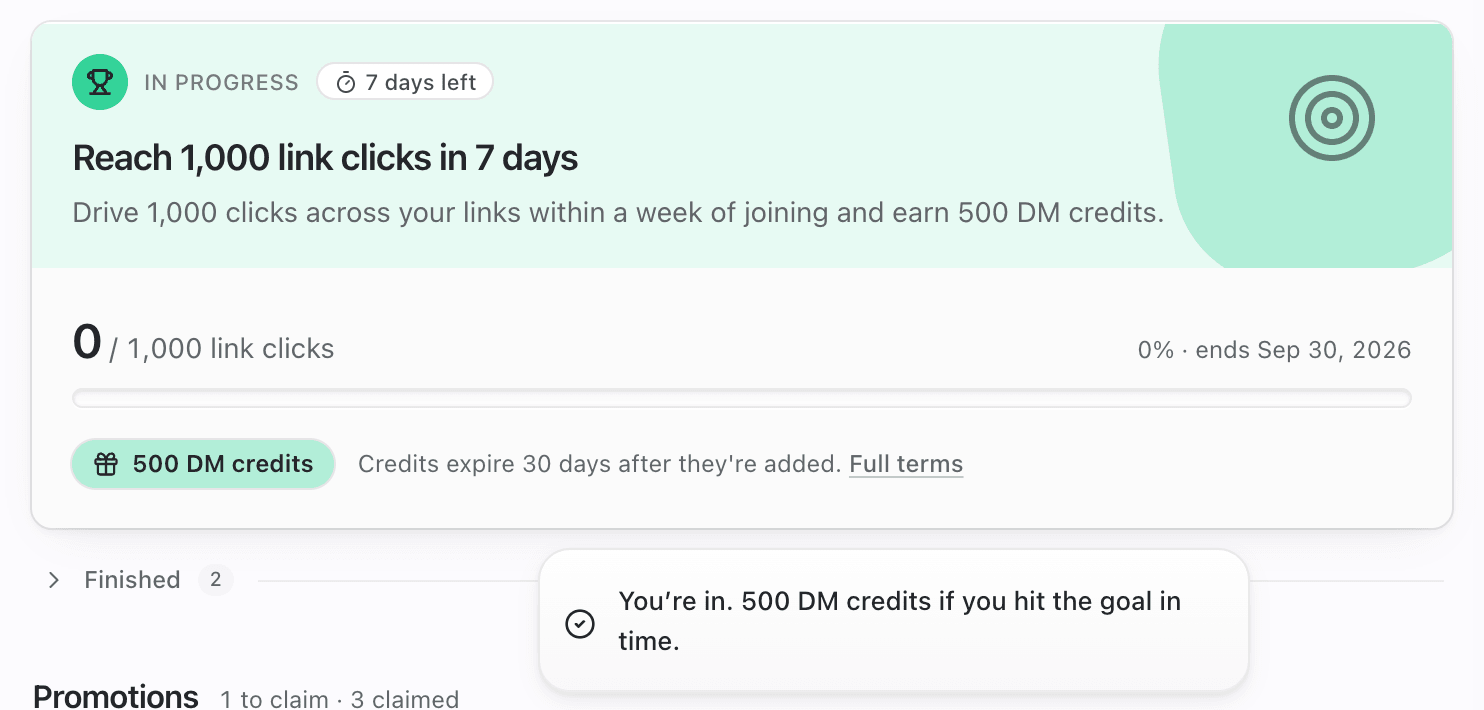
- Toast: You're in. 500 DM credits if you hit the goal in time.
2. Follow your progress
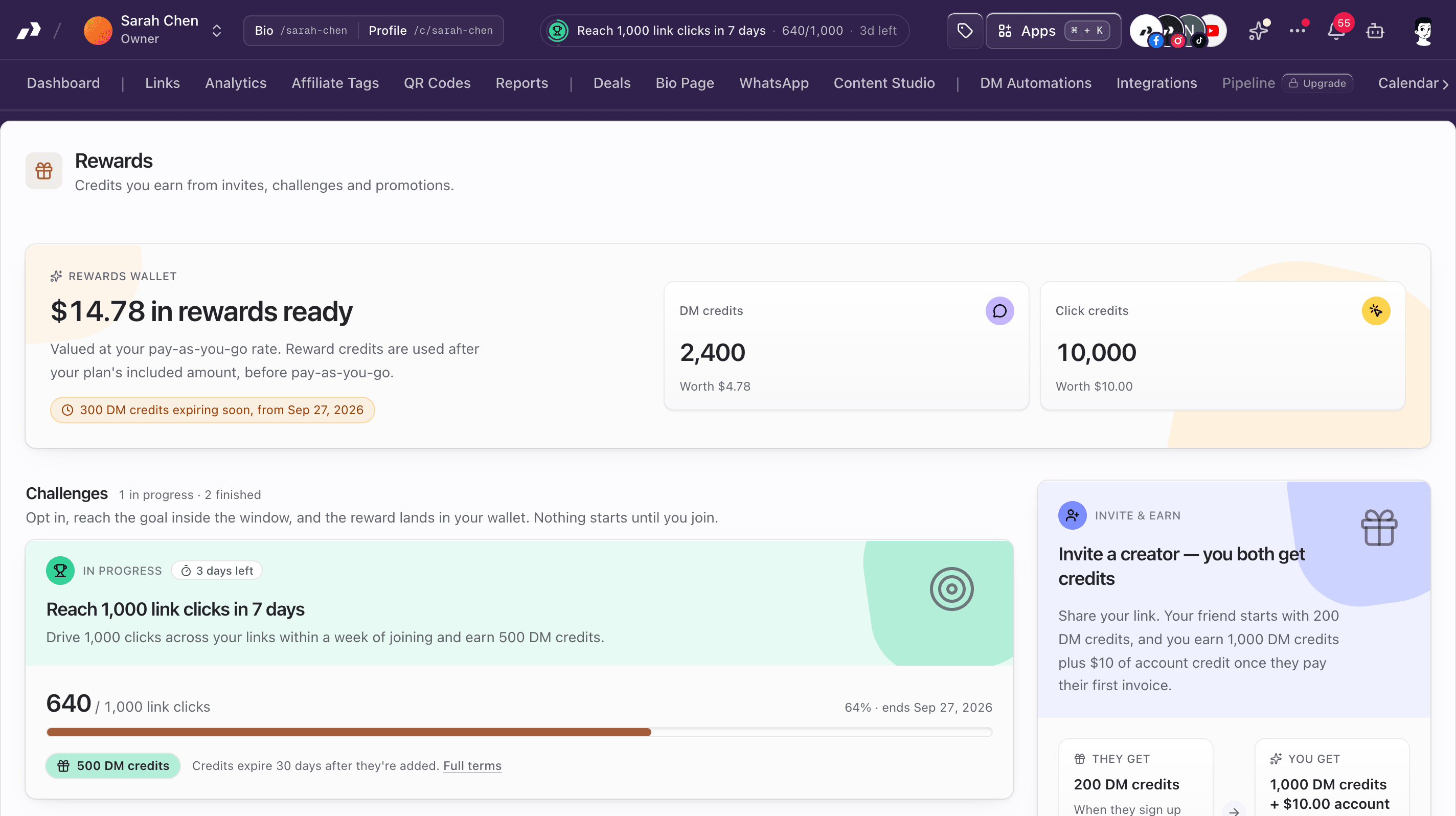
- On the Rewards page: the card switches to In progress with a progress bar,
640 / 1,000 link clicks, the percentage, ends <date> and a countdown (3 days left, 5 hours left, Under an hour left). The page reads your current numbers each time you open it. - In the top bar (top bar layout, wide screens): a pill with a progress ring shows the challenge closest to its deadline, for example Reach 1,000 link clicks · 640/1,000 · 3d left. Click it to open Rewards. When space is tight it takes the place of the announcement ticker.
- Milestones: Pointerly checks every challenge about every 30 minutes. When you pass 50% and 80% of the goal, the workspace owner gets a nudge, for example 80% of the way — Reach 1,000 link clicks with how many are left and the days remaining. Each milestone is sent once. If you jump past both at once, you only get the 80% one.
3. Finish
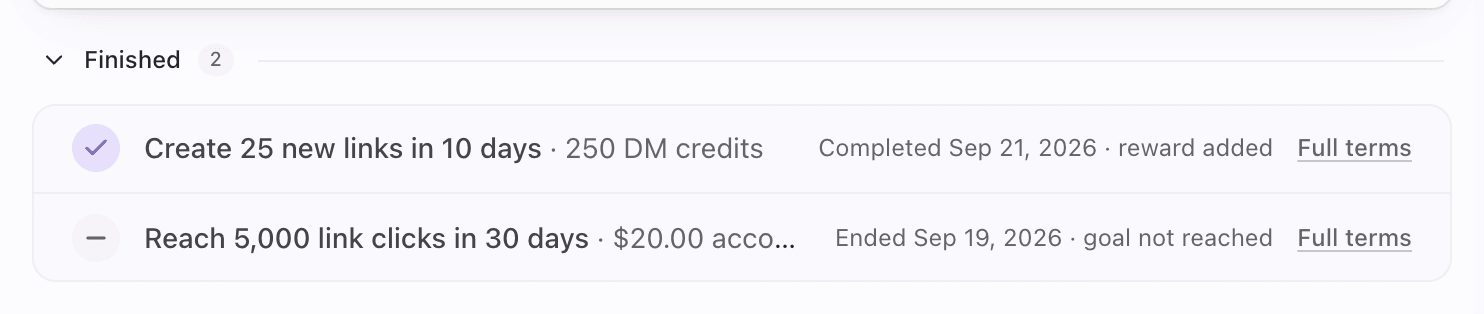
- Goal reached: within about 30 minutes, the reward lands in your wallet. You get confetti, the notification Challenge complete (You hit 1,000 — 500 DM credits are in your rewards wallet.) and a Challenge reward row in History. The challenge moves to Finished: Completed <date> · reward added.
- Window closed without the goal: the owner gets Challenge ended — <challenge name> with how far you got. The row shows Ended <date> · goal not reached and Closed.
- Reached it at the last minute? If you hit the goal before your window closed, you get the reward even if the check runs after the deadline.
Tips
- Join when you're about to publish or promote: the window starts at join, not when the challenge opened.
- Turn on the right pay-as-you-go meter before you join a challenge that needs it.
- Once you've joined, you keep your reward if you reach the goal, even if the challenge is later paused or its budget fills up.
- The reward follows the usual wallet rules: reward DM or click credits are used after your plan's included amount, before pay-as-you-go.
Common questions
Do clicks from before I joined count? No. Only activity inside your window counts.
Which clicks count? Link clicks recorded for the workspace, the same numbers used for usage on your Billing page.
Why did my progress jump when I opened Rewards? The Rewards page reads current numbers live. Milestone messages and payouts follow on the next check (about every 30 minutes).
Can I leave a challenge? There's no leave button. An unfinished challenge simply ends when its window closes, and nothing is charged.
Can a manager join for the team? No. Joining needs Rewards → manage (owner or admin by default), because some challenges require turning on pay-as-you-go, which is a billing decision.
I don't see a challenge a friend has. Challenges can be limited to certain plans, to new workspaces, or to a date range. Some also run out. Your workspace may simply not be eligible.
Troubleshooting
| Symptom | Likely cause | What to try |
|---|---|---|
| No Join button, Turn on pay-as-you-go shown | Challenge needs DM or click pay-as-you-go | Turn it on under Billing → Add-ons, then join |
| No challenges running right now | Nothing live | New challenges appear here when they open |
| No open challenges right now | You've taken part in every live challenge | Wait for new ones |
| Progress looks low | Activity before joining doesn't count, or it's in another workspace | Check the team switcher and the join date |
| Goal reached but no reward yet | The check runs about every 30 minutes | Wait for the next run, then look in History |
| No top bar pill | Sidebar layout, narrow window, or no active challenge | Pill only shows in the top bar layout on wide screens. The Rewards page always shows progress |
| You already joined this challenge. | Already enrolled or finished | Each challenge is once per workspace |
| You do not have permission to manage Rewards. | You can view Rewards but not join (manager, viewer) | Ask an owner or admin to join, or to grant Rewards → manage |