Smart routing
Route one short link to Amazon, eBay, or Walmart marketplace variants by country or ?mp= override.
Smart routing lets one short link send visitors to the right Amazon, eBay, or Walmart marketplace while keeping a separate destination URL and affiliate tag per variant.
Resolution order (shown in the settings sheet and enforced by the click resolver):
mpoverride — visitor opensyoursite/slug?mp=amazon.de(example). Uses that marketplace only if an active variant exists for it.- Visitor country — geo maps to a configured marketplace when a matching active variant exists.
- Default target — the link’s primary destination / default marketplace (and its primary affiliate tag).
Without smart routing (toggle off), or when no active variant matches, every visitor gets the pasted (default) destination.
What you'll do
- Open Smart routing settings for an Amazon, eBay, or Walmart link
- Enable routing and add marketplace variants (URL + matching tag)
- Optionally set a default variant or convert a variant into a standalone link
Before you start
- The link’s store is Amazon, eBay, or Walmart (other stores show that variants aren’t supported)
- Your plan includes smart routing / marketplace routing (the UI shows an upgrade prompt on Free when locked — Individual or higher)
- You already created affiliate tags for each marketplace you want to route to
- Variant product URLs should be the same product (or equivalent listing) on each locale when possible
Steps
1. Open Smart routing settings
- Go to Dashboard → Links.
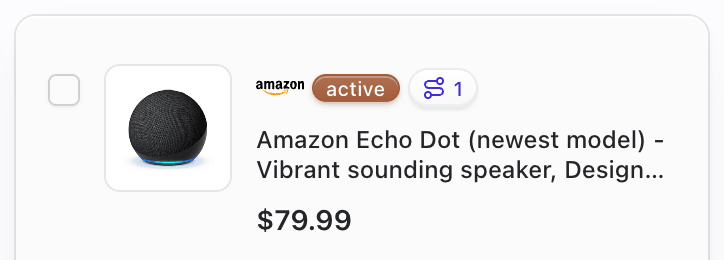
- Find an Amazon, eBay, or Walmart link.
- Open smart routing from either:
- The route badge / count on the card or table row, or
- The row / card ⋯ menu → Smart routing
- Or from the link edit sheet’s smart routing panel
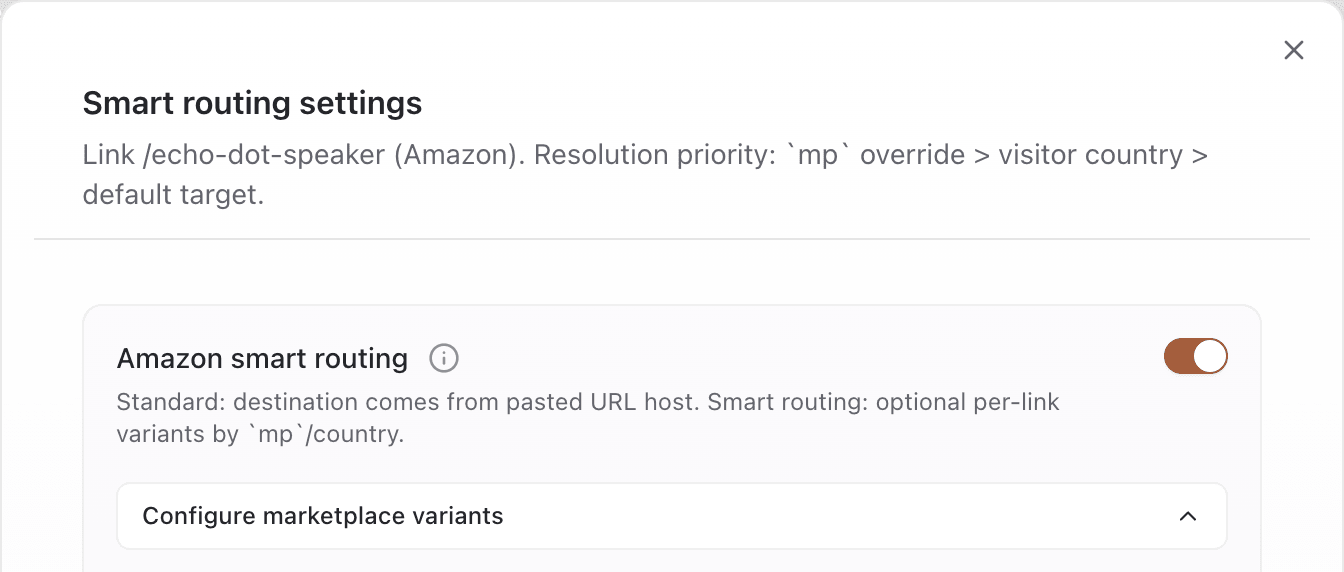
The Smart routing settings sheet opens for that link (/{slug} and store label appear in the description).
2. Enable routing and add a variant
- Turn on the smart routing switch (for example “Amazon smart routing”). This sets
marketplaceRoutingEnabledon the link. - Expand Configure marketplace variants.
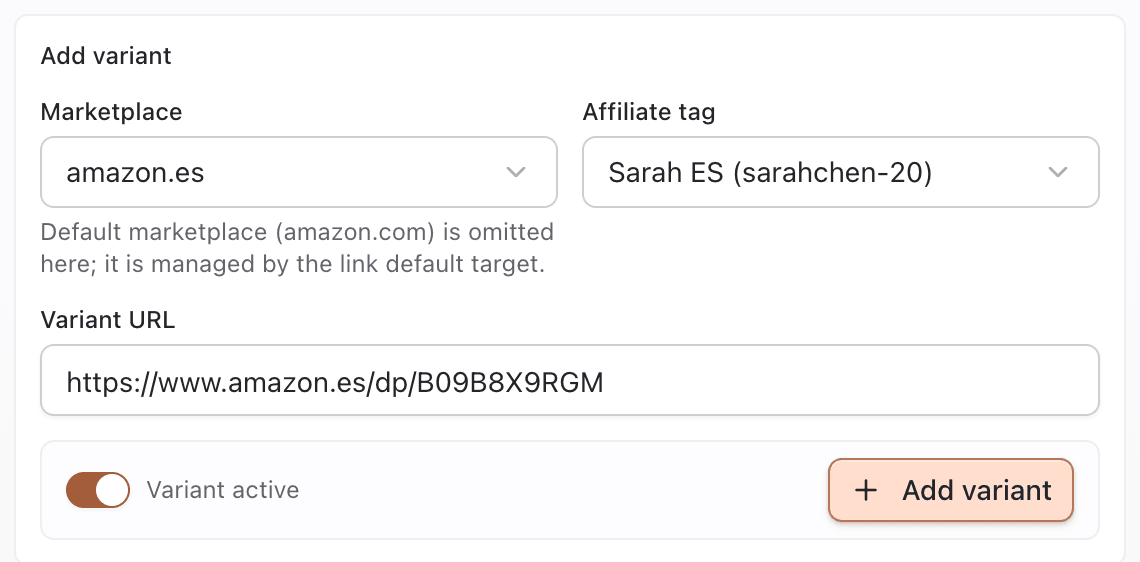
- Under Add variant, choose:
- Marketplace — locales available from your tags for that store (the link’s default marketplace is omitted here; it stays the primary target)
- Affiliate tag — must be eligible for that marketplace (validated against the variant URL)
- Variant URL — full product URL on that marketplace host
- Variant active — leave on so the variant can be selected
- Click Add variant.
Pointerly validates that the URL’s marketplace matches the marketplace you selected. Mismatches (for example selecting amazon.de but pasting amazon.com) are blocked with an error such as Variant marketplace mismatch.
3. Review variants and optional actions
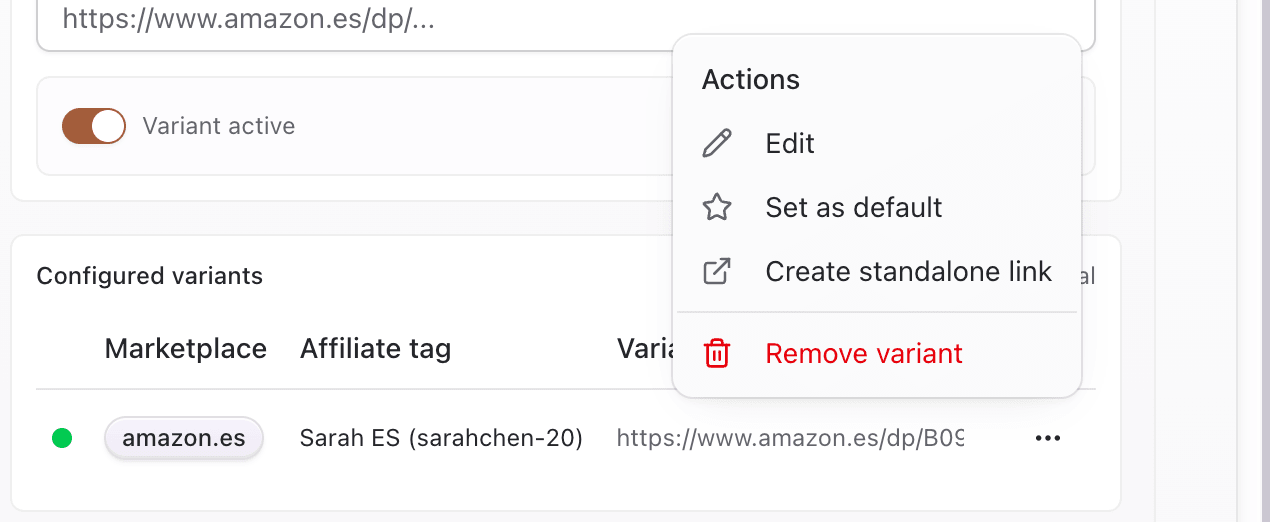
In Configured variants:
| Action | Use when |
|---|---|
| Edit | Change URL, tag, marketplace, or active state |
| Set as default | Promote this variant to be the link’s default target |
| Create standalone link | Open Create Link prefilled with this variant’s URL + tag (optionally remove the variant afterward) |
| Remove variant | Soft-delete the variant from this link |
- Confirm each variant you need is active.
- Share the primary short URL as usual — visitors resolve via
mp/ geo / default. - After traffic starts, check analytics for unexpected default fallbacks (usually a missing geo variant, inactive row, or
?mp=that doesn’t match an active variant).
How geo mapping works (reference)
Examples of country → marketplace mapping used by the resolver:
| Store | Examples |
|---|---|
| Amazon | US → amazon.com, GB/UK → amazon.co.uk, DE → amazon.de, ES → amazon.es, … |
| eBay | US → ebay.com, GB/UK → ebay.co.uk, DE → ebay.de, … |
| Walmart | US → walmart.com, CA → walmart.ca |
If there is no active variant for the visitor’s country (and no usable mp override), the visitor gets the default target.
Tips
- Missing marketplace tags is the most common setup gap — create tags first, then add variants.
- Keep variant destinations product-equivalent so geo switches don’t surprise buyers.
- Use
?mp=for forced tests (open the short URL with a marketplace override) before a big send. An override for a marketplace with no active variant falls through to geo/default — it does not invent a destination. - Convert a winning locale to a standalone link when you need a fixed destination that never geo-switches.
- Smart routing is separate from deep linking (Amazon app open) and desktop linking (desktop app / phone handoff).
Common questions
Smart routing vs default URL — which wins?
Only when smart routing is enabled. Then: matching ?mp= active variant → matching geo active variant → default URL + primary tag. With routing off, always default.
Can one link have multiple marketplace tags?
Yes via variants: each variant has its own affiliate tag. The primary link still has a single default tag. You do not stack multiple tags on one destination row.
Does changing the primary destination update variants?
No. Variants are separate rows (URL + tag + marketplace). The primary destination is also immutable in Edit except for same-ASIN campaign relink — update variants individually if a locale listing changes.
What if ?mp= doesn’t match any variant?
The override is ignored for selection; resolution continues with geo, then default.
Limits (grounded in product)
- Supported stores only: Amazon, eBay, Walmart. Other stores show “not supported.”
- Feature gated by plan (upgrade copy appears on Free).
- Inactive variants are ignored by the resolver even if configured.
- Tag ↔ URL compatibility is validated on every upsert; incompatible tags fail save.
Troubleshooting
| Symptom | Likely cause | What to try |
|---|---|---|
| “Not supported for this store” | Link isn’t Amazon / eBay / Walmart | Use a supported store link, or keep a single destination |
| No marketplaces in the dropdown | No affiliate tags for other locales | Add tags for those marketplaces |
| “Marketplace mismatch” on save | URL host ≠ selected marketplace | Paste a URL from the selected locale |
| “No eligible tag for this marketplace” | Tag list empty for that locale | Create a tag whose marketplace matches the variant |
| Everyone hits the default store | Variant inactive, missing, or geo not mapped | Activate the variant; confirm country coverage |
| Upgrade / lock UI | Plan doesn’t include smart routing | Upgrade to a plan that includes marketplace routing |