Links overview
Short links, deep links, smart routing, groups, bundles, quotas, and bulk tools in one workspace.
Pointerly Links turns product, storefront, and other https URLs into tracked short links. From one workspace you attach affiliate tags (Amazon / eBay / Walmart), control mobile and desktop open behavior, optionally route visitors by marketplace or country, organize with groups, and package several products into a shareable bundle.
Most monetization flows start here: create a link → attach the right tag → share from bio, DMs, QR, or a campaign.
What you'll do
- Understand the main pieces of the Links workspace
- Know when to use groups vs bundles vs smart routing
- Follow a typical create → organize → distribute workflow
Before you start
- You are signed in to the correct team (workspace switcher in the dashboard)
- You have at least one affiliate tag for stores that require attribution (Amazon, eBay, Walmart)
- Your plan has remaining link capacity (if you hit the limit, Links shows Get more links instead of Create Link)
Concepts
| Concept | Meaning |
|---|---|
| Short link | Public URL (your domain + slug) that redirects to the destination |
| Slug | Path segment of the short URL (3–50 chars; lowercase letters, numbers, hyphens) |
| Affiliate tag | Marketplace Associates / Partner ID used for commission attribution |
| Deep linking | On Amazon mobile, try the store app first (other stores stay web) |
| Desktop linking | Optional desktop behavior: open a desktop app, hand off to phone (QR / copy / email / SMS), or both |
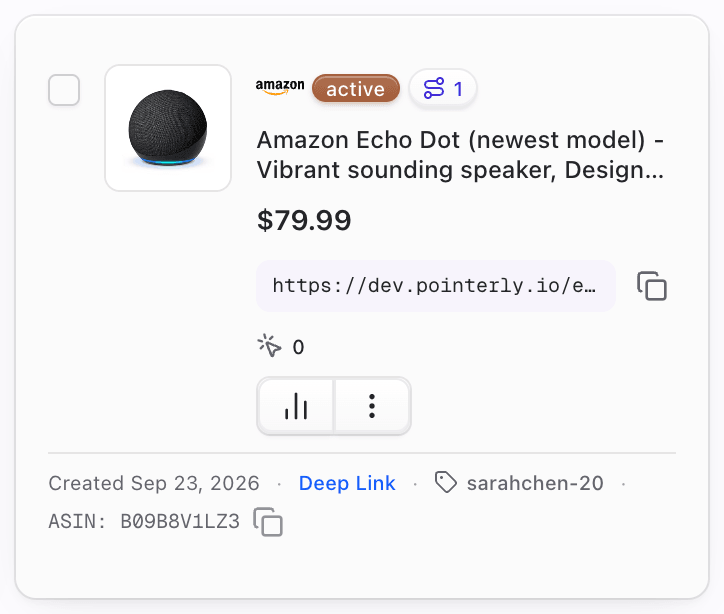
| Smart routing | For Amazon / eBay / Walmart: optional per-marketplace variants resolved by ?mp= or visitor country |
| Group | Internal folder for organizing links (sidebar on Links; useful for shop / bio workflows) |
| Bundle | One sendable collection URL (/s/…) that opens a public page of products; each product still uses its own tracked link |
| Link quota | Plan limit on how many links you can keep active; extras may be skipped, frozen, or offered via pay-as-you-go |
Where things live on Links
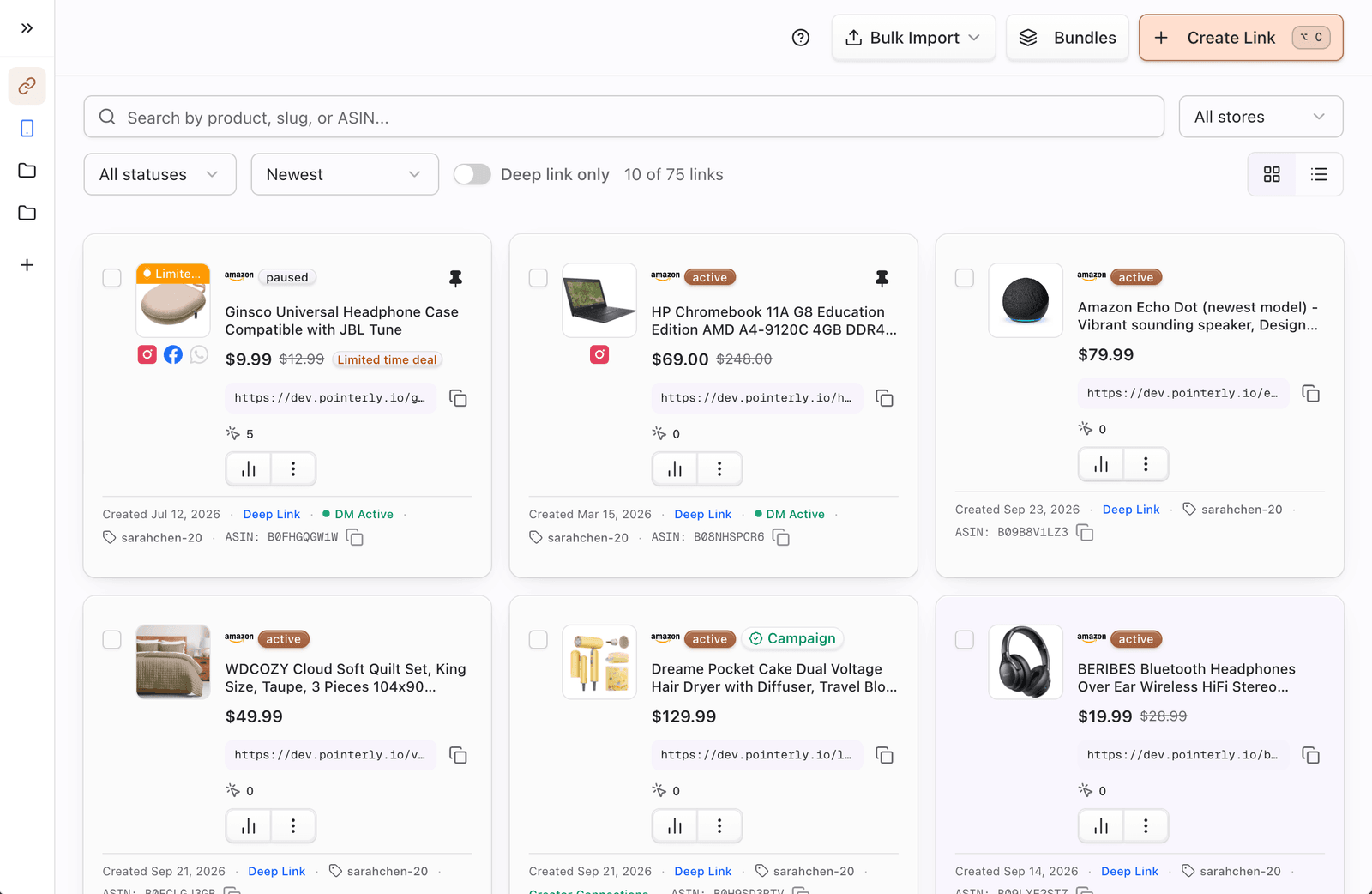
- Go to Dashboard → Links.
- Use the header actions:
- Create Link — open the create dialog
- Bulk Import — download template, import from file, or import an Amazon storefront / list (plan feature)
- Bundles — open the bundles manager
- Use the groups sidebar to filter by group (or leave “all”).
- Filter by store, status (Active / Paused / Expired), search, and sort (newest, most clicks, most copied, and more).
- Switch cards or table view; select multiple links for the bulk action bar.

Typical workflow
- Create or select an affiliate tag for the store and marketplace you promote.
- Create a link from a product (or storefront) URL and attach that tag.
- Optionally set deep linking / desktop linking, assign a group, and choose a custom slug.
- If you promote the same product across Amazon / eBay / Walmart locales, enable smart routing and add marketplace variants.
- Share the short URL — or select several links and Create bundle for one campaign link.
- Use bio, QR, DM automation, or WhatsApp campaign tools as needed.
Tips
- Groups organize; bundles distribute. A sidebar group has no public URL; a bundle does (
/s/…). - Create marketplace tags before enabling smart routing — variants only appear for marketplaces you already have tags for.
- Deep linking defaults on for Amazon; desktop linking defaults off until you enable it.
- Destinations are fixed after create in the editor (except Creator Connection campaign relink for the same product). Plan the product URL carefully before you publish widely.
- Pause a link to stop redirects without deleting history; delete only when you no longer need the slug.
Common questions
What’s the difference between a group and a bundle?
A group is an internal folder on Dashboard → Links (filter, organize, shop/bio workflows). A bundle is a public collection page at /s/… that lists two or more existing links. See Link bundles.
Can one short link use multiple marketplace tags?
The link’s primary destination has one affiliate tag. With smart routing enabled, each marketplace variant carries its own URL + tag. Visitors then resolve to the matching variant (or the default). You cannot attach several tags to the same primary destination at once.
Smart routing vs the default URL?
Without smart routing (or when no variant matches), every visitor gets the link’s default destination and tag. With smart routing on, resolution order is: ?mp= override → visitor country → default. Details: Smart routing.
What if I hit my link limit?
Create Link becomes Get more links. Bulk / storefront imports may create what fits and skip the rest (or offer pay-as-you-go when available). Links frozen for over-quota cannot be resumed until you free capacity, buy packs, enable pay-as-you-go, or upgrade.
Limits (grounded in product)
- Affiliate tags are required for Amazon, eBay, and Walmart product links; other stores do not use that tag picker the same way.
- Deep linking is Amazon-oriented in product logic; non-Amazon destinations stay web redirects for mobile app opens.
- Smart routing only applies to Amazon, eBay, and Walmart.
- Saving a bare Amazon storefront link (not a product ASIN) requires the storefront links entitlement (Individual or higher).
Troubleshooting
| Symptom | Likely cause | What to try |
|---|---|---|
| Create Link is missing or replaced by Get more links | Plan link limit reached | Open Billing → addons / link credits, or pause/delete unused links |
| Can’t open smart routing | Store isn’t Amazon / eBay / Walmart, or plan doesn’t include the feature | Confirm store type; upgrade if the UI shows an upgrade prompt |
| Wrong commission store | Tag marketplace doesn’t match product URL | Re-check tag + destination marketplace before publishing |
For more fixes, see Links troubleshooting.