Link bundles
Bundle several tracked links into one sendable collection URL for campaigns and DMs.
A bundle (link collection) packages several existing Links into one sendable URL. Visitors open a public landing page of products; each tap still goes through that product’s own short link, so analytics, deep links, and affiliate tags stay independent.
Public share URLs look like /s/<publicId> on your app domain.
Bundles vs groups
| Group | Bundle | |
|---|---|---|
| Purpose | Organize links in the dashboard | Distribute many products with one URL |
| Public URL | No | Yes (/s/…) |
| Minimum size | Any | At least 2 links |
| Created from | Sidebar / assign / import folder option | Multi-select → Create bundle, or list import option |
What you'll do
- Select two or more links and create a bundle
- Set title, description, and product order
- Copy the share URL and manage bundles from Links → Bundles
Before you start
- You already have at least two created links
- You can edit links in this team (create-bundle entry appears in bulk More actions when allowed)
- Optional: Instagram connected under Settings → Social if you want DM automation from a bundle (carousel)
Steps
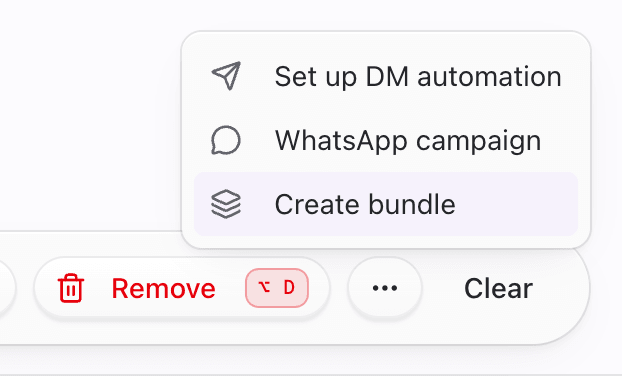
1. Select links and open Create bundle
- Go to Dashboard → Links.
- Select 2 or more links (cards or table).
- Open More actions (⋯) on the bulk bar.
- Choose Create bundle.
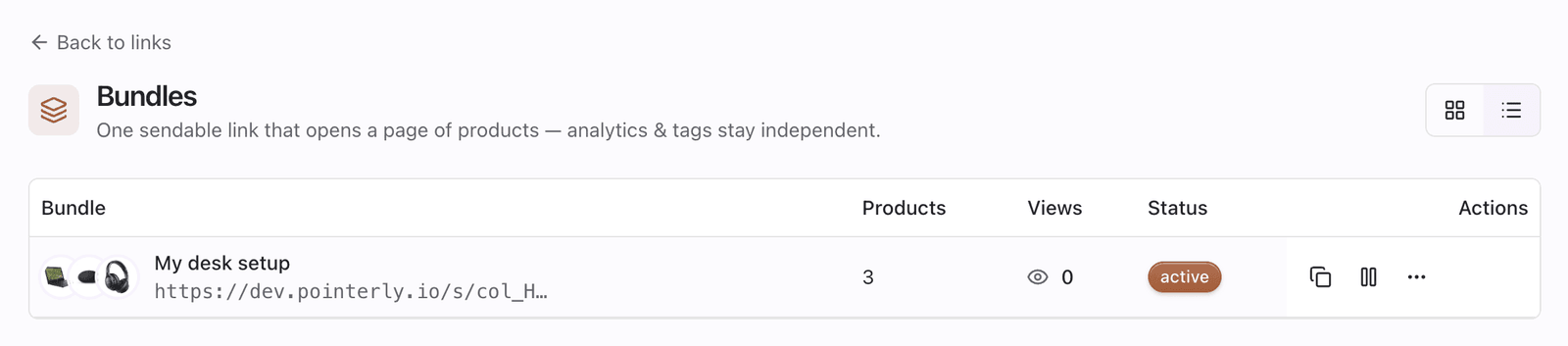
You can also open Bundles from the Links header anytime to manage existing collections. The empty state reminds you to create bundles from a multi-select on Links.
2. Configure the bundle
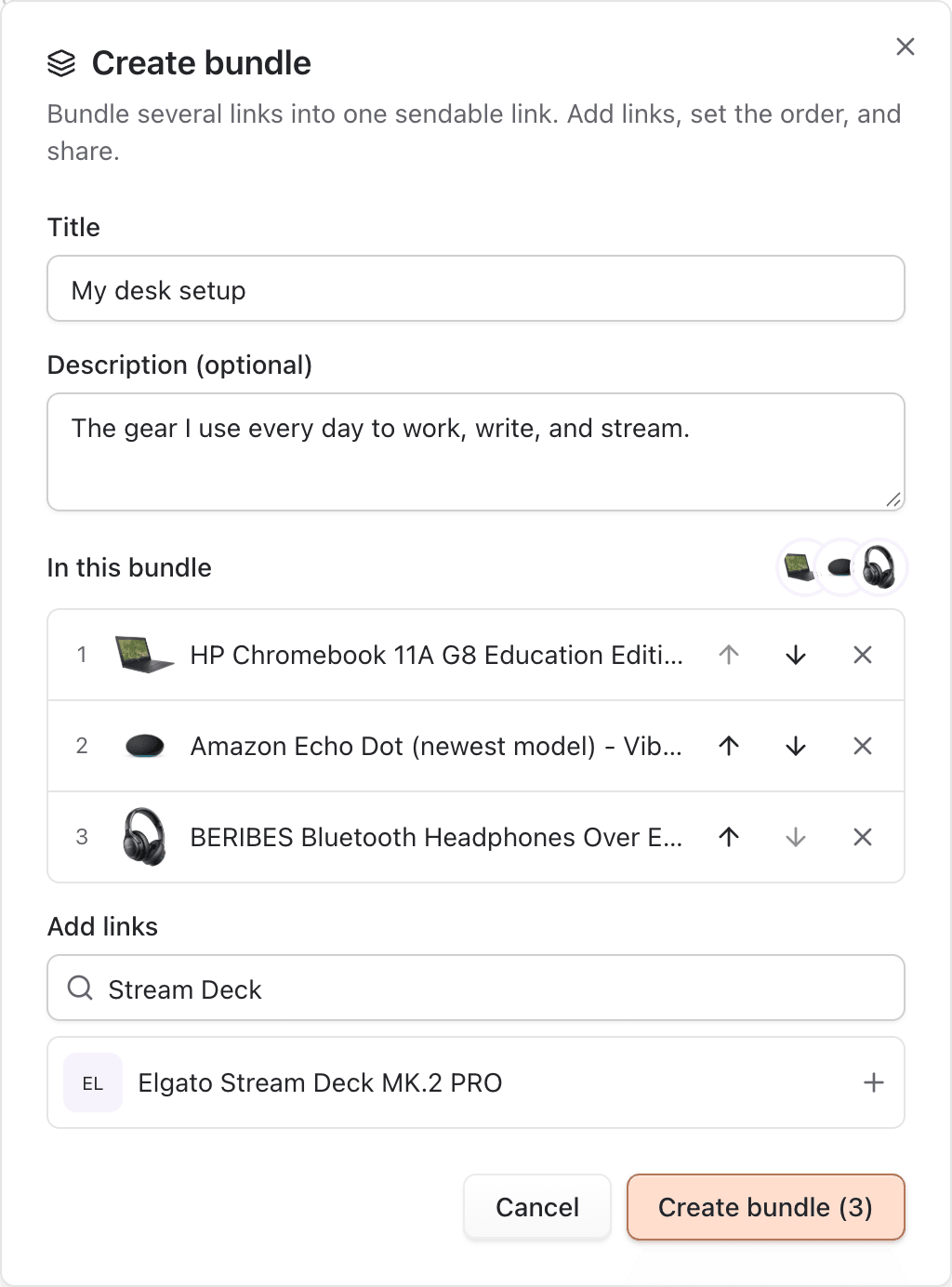
In the Create bundle dialog:
- Enter a Title (required) — for example
My desk setup. - Optional: add a Description shown above the products on the public page.
- Review In this bundle:
- Reorder with move up / move down
- Remove items you don’t want
- Use Add links + search to pull in more existing links from the team.
- Click Create bundle (N) when you have a title and at least two links.
3. Copy the share URL and manage later
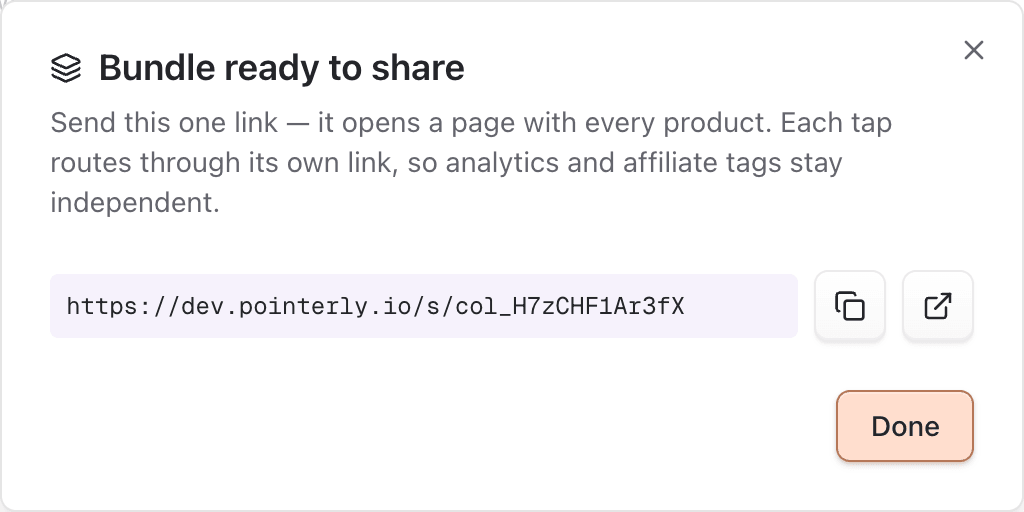
- On success, the dialog shows Bundle ready to share with the public URL.
- Copy the link or open it in a new tab to preview the landing page.
- Click Done.
- Later, open Dashboard → Links → Bundles to:
- Browse cards or table (products, views, status)
- Copy / open the share URL again
- Set up DM automation from a bundle (builds an Instagram carousel from member products; Meta caps carousels at 10 items)
Other ways bundles appear
- Amazon idea-list / storefront import: when you import a multi-product Amazon list, Pointerly can optionally create a bundle from the new (and reused) links. Needs at least two available links; otherwise you see a warning like Bundle skipped.
- Bundles always point at existing member links — editing a member link’s title, tag, deep link, or (campaign) destination updates what that product does inside the bundle. Pausing a member still lists it but redirects stop.
Tips
- Order products the way you want them seen on the public page — first items matter most.
- Keep member links Active; a paused member still appears but won’t redirect cleanly for buyers.
- Use a clear campaign title so analytics and DM setup stay recognizable.
- For a single product, create a normal link — bundles require two or more.
Common questions
Bundles vs groups — which should I use?
Use a group to filter and organize inside the dashboard. Use a bundle when you need one public URL for a set of products (story, DM, email).
If I change a member link’s destination, does the bundle update?
The bundle always references the live member link. Campaign relink / tag changes on that member apply immediately. You cannot freely change an arbitrary destination in Edit — see Create a link.
Can a bundle include links with different stores and tags?
Yes. Each member keeps its own store, tag, and smart-routing settings. The bundle is only the collection shell.
Why was the bundle skipped on list import?
Fewer than two links ended up available after create/reuse/quota skips. Fix failed rows and re-import, or create a bundle manually from Links.
Limits (grounded in product)
- Minimum 2 links to create a bundle (
MIN_BUNDLE_LINKS). - Instagram DM carousel from a bundle is capped at 10 products by Meta.
- Bundle create from bulk requires edit permission and a multi-select of 2+.
Troubleshooting
| Symptom | Likely cause | What to try |
|---|---|---|
| Create bundle missing | Fewer than two selected, no edit permission, or plan/UI gate | Select 2+ links; confirm permissions |
| Can’t submit Create bundle | Empty title or fewer than two links | Add a title; add links until count ≥ 2 |
| “Bundle skipped” on list import | Fewer than two links created from the list | Fix failed rows and re-import, or create a bundle manually |
| DM setup error about Instagram | No active Instagram connection | Connect Instagram under Settings → Social |
| Carousel truncated warning | More than 10 products | Prefer a shorter bundle for DM, or accept Meta’s 10-item cap |
| Empty Bundles page | None created yet | Multi-select on Links → More → Create bundle |