Bulk actions
Import many links from CSV or Excel, Amazon lists/storefronts, then pause, resume, group, or bundle selections.
Use Bulk Import and multi-select tools on Dashboard → Links when you need to create or update many links without editing them one by one.
File import and multi-select bulk updates require:
- Plan feature bulk actions (Individual or higher — Free shows an upgrade prompt)
- Team permission to run bulk actions on Links
Amazon list / storefront import is gated by the storefront links entitlement (also Individual+), not by bulk_actions alone — so list import behavior can differ from CSV import entitlements.
What you'll do
- Download the Excel template and import a CSV /
.xlsxfile - Optionally import an Amazon storefront or shoppable list
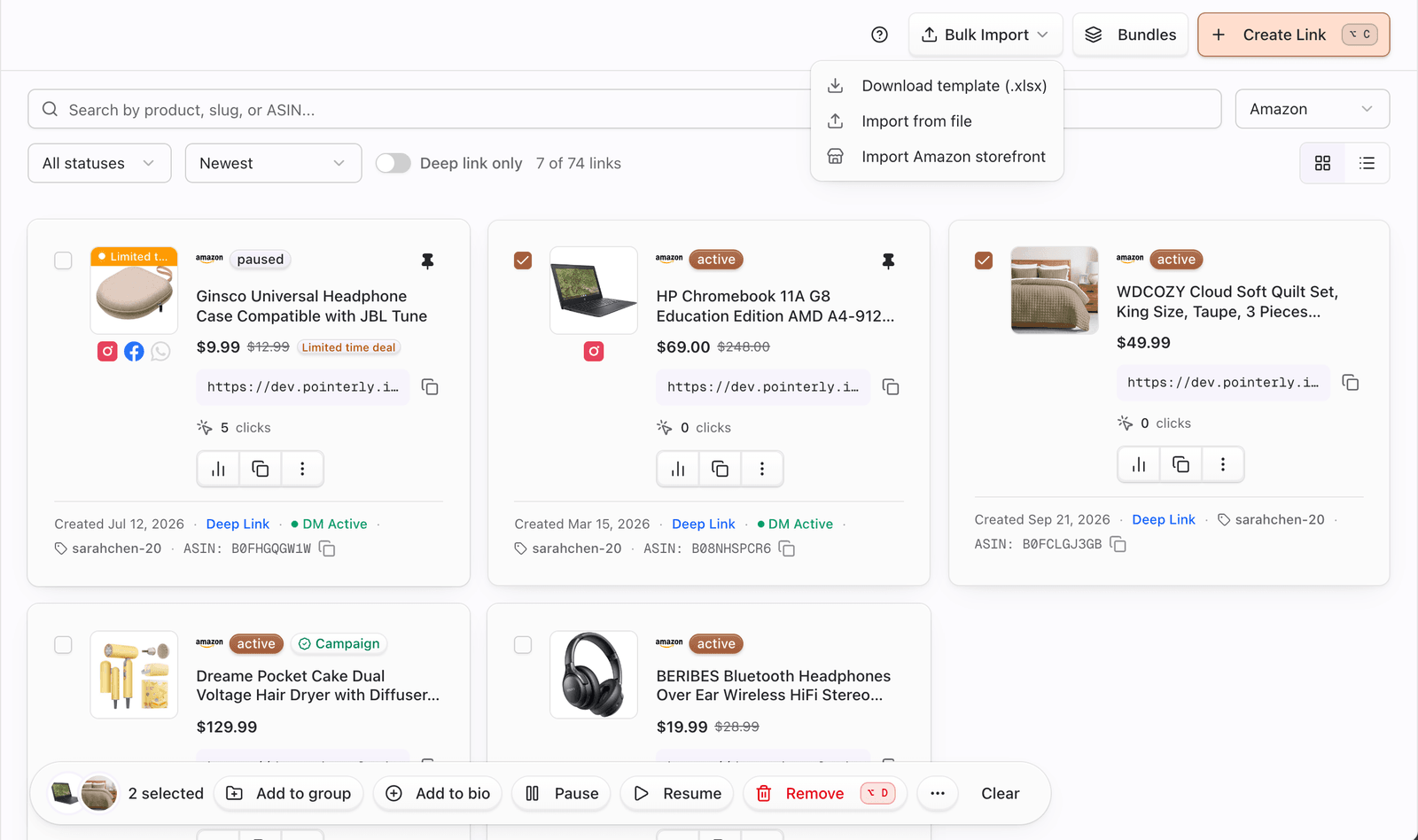
- Multi-select links to pause, resume, delete, add to a group, add to bio, create a bundle, or set up DM / WhatsApp flows
Before you start
- Confirm you are in the correct team
- For Amazon rows: have the right affiliate tags ready (default Amazon tag is used when the file omits
affiliate_tag) - Check remaining link capacity — imports stop at the plan quota; extras are skipped and reported (pay-as-you-go may be offered with explicit consent)
- Start with a small file (a few rows) to validate mapping before a large import
Bulk import from file
1. Open Bulk Import
- Go to Dashboard → Links.
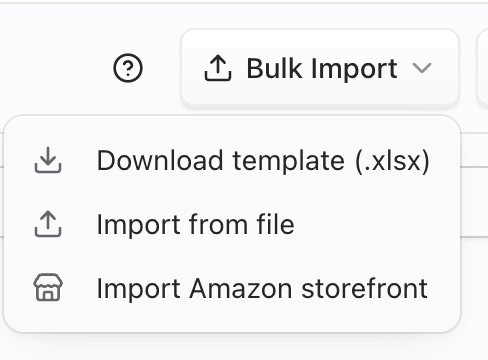
- Open Bulk Import in the page header.
- Choose one of:
- Download template (.xlsx) — Instructions + Links sheets
- Import from file — upload CSV or
.xlsx - Import Amazon storefront — guided storefront / list import dialog
2. Prepare columns
Required and optional columns (from the template Instructions sheet):
| Column | Required | Notes |
|---|---|---|
url | Yes | Product URL from supported stores (Amazon, Walmart, Temu, eBay, Target, TikTok Shop, Wayfair, AliExpress, …) |
custom_slug | No | 3–50 chars; leave empty to auto-generate |
name | No | Display title; derived from URL path when empty |
affiliate_tag | No | Amazon only — tag name (for example US Main); ignored for every other store |
enable_deep_link | No | true/false, yes/no, 1/0; empty defaults to enabled |
image_url | No | Product image URL; otherwise auto-fetched when possible |
CSV files are also accepted: first column should be the URL (or a header containing url / product url).

3. Upload, review, and run
- Drop or browse for your CSV /
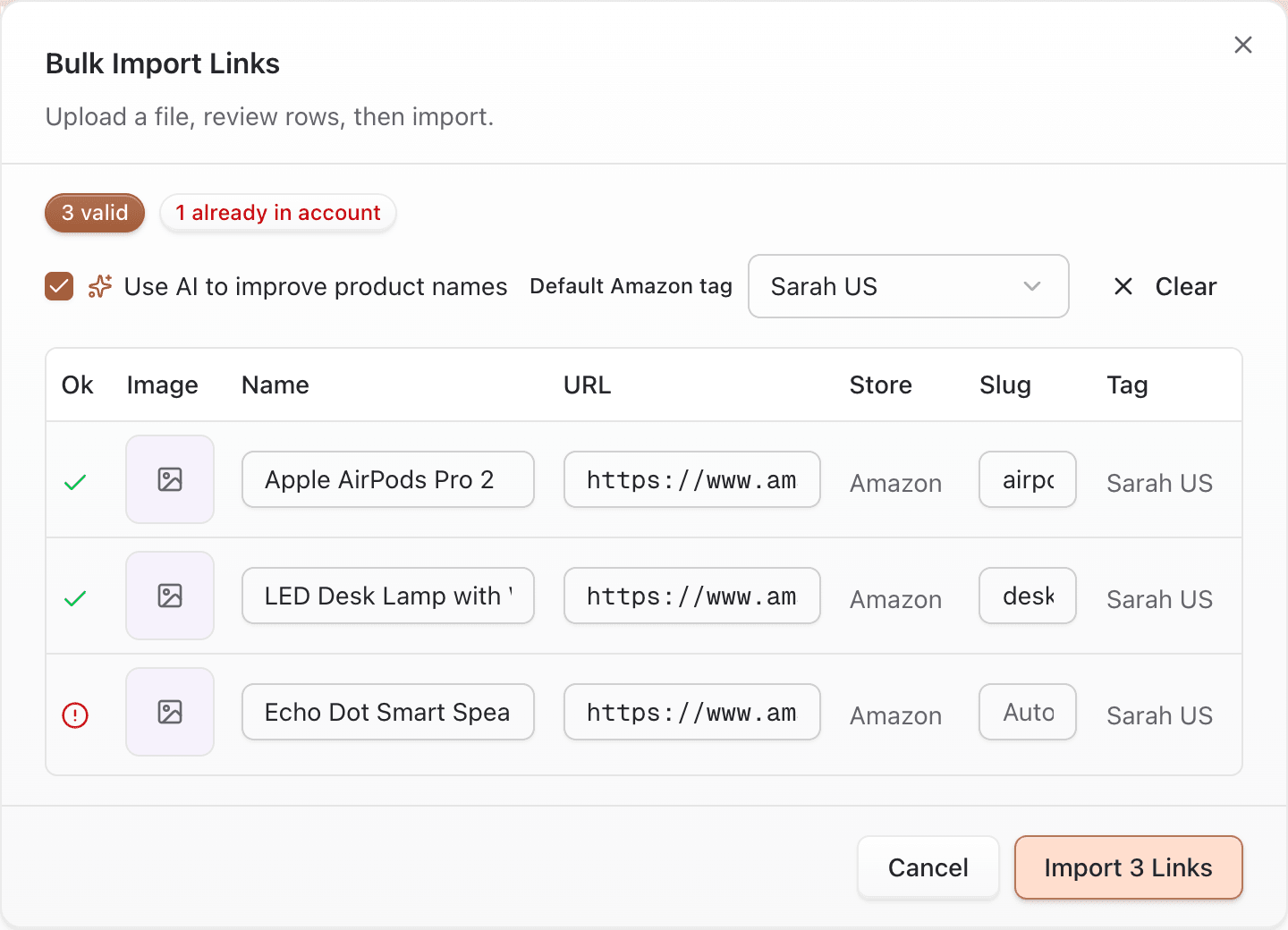
.xlsxin the import dialog. - Review the parsed rows:
- Invalid URLs are flagged
- Rows already in the account (same Amazon ASIN + resolved tag) are marked Already in account
- Duplicates within the file are flagged and excluded from the API call
- Pick the default Amazon affiliate tag for Amazon rows that omit
affiliate_tag(this default is never applied to Temu / Walmart / other non-Amazon rows). - Optional: keep Improve names with AI enabled to clean titles before create.
- Run the import and wait for progress (image optimize → name improve → create in chunks of 10).
- Read the summary: created, failed, skipped duplicates, and any rows skipped for quota.
Import Amazon storefront or list
Under Bulk Import → Import Amazon storefront:
- Paste a storefront URL (
amazon.com/shop/handle) or a shoppable list URL. - Preview lists, optional create of the storefront’s affiliate tag, and quota shortfall (if any).
- Select lists to import. Products are read per list (browser extension may be required when headless reads fail).
- Each list can create links, optionally a group (folder), and optionally a bundle (needs ≥ 2 links).
- List import cap: up to 200 products per import request.
- When over quota, you may import what fits (
maxCreate/ partial) or consent to pay-as-you-go for the shortfall — never charged without an explicit confirm.
Already-imported lists show existing group / collection markers so you don’t recreate by accident.
Multi-select bulk updates
- On Dashboard → Links, select two or more links (cards or table checkboxes).
- Use the bulk bar (desktop) or bulk actions sheet (mobile):
| Action | What it does |
|---|---|
| Add to group | Assign selected links to a group |
| Add to bio / Add to bio page | Place selected links on a bio page (when bio shop is available) |
| Pause | Stop redirects for selected active links |
| Resume | Reactivate selected paused links (blocked if a link is limit-frozen over quota) |
| Remove | Soft-delete selected links (confirm dialog) |
| More actions → Set up DM automation | Start a DM flow for the selection |
| More actions → WhatsApp campaign | Open WhatsApp campaign setup (WhatsApp add-on) |
| More actions → Create bundle | Open Create bundle with the selection |
If bulk actions aren’t on your plan, the bar shows an upgrade prompt instead of running the tools.

Tips
- Validate Amazon tags before a large import; bad tag names fail or flag rows.
- Never rely on the Amazon default for non-Amazon URLs — the importer intentionally ignores
affiliate_tagand the Amazon default for those stores. - Prefer groups so imported campaigns stay filterable in the sidebar.
- After import, open a sample of new links and click through once on mobile.
- Deals have a separate importer — see Deals bulk import when you’re importing deals, not Links.
Common questions
What are the bulk import limits?
- Plan link quota — remaining slots; overflow rows are skipped and reported (or priced for PAYG with consent).
- Amazon list import — max 200 products per request.
- File import API — rows are created in chunks of 10 (progress UI); there is no separate documented hard cap beyond quota and duplicates.
- Entitlement — CSV/multi-select needs bulk_actions; Amazon list/storefront needs storefront_links.
Why is affiliate_tag Amazon-only?
The template and importer only resolve that column for Amazon rows (by tag name). Non-Amazon rows never inherit the Amazon default tag; put Temu/Walmart/etc. URLs without that column or leave it blank.
Bundles vs groups after import?
Storefront/list import can create both: a group (folder in the sidebar) and a bundle (public /s/…). Groups organize; bundles distribute. See Link bundles.
What about duplicates in the file?
Rows marked Already in account or Duplicate in file are excluded from the create API. Uncheck or remove them, or import only new ASINs.
Limits (grounded in product)
- Soft-deleted Amazon ASIN+tag pairs may reactivate on create paths used by bulk — prefer checking existing links first.
- Quota mid-run stops remaining file chunks; storefront runs stop at the first hard limit and mark later lists as not attempted.
- Resume on multi-select will not unfreeze limit-frozen links — free capacity or pay for slots first.
Troubleshooting
| Symptom | Likely cause | What to try |
|---|---|---|
| Upgrade dialog instead of import | Plan lacks bulk actions (file) or storefront (Amazon lists) | Upgrade to Individual or higher |
| “No valid links to import” | All rows invalid or duplicates | Fix URLs; remove already-imported ASINs |
| Amazon short-link errors | Unresolvable amzn / share URL | Open in browser; paste the final product URL |
| Rows skipped for quota | Link limit mid-import | Free capacity or buy link credits / PAYG, then re-import remaining rows |
| Wrong tag on Amazon row | affiliate_tag name not found | Use the exact tag name, or rely on the default Amazon tag |
| Bulk bar missing | No selection, no permission, or plan lock | Select links; confirm Links bulk permission |