Sections and themes
Reorder blocks, toggle visibility, apply presets, and style the page.
Shape how your bio page reads and looks: add modular sections, control visibility and order, then apply a theme preset, saved theme, or AI-generated style.
Before you start
- Open an existing page under Dashboard → Bio (or create one)
- Your role can edit bio pages
Section types
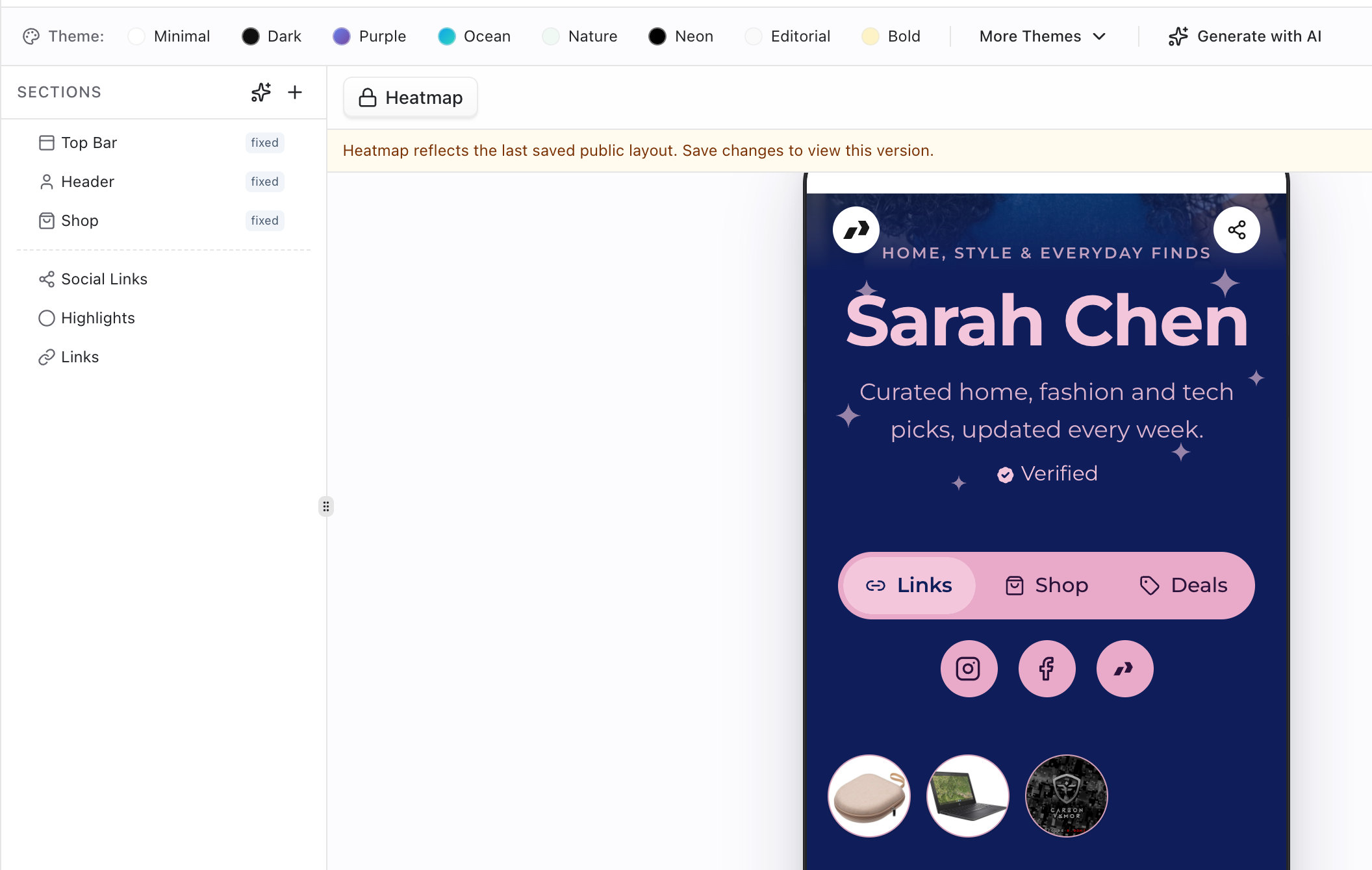
Blocks available in the bio model (BioSectionType):
| Section | Use it for |
|---|---|
Top bar (topbar) | Logo / share controls at the top (special + fixed) |
Header (header) | Name, intro, avatar, cover (fixed) |
Shop (shop) | Product / deals / collections tab when shop is enabled (special + fixed; plan-gated) |
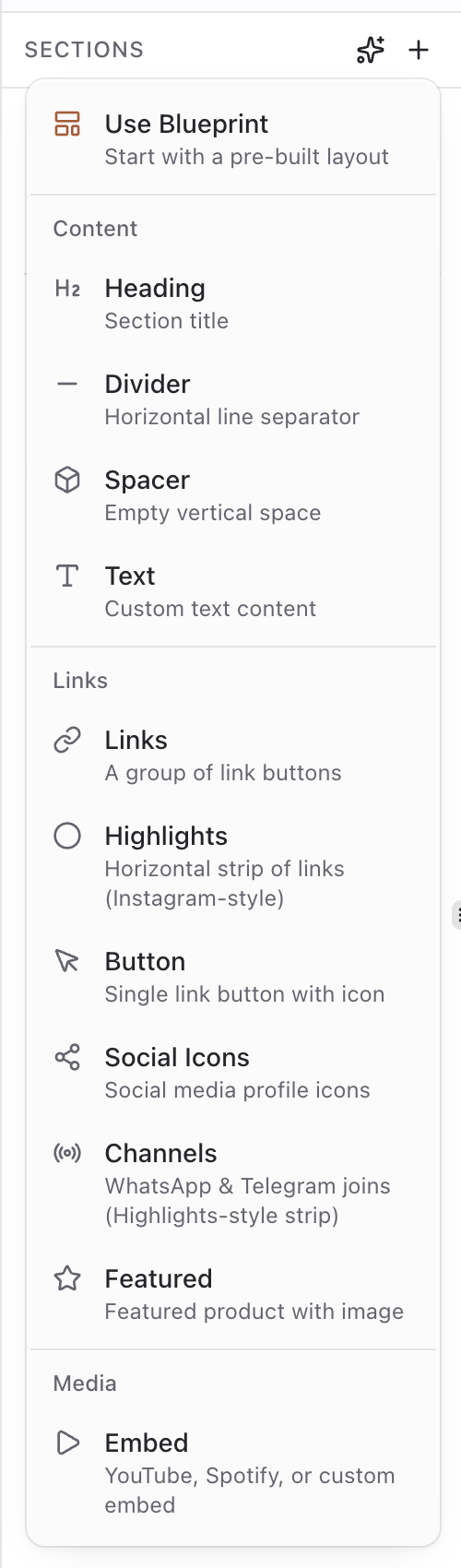
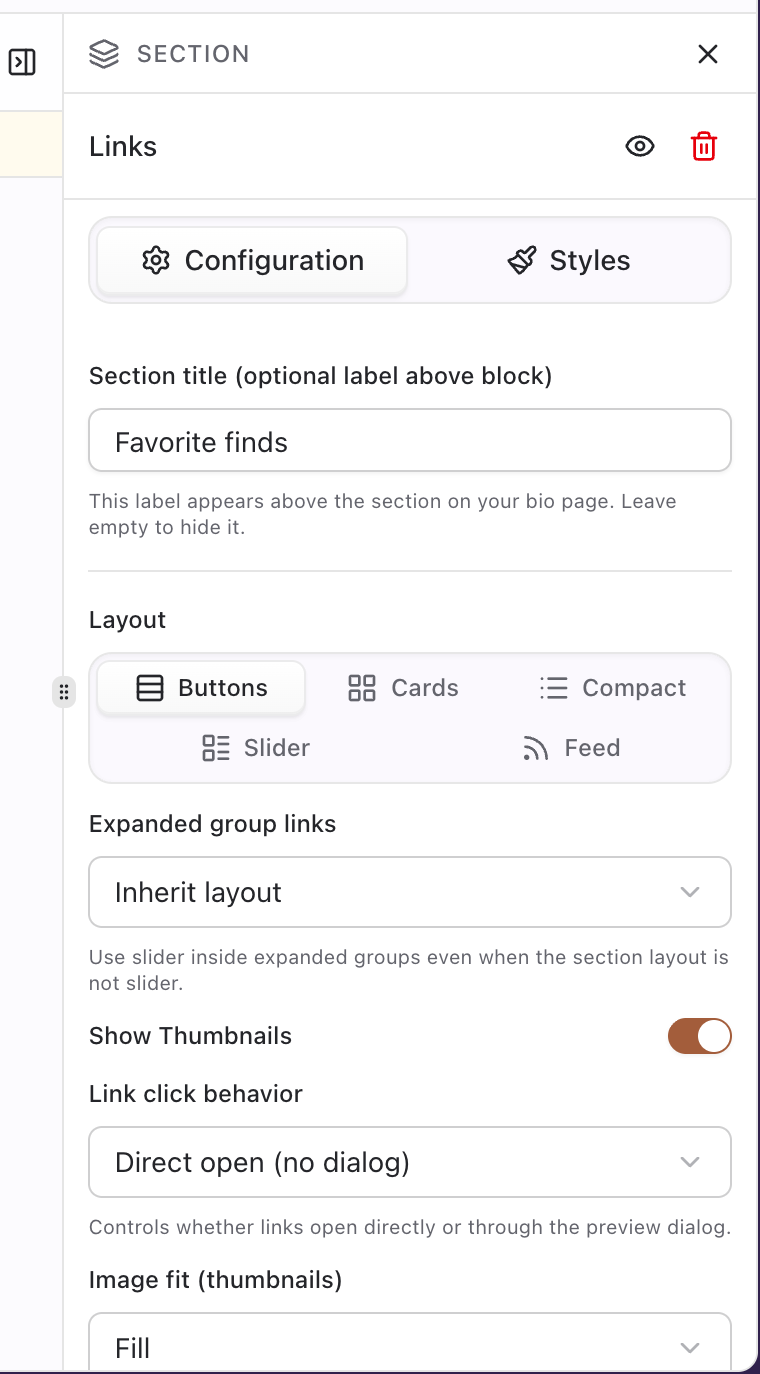
Links (links) | Primary list of destinations (layouts: button-list, card-grid, compact-list, slider, feed) |
Highlights (highlights) | Featured / emphasized link rows |
Social (social) | Profile icons (Instagram, Twitter/X, YouTube, TikTok, Facebook, LinkedIn, email, Pointerly, WhatsApp, Telegram) |
Channels (channels) | Messaging / channel destinations |
Featured (featured) | Spotlight image + title + URL (layouts: card, horizontal, banner, minimal) |
Text (text) | Short body copy |
Heading (heading) | Hierarchy / section titles |
Button (button) | Standalone CTA (title + URL) |
Embed (embed) | Embedded media (default type: YouTube + URL) |
Divider (divider) | Visual separator |
Spacer (spacer) | Vertical rhythm (height: e.g. medium) |
Fixed types (topbar, header, shop) cannot be deleted or freely reordered; they appear at the top of the layers panel in that order and show a fixed badge. You can still toggle visibility.
Special types (topbar, shop) participate in layout rules for the live page frame (top bar always at top; shop drives the shop tab content).
New sections default to visible (isVisible: true). Hide experimental blocks with the eye control instead of deleting them when you may want them later.
Shop and deals on the bio
Shop configuration lives on the page as shopSettings (defaults: shop disabled, default tab links, layout cards, prices and search on, collections off, title Shop).
When enabled (and Bio Shop is on your plan), the public page can show tabs among links, shop, and optionally deals (dealsEnabled). Shop layouts: bento, cards, or list. Tab chrome can be pill or segmented, optionally sticky.
Deals-related shop fields include store type (Amazon / Walmart / eBay), keywords, categories, sort, and refresh interval. Legacy page-level deals fields also exist (showDealsSection, title default Featured Deals, max shown default 6, filters for category / min discount / deal types)—prefer the Shop tab settings when curating the live commerce surface.
Full product/collection workflow: Bio shop overview.
Steps: sections
1. Add a section
- In the editor, open the content / sections panel.
- Choose Add section (or equivalent add control).
- Pick a type such as Links, Text, Heading, Highlights, Divider, or Spacer.
- Give the section an editor title so you can find it later.
2. Edit section content
- Select the section in the list or on the preview.
- For Links / Highlights, add existing Pointerly links (create them under Links first if needed). Tune layout, thumbnails, prices, and interaction mode when offered.
- For Text / Heading, edit copy, size, and alignment.
- For Header, update name, introduction, and images.
- For Social, attach platforms and handles/URLs.
- Save section changes when prompted (concurrent edits from another session can require a reload before save succeeds).
3. Reorder and hide
- Drag non-fixed sections to the order visitors should see.
- Toggle visibility (eye / eye-off) to hide a block without deleting it.
- Confirm the live preview updates. Hidden sections stay saved for later.
Deleting removes the section and its content from the page—prefer hide when unsure. Fixed sections have no delete control.
Top bar / header bar settings
Page-level header bar settings (defaults): show header off, show logo on, show share button on, sticky on. The topbar section content mirrors logo / share / sticky behavior for the live frame.
Steps: themes
1. Apply a preset
- Find the Theme strip above the preview.
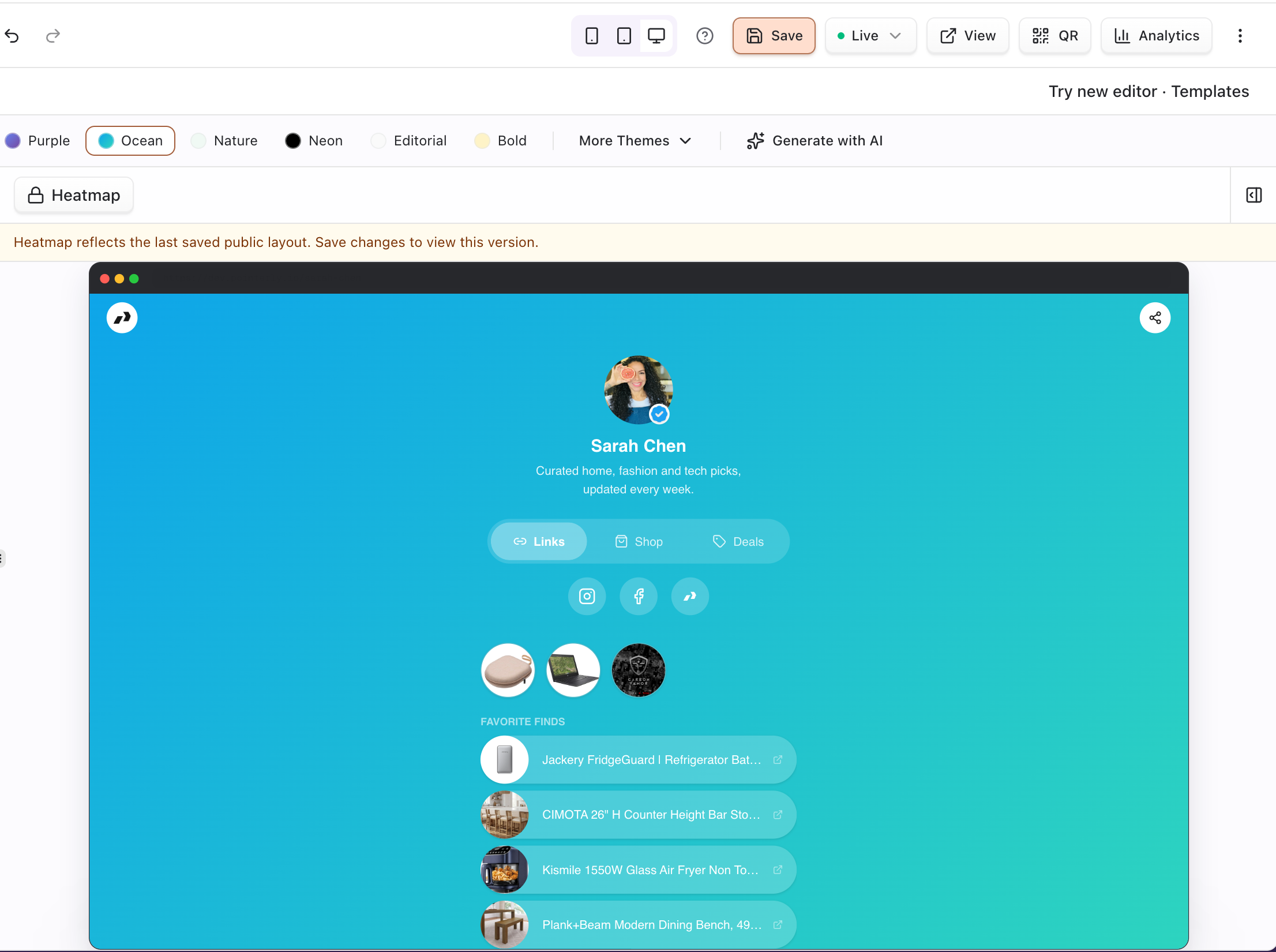
- Click a preset chip: Minimal, Dark, Purple, Ocean, Nature, Neon, Editorial, or Bold.
- Presets replace the full page style set (colors, typography, layout width/padding, cards, link hover, tabs)—they do not merge piecemeal.
- Click Save on the page so styles persist (presets update the editor preview first; no auto-save).

2. Use More Themes or AI
- Open More Themes for additional saved themes. Items marked PRO need an upgraded plan (premium themes are blocked without access).
- If available on your plan (
ai_theme_generation), click Generate with AI, describe the look (for example “dark professional” or “ocean vibes”), then Generate. - Preview the result, then Apply or Discard.
- Save the page after you keep a look you like.
AI theme generation is plan-gated; without access you see an upgrade prompt instead of generation. You can also export/import theme JSON for backup or reuse (pointerly-bio-theme files).
3. Preview breakpoints
- Switch device preview between mobile and desktop.
- Adjust zoom if your editor provides it.
- Verify that the first screen shows one clear CTA on a phone-sized preview before you share widely.
Tips
- Lead with a Links or Highlights section that contains monetized Pointerly URLs, not raw storefront pastes.
- Use headings and spacers sparingly—bio pages work best when the first screen is simple.
- Theme presets replace the page style set as a whole; fine-tune after you pick a direction, then save.
- Shop and deals surfaces have their own settings; enable them only when you have products or deals ready to show.
- Without Bio Shop access, the shop section stays locked and cannot be made visible until you upgrade.
Troubleshooting
| Symptom | Likely cause | What to try |
|---|---|---|
| Section missing on the public page | Visibility off or page not saved / published | Toggle visible, save, confirm publish |
| Cannot reorder header / shop / top bar | Fixed structural section | Reorder content sections instead |
| Cannot delete top bar / header / shop | Fixed sections | Hide or edit settings instead |
| Empty links section | No Pointerly links attached yet | Create links, then add them to the section |
| Shop locked / PRO badge | Bio Shop not on plan | Upgrade; do not expect visibility toggle to enable shop |
| Premium theme blocked | Plan gate on PRO themes | Upgrade or pick a free preset |
| AI generate locked | ai_theme_generation not on plan | Upgrade or use presets / More Themes |
| Theme reverted after reload | Preview applied but page not saved | Click Save after choosing a theme |
| Section save conflict | Another session or automation updated the section | Reload, then re-apply your edits |
Related
Common questions
Which section types can I add?
Content types include links, highlights, social, channels, featured, text, heading, button, embed, divider, and spacer. Top bar, header, and shop are fixed system sections created with the page structure—you configure or hide them rather than adding duplicates.
What’s the difference between hide and delete?
Hide sets isVisible to false; the section stays in the editor and can return later. Delete removes the section entirely (confirmation dialog). Fixed sections only support hide.
How do I enable the Shop tab?
You need Bio Shop on your plan, then enable shop settings / make the shop section visible. Public tabs can open on links, shop, or deals depending on defaultTab and whether deals are enabled. See Bio shop overview.
Which theme presets exist?
Eight built-in presets: Minimal, Dark, Purple, Ocean, Nature, Neon, Editorial, Bold. More Themes lists saved/database themes (some PRO). Generate with AI creates a custom look from a text prompt when the feature is unlocked.
Do theme changes save automatically?
No. Preset and theme picks update the live preview first. Persist with Save (AI Apply writes theme styles via update). Reloading without save restores the last saved look.
Can links show prices and different layouts?
Yes. Links section settings include layouts (button-list, card-grid, compact-list, slider, feed), optional thumbnails, image fit/corners, slider options, and showPrices (default on). Interaction modes include smart, direct, and preview where configured.