Custom domain for bio
Add a bio domain, verify DNS, and serve your page on your brand host.
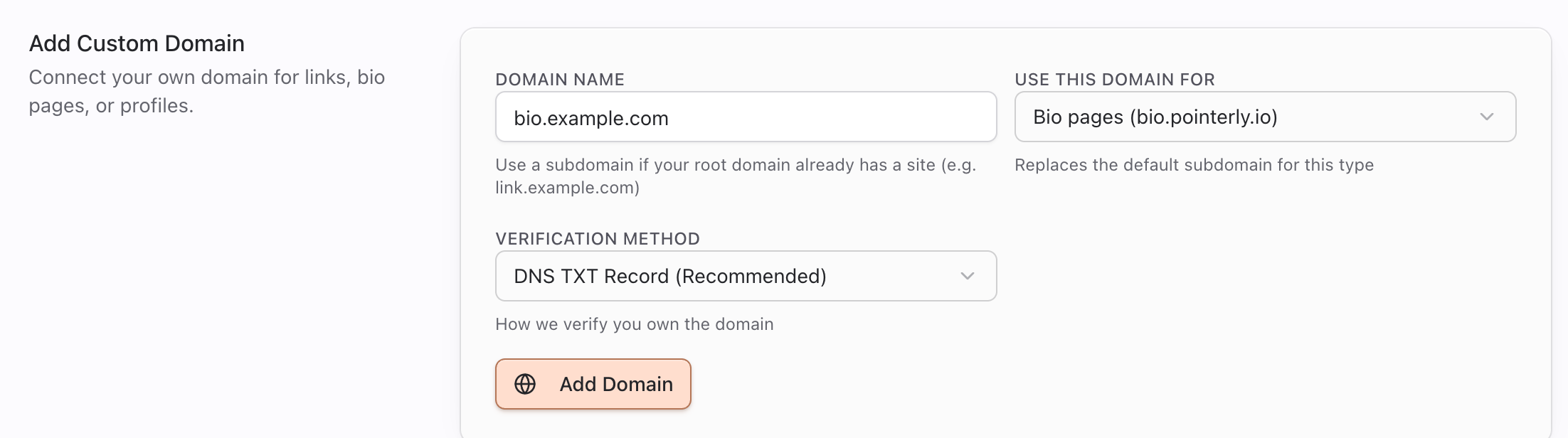
Serve your published bio page on a domain you own (for example bio.example.com) instead of the default Pointerly bio host. Domains are managed in Settings → Domains and typed as Bio pages, separate from short-link or profile domains.
Before you start
- Access to Settings → Domains for your team
- A domain or subdomain you control at your registrar (GoDaddy, Namecheap, Cloudflare, etc.)
- A published bio page ready to share
- If the root domain already hosts another site, plan to use a subdomain (recommended:
bio.yourbrand.com)
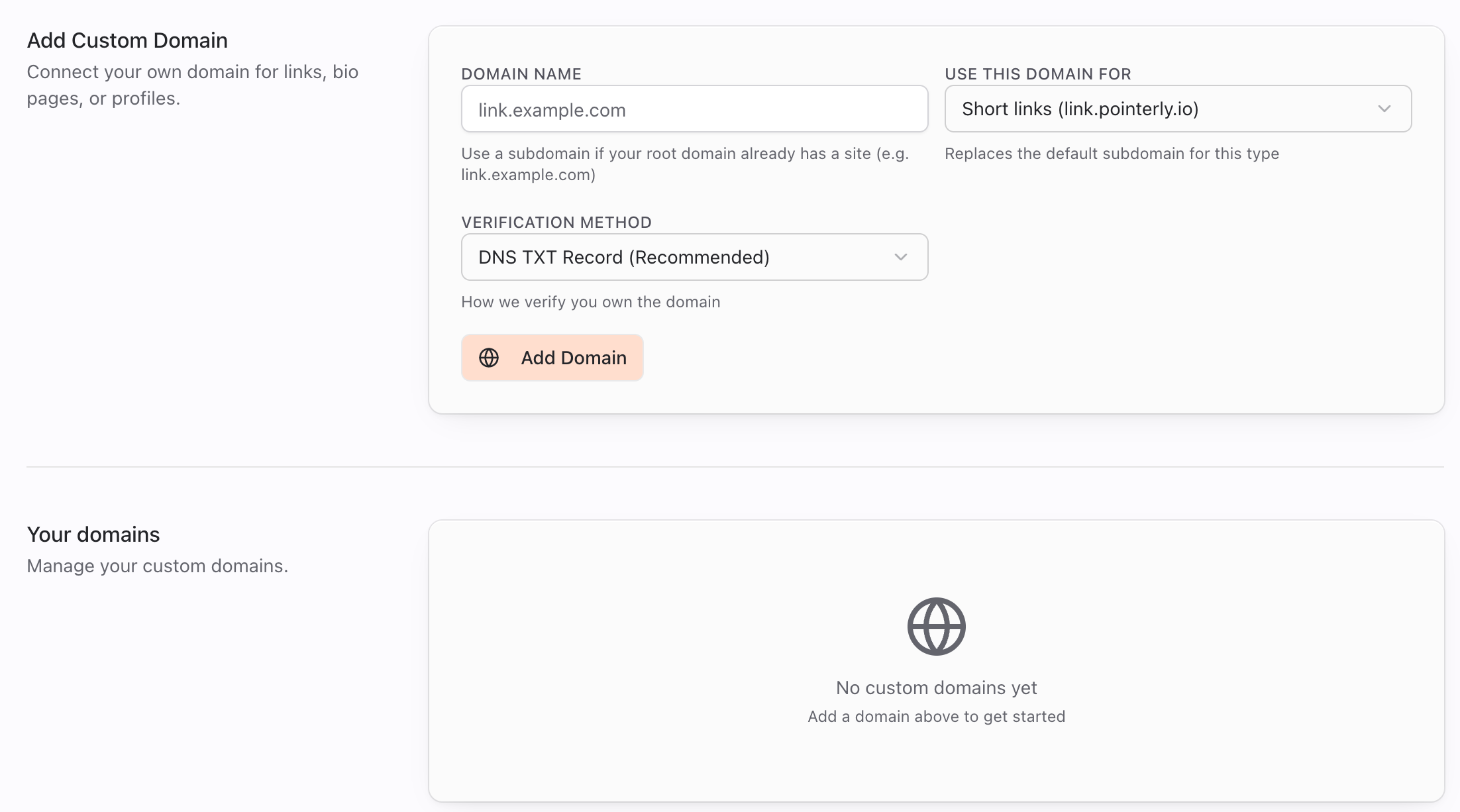
How domain types work
Pointerly uses three independent host purposes (DomainType):
| Type | Default host | Replaces |
|---|---|---|
Short links (link) | link.pointerly.io | Your link short domain |
Bio pages (bio) | bio.pointerly.io | Your bio page domain |
Profiles (profile) | profile.pointerly.io | Creator / brand profile domain |
Choosing Bio pages for bio.example.com only affects bio traffic. Links can stay on link.pointerly.io (or another domain you add for links).
Default bio base URL comes from NEXT_PUBLIC_BIO_DOMAIN when set, otherwise bio. + your app base host.
Steps
1. Add a bio domain
- Go to Dashboard → Settings → Domains.
- Open the in-app help (question mark) if you want the built-in stepper while you work.
- In the Add Custom Domain form, enter the hostname under Domain name (prefer a subdomain if the apex already has a website).
- Set Use this domain for to Bio pages.
- Choose a Verification method (DNS TXT recommended).
- Click Add Domain. The domain then appears under Your domains.
2. Create DNS records at your registrar
You typically configure three DNS groups:
- Ownership — Pointerly verification record (often TXT)
- Provider validation — records required by the hosting platform (Vercel)
- Traffic routing — CNAME (or A, when instructed) so visitors reach Pointerly
Routing example pattern:
- Host
bio(orbio.example.com, depending on the DNS UI) → CNAME →cname.vercel-dns.com
Some registrars want the full hostname; others want only the left label (bio). Match the values shown on the domain card in Pointerly—do not invent records.
3. Verify ownership
- Wait for DNS to propagate (minutes to up to 48 hours).
- On the domain card, click Verify Domain.
- Status should move toward verified (and later active once SSL is healthy).
Statuses you may see (DomainStatus): pending → verifying → verified → active, or failed if records are missing or incorrect. Active domains require a valid SSL status after verification.
4. Test connection and share
- Click Test connection on the domain card when routing DNS is in place.
- Open your bio URL on the custom host and confirm the published page loads over HTTPS.
- Update social bios and QR destinations to the branded URL.
Tips
- Prefer
bio.brand.comover moving an apex domain that already runs a marketing site. - Keep link, bio, and profile domains separate so each purpose stays clear.
- Only verified domains can be set as primary for their type (
canSetPrimaryrequires verified or active). - Plan limits may restrict how many custom domains you can add—check billing if add is blocked.
- A custom bio domain does not replace the need to publish the page or pick a default page for team-level primary destination.
Troubleshooting
| Symptom | Likely cause | What to try |
|---|---|---|
| Verify fails | TXT / ownership record missing or wrong | Re-copy values from the domain card; wait for propagation |
| Test connection fails | CNAME / A routing not pointed at Pointerly | Confirm routing target; flush local DNS and retry later |
| SSL not ready | Domain verified but certificate still provisioning | Wait for active status, then re-test; do not delete DNS mid-flight |
| Wrong surface on domain | Domain type is Links or Profiles | Add or retarget a domain with type Bio pages |
| Apex conflict | Root domain still points elsewhere | Use a subdomain for Pointerly |
| Page 404 on custom host | Bio unpublished or wrong slug path | Publish the page; confirm /@slug (or your host’s path) |
Related
Common questions
How is a bio custom domain different from a link domain?
Domain type Bio pages (bio) serves link-in-bio pages. Type Short links (link) serves tracked redirects. Type Profiles (profile) serves creator/brand profiles. Mixing types on one hostname is not how the product models traffic—add a dedicated bio domain.
Do I need a published page before DNS works?
DNS can verify without a page, but visitors only see content when a bio page is Published. Custom domain + unpublished page still looks “broken” to your audience.
Can I set a bio domain as primary?
Yes, after it is verified (or already active). Unverified domains cannot become primary.
What host should I put in Instagram / TikTok?
After the domain is active, use your branded hostname with the page slug path (same /@slug pattern shown in Page Settings). Until then, share bio.pointerly.io/@slug (or your environment’s bio base URL).
Why did verification fail after I added records?
Propagation delay, wrong host label (apex vs subdomain), or a mismatched TXT value are the usual causes. Re-copy from the domain card, wait, and click Verify Domain again. Status failed means records were missing or incorrect at check time.