Affiliate tags troubleshooting
Fix invalid tag values, plan limits, partnership blocks, missing coverage, and report import mismatches.
Use this guide when you cannot create or edit tags, defaults look wrong, smart routing lacks coverage, or report imports fail to match a Tracking ID.
Outcome
You identify whether the issue is permissions, plan limits, tag format, marketplace coverage, or import matching—and apply the fix that matches the product behavior.
Before you start
- Confirm the correct team is selected in the dashboard.
- Note whether you are in a partnership (brand) workspace or your own creator team.
- Have the Tracking ID as shown in Amazon Associates / EPN / Impact.com ready for comparison.
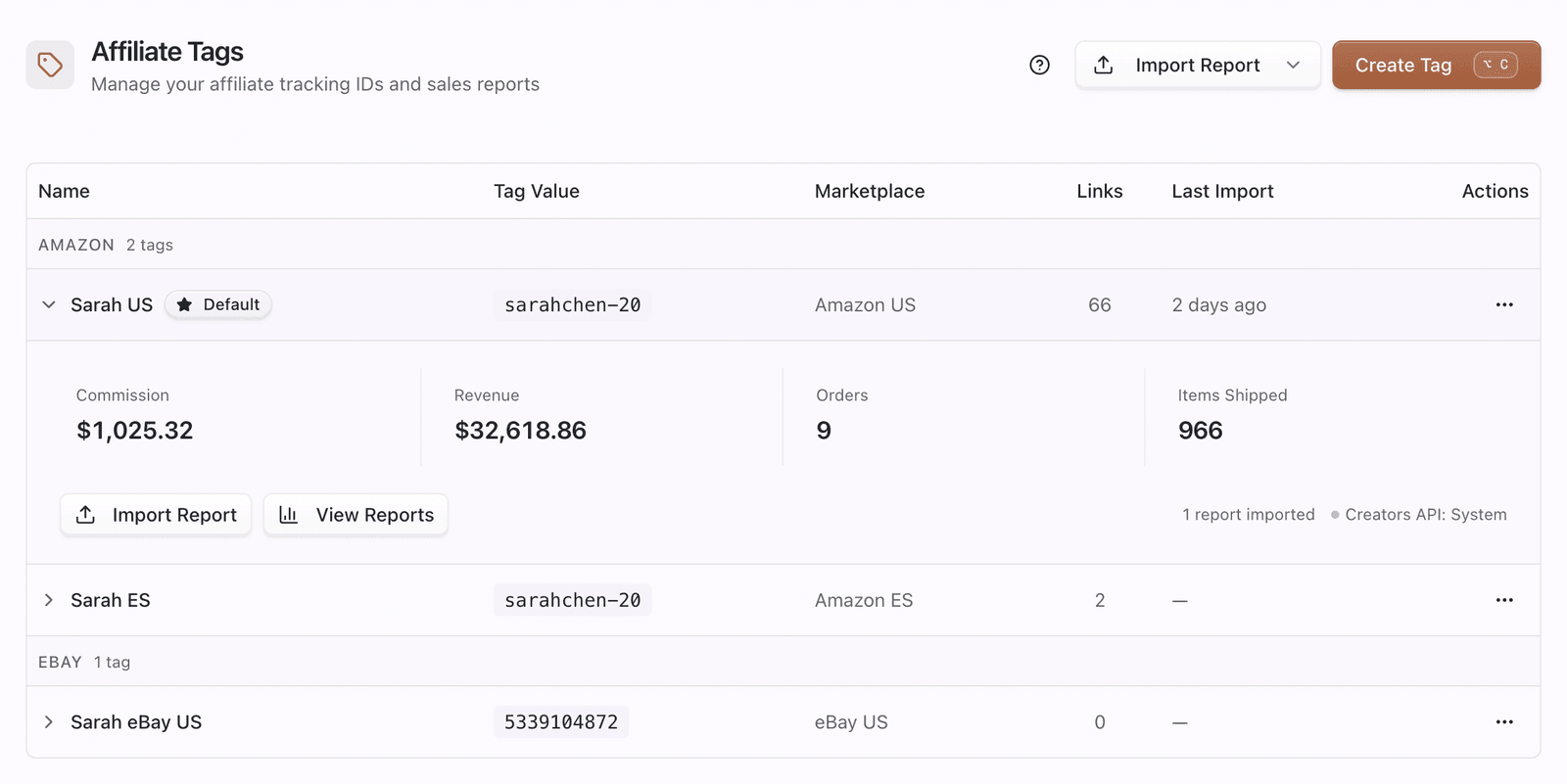
Common problems
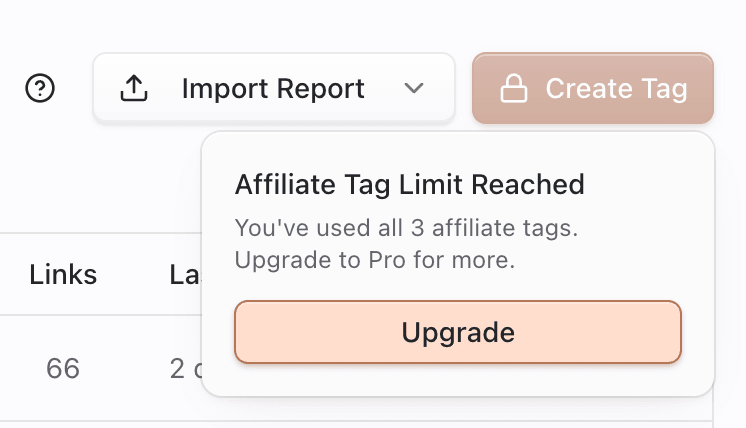
Cannot create a tag (button locked or upgrade message)
- Check the Create Tag control—if it shows a lock, you have hit your plan’s affiliate tag limit.
- Open Dashboard → Billing to upgrade, or delete unused tags to free slots.
- Retry Create Tag.
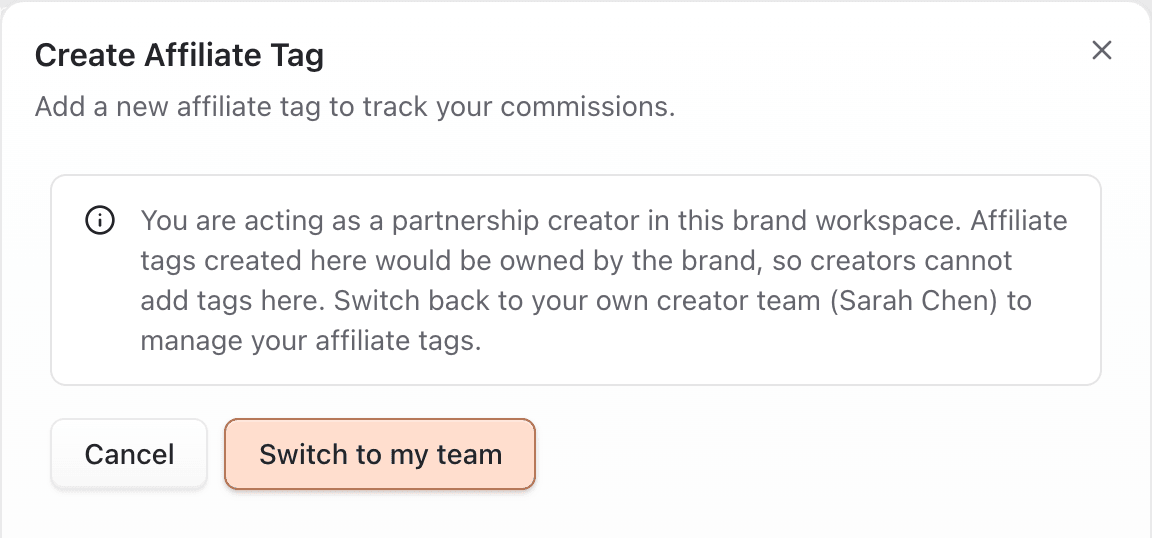
Partnership workspace blocks create
- If you joined a brand as a partnership creator, creating a tag would attach it to the brand team—Pointerly blocks that.
- In the create sheet, choose Switch to my team (or switch teams in the team picker).
- Create the tag on your creator team instead.
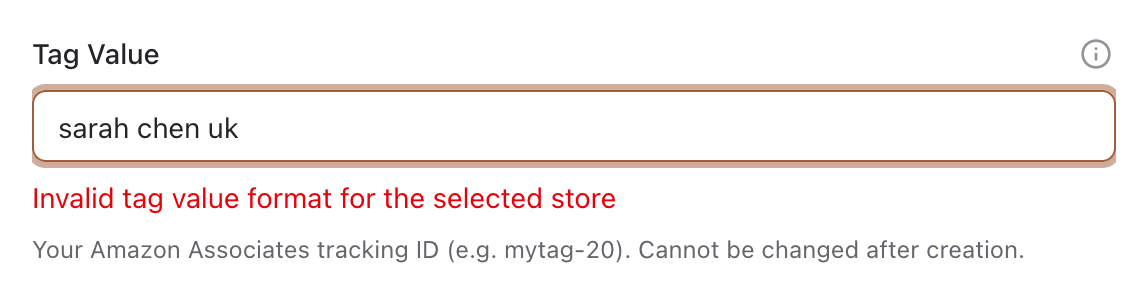
Tag value validation errors
Pointerly validates by store:
| Store | Required format |
|---|---|
| Amazon | 1–50 characters: letters, numbers, hyphens, underscores only |
| eBay | Numeric Campaign ID (campid), up to 15 digits |
| Walmart | accountId/adId/campaignId (three numeric segments) |
- Re-copy the ID from the partner dashboard (avoid spaces or full URLs in the tag value field).
- For Amazon, use the Tracking ID only—not the whole product URL (unless you use Sample affiliate URL, which extracts the tag).
- Save again.
Wrong store or marketplace after save
- Store cannot be changed after creation. Create a new tag with the correct store and migrate links if needed, then delete the old tag carefully.
- Marketplace can be updated on edit for supported locales—open Edit from the tag menu and pick the correct site.
Default tag not applying to new links
- Confirm a Default badge on the intended tag for that store.
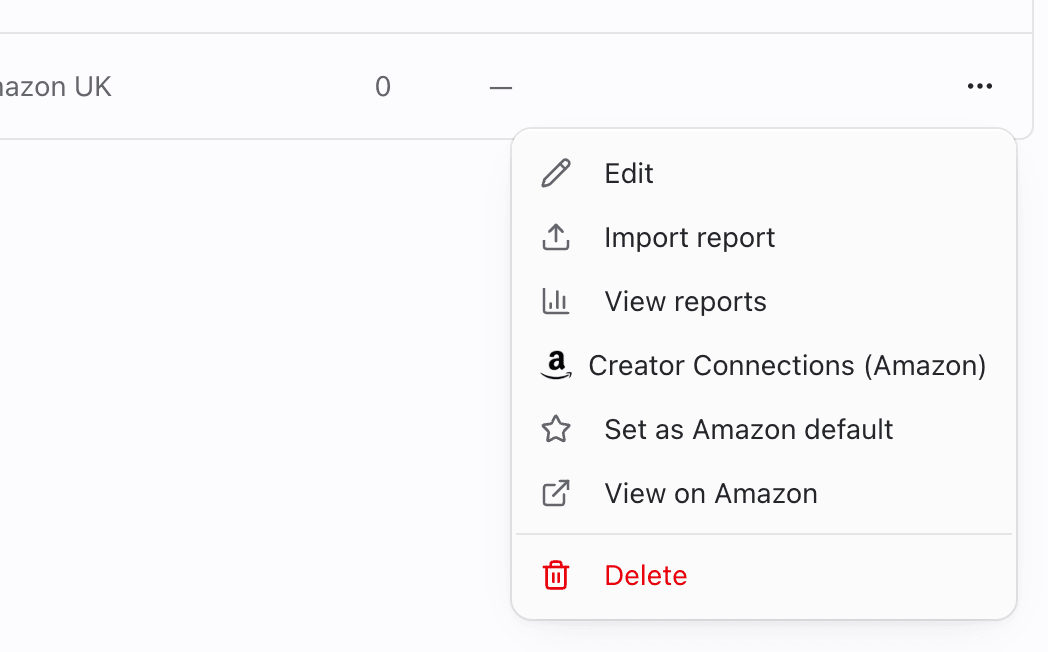
- Use ⋯ → Set as Amazon/eBay/Walmart default (requires permission to set default).
- When creating a link, verify the selected tag matches the destination store.
Import report is locked or missing
- Per-tag Import report / View reports require plan features (
amazon_tag_reports,ebay_tag_reports, orwalmart_tag_reports—typically Individual or higher). - If the menu shows a lock / upgrade badge, open Billing and upgrade.
- You also need permission to import reports (
affiliate_tagsimport orreportsimport).
Report says no rows match the selected tag
- Open the import dialog’s detected Tracking IDs (or scan without a tag selected).
- Compare those IDs to the tag’s tag value—imports match that string.
- Import into the existing matching tag, or use Create tag & import for an unknown ID.
- For Linked-Product (new) Amazon formats with no tag column, select the correct tag manually before Import.
Missing marketplace in smart routing
- Create a tag for the missing locale (see Marketplace coverage).
- Reopen smart routing and attach that tag to the variant.
- Retest the short URL for that geo/marketplace.
Tips
- Keep tag values identical to partner-dashboard Tracking IDs—case-insensitive matching is used on import scans, but exact values avoid confusion.
- Amazon Creators credentials help product data; they do not fix missing Fee Statement imports.
- After successful imports, use Settings → Reports → Sync link stats if link detail still shows stale conversions.